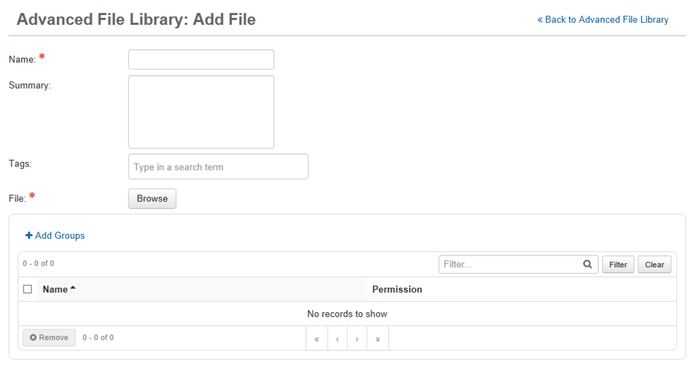
Add a File
Files stored in the .POSITIONS_HOME folder are not visible to other users unless the user searches using the file name. Although files can be shared from within the .POSITIONS_HOME folder, you may want to store them outside of the .POSITIONS_HOME folder to ensure users can find them.
Permissions
When you create a file, you can specify whether other users can change it. The following permissions are available:
-
Edit – Allows others to view a file and make changes to it.
-
Edit/Delete – Allows users to view, edit, and delete a file. Files deleted by the user are moved to the Recycle Bin; only an administrator can restore them.
-
Read Only – Makes a file visible to users but does not allow them to modify it.
These permissions are set for individual files based on groups. The same permissions are applied to all users in an assigned group.
To add a file
-
In the main menu, click the integrations icon
 . The Integrations page opens.
 -
Click the Advanced File Library tab.
-
In the upper right, click Add File. The Add File page opens.
-
Enter information in the fields.
-
Name – Unique name for the file. If left blank, the file name automatically populates with the selected file’s name
-
Summary – Brief description of the file.
-
Tags – Any applicable tags that apply to the file and can be used to search for it.
With the Tagging add-on, bundled with the Advanced File Library
 A respository for the files you want to store and share., you define the tags that users can apply to foldersfiles. Users can use any combination of these existing tags, but they cannot create new tags.
 -
File – To find the file on your computer and upload it, click Browse.
-
Groups – The groups that can access this file.
-
-
To add groups, click Add Groups. In the Add Groups window, select the check box associated with each appropriate group. In Permission, select the permission level. Click Add.
-
If needed, to change the assigned group permission level, click the group’s Edit link and select the new permission level. Click Save.
-
If needed, to delete a group assignment, click the group’s Delete link. To delete multiple group assignments, select the check box for each and click Remove.
-
In the Add File window, click Save.