Email Subscriptions
You can unsubscribe from and resubscribe to email alerts An alert, update, advisory, information, drill, or test message that can be sent & received through delivery methods such as email, voice, text, fax, or inbox. from CORES HAN. When you have unsubscribed from email alerts, your account Used to track and manage users. Accounts differ from your profile, which is used to modify personal settings for using the solution. will be flagged to show you and administrators that you are no longer able to receive email alerts.
You can resubscribe to email alerts at any time, and administrators can also edit your email settings to re-enable these alerts if you're unable to.
To unsubscribe from email alerts
-
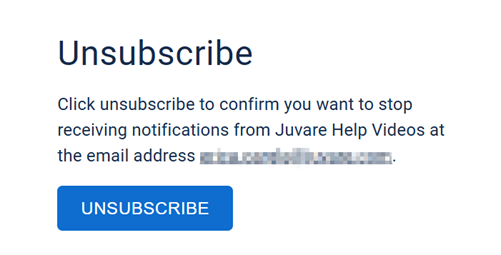
When you receive an email alert from CORES HAN, click the Unsubscribe link in the footer of the email. The Unsubscribe page opens.
-
Click Unsubscribe to confirm your removal from email alerts from this product. The confirmation page opens.
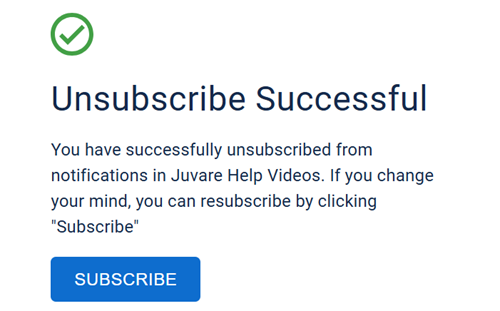
If you have access to multiple Juvare products, unsubscribing from email notifications
An alert, update, advisory, information, drill, or test message that can be sent & received through delivery methods such as email, voice, text, fax, or inbox. for one product does not apply to all products to which you have access. If you want to unsubscribe from all Juvare product emails, you must do this for each application individually.
To resubscribe to email alerts
If you unsubscribed from email alerts in error or want to resubscribe at a later date, there are a few ways to do this.
-
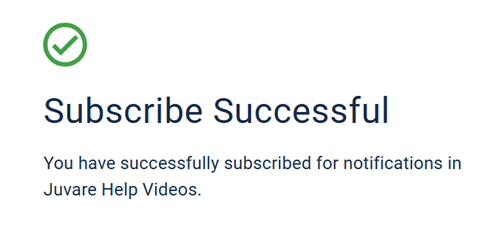
When you unsubscribe from the Unsubscribe page, you can immediately resubscribe by clicking Subscribe. You receive immediate confirmation that the subscription was successful.
-
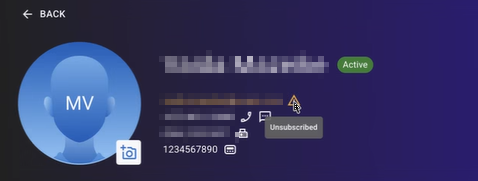
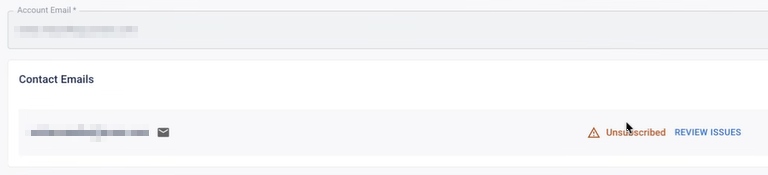
If you want to resubscribe to email alerts and do not have an email link to get to the Unsubscribe page, navigate to your profile
A collection of information that identifies and defines you in the solution. Your profile differs from your account, which is how you log in. in the application. Your profile shows a notification that there is an issue with your contact The internal and external people that participate in, might be affected by, or need to be notified about an incident. email address. -
Hover over the warning icon to see what the issue is. This could be because you have unsubscribed from emails, marked the emails as spam, or because the email address is invalid.
-
Navigate to the
-
Click Review Issues. The issue window opens, allowing you to review and remediate the issue.
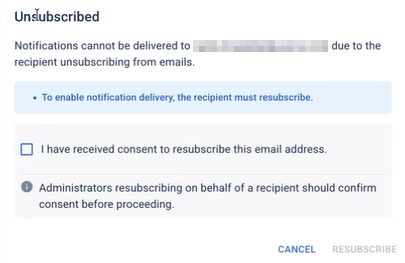
-
Enable the consent checkbox, then click Resubscribe.
Administrators can do this on behalf of users by finding them in the user directory A list of all users that have access to the application. and navigating to their profile to review and fix email issues, following the same steps described above. Administrators can also access the issue window directly through the user profile slideout.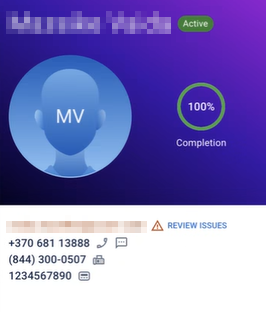
If you have access to multiple Juvare products, resubscribing to email notifications for one product does not apply to all products to which you have access. If you want to resubscribe to all Juvare product emails, you must do this for each application individually.