DesignStudio 3.1 Release Notes
These notes describe enhancements and resolutions introduced in the DesignStudio 3.1 release scheduled for September 25, 2026. More information is available in this help center or by contacting the Juvare Support Center at +1 (877) 771-0911 or support@juvare.com.
New Features
Import and Refresh WebEOC Lists for Boards
You no longer need to recreate WebEOC lists in DesignStudio. In the Board Gallery, the Explorer has a new section called WebEOC Lists that allows you to import and refresh WebEOC lists directly from WebEOC, based on the board’s selected publish profile Configuration that deploys boards and forms to one or more WebEOC environments in a named sequence of steps.. Once imported, the list can be used across the board in Select, Toggle Radio Component that displays buttons where users select one option at a time instead of radio buttons., and Status Indicators Visual element using color and icon to display a record's status on a list view based on its value. components.
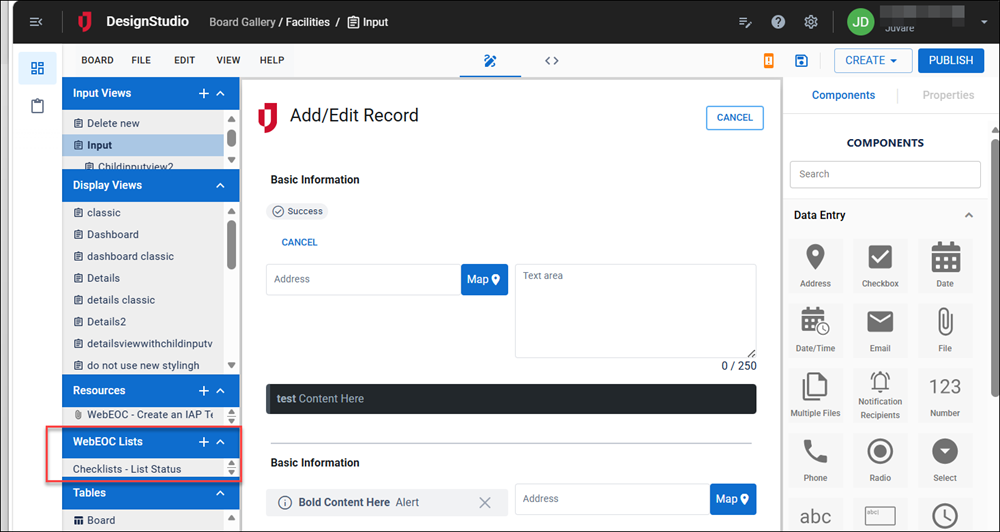
See Import and Manage WebEOC Lists for details.
WebEOC List Associations for Components
-
Select, Toggle Radio, and Status Indicators components can link directly to a WebEOC list via a drop-down. When the list values are refreshed, all lists that use those values are refreshed. See Select, Status Indicators, and Toggle Radio for details.
-
Toggle Radio WebEOC List Association: Toggle Radio components can be linked to a WebEOC list so options and colors match automatically.
-
Static Status Indicator Lists: When configuring status indicators with the Status Indicators component, you can configure a custom, standalone list of text, icons, and colors instead of pulling these values from a WebEOC list. See Status Indicators for details.
-
List View Badge Colors: When badge color is enabled for a field in the List view wizard field configuration, that field is given a text color that matches the associated WebEOC list for that field.
View-Level Filters for List Views
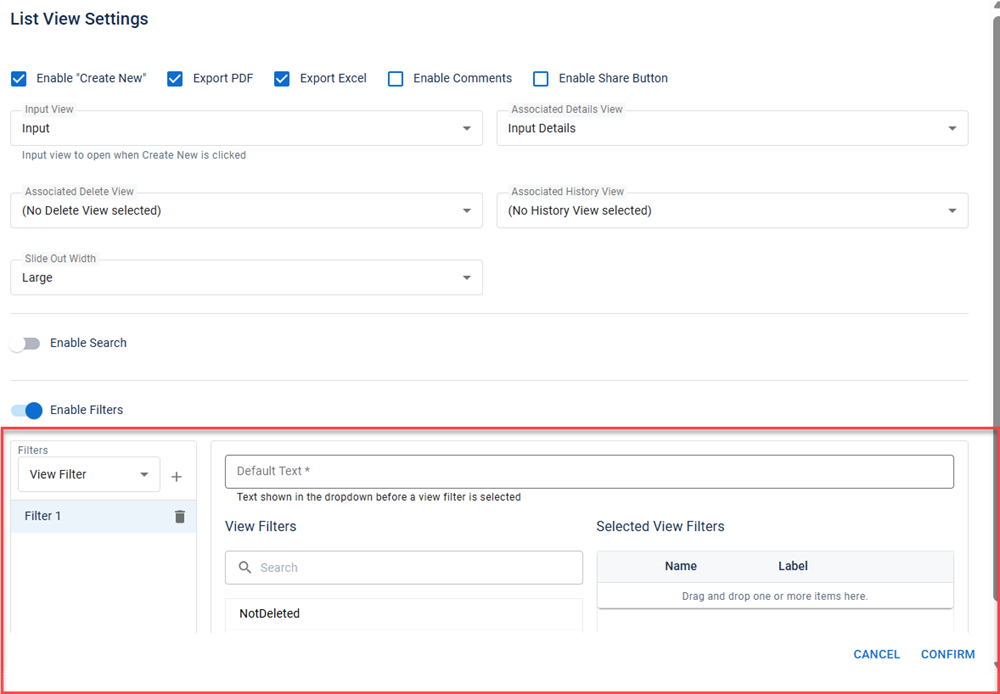
When configuring filters for a List view using the List View Settings component (available with Nexus Component Styling only), you can now configure View filters (in addition to List filters). Users can select these filters from a drop-down to filter data on the board in WebEOC. See List View Settings for details.
List View Slide-Out Width Control
When using Nexus Component Styling, you can set the width of the slide-out panel for Input, Details, and History views when they are accessed from the List view in WebEOC. Set it using the Slide Out Width drop-down when creating a List view or when working in the List View Settings component.
History View Header Actions
History views now include Share, Comment, Export, and Close options, matching Details views.
Status Indicator Tooltips
Now, if a user hovers their cursor over a status indicator in a List view, a tooltip displays with the underlying status field name and status value.
Enhancements
Auto-Fill Export Labels
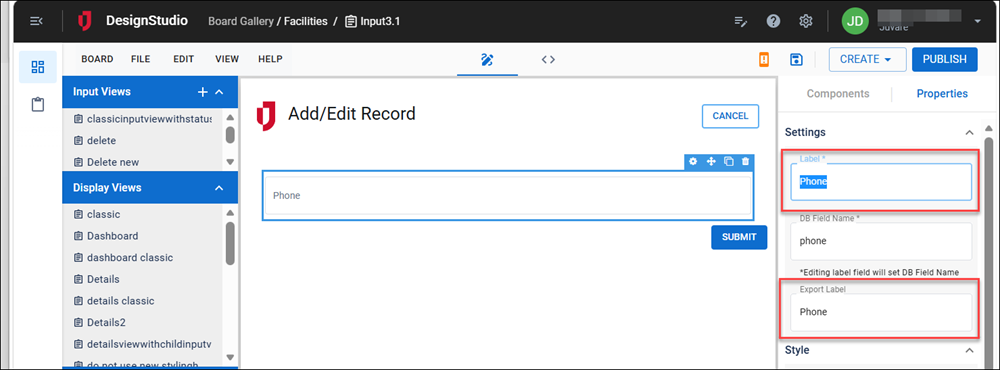
For all Input components that have both a Label and an Export Label field (regardless of Classic Styling or Nexus Component Styling), the Export Label now auto-fills from the typed text in the Label field.
List View Components Shortcuts
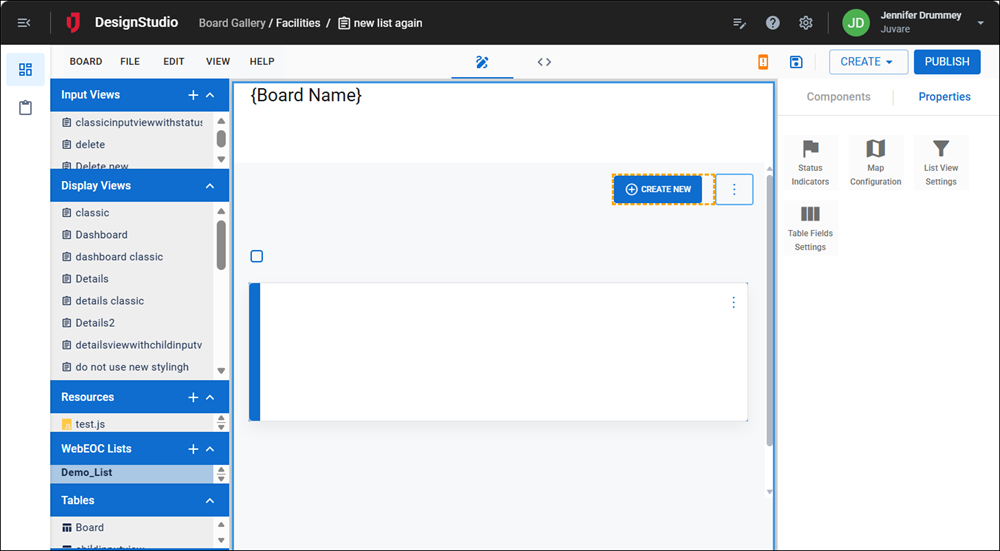
To make List view configuration easier, shortcuts to List view components have been added to the Properties panel when you are working in a List view. You can access the following components from the Properties panel:
-
List View Settings
-
Map Configuration
-
Status Indicators
You can still access these components in the Components tray in the Toolbox section.
Status Badge Toggle Refinement
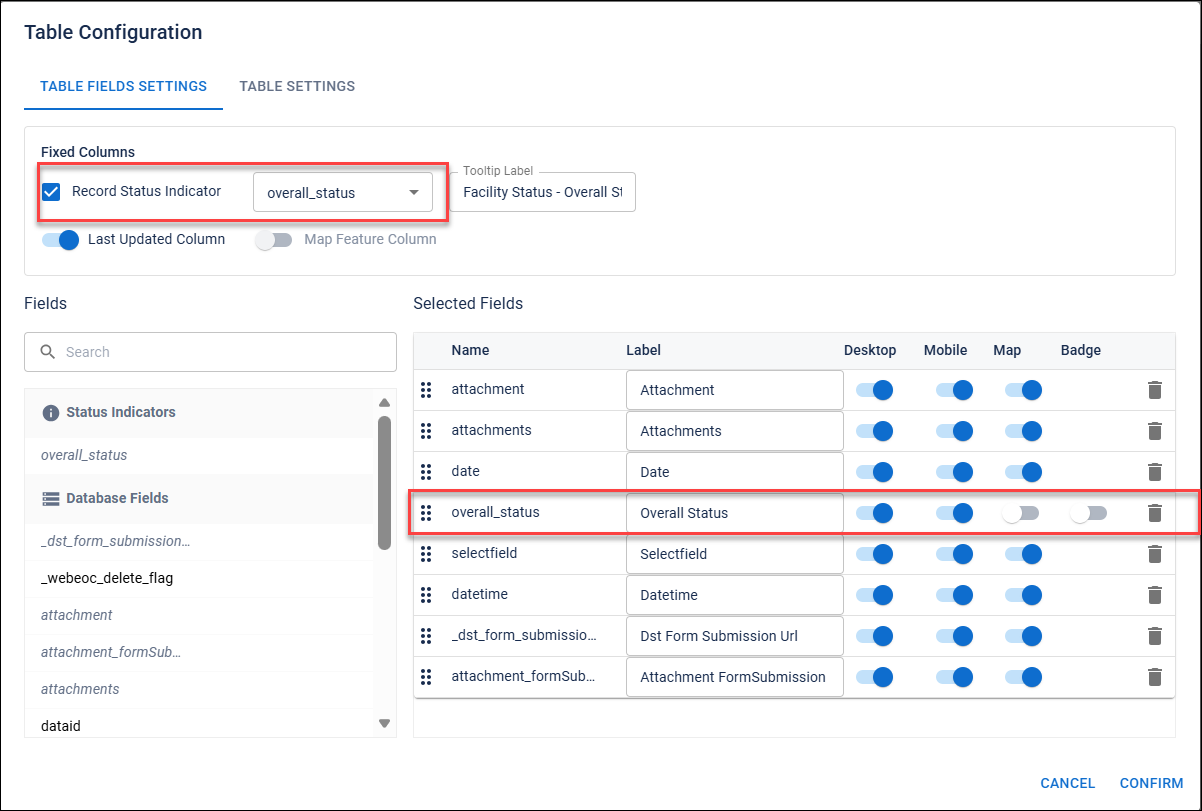
For List views, for the Table Fields Settings component, the Status toggle, which sets whether the status badge should display in the row, now only appears for Status Indicator fields.
Status Field Sort Order
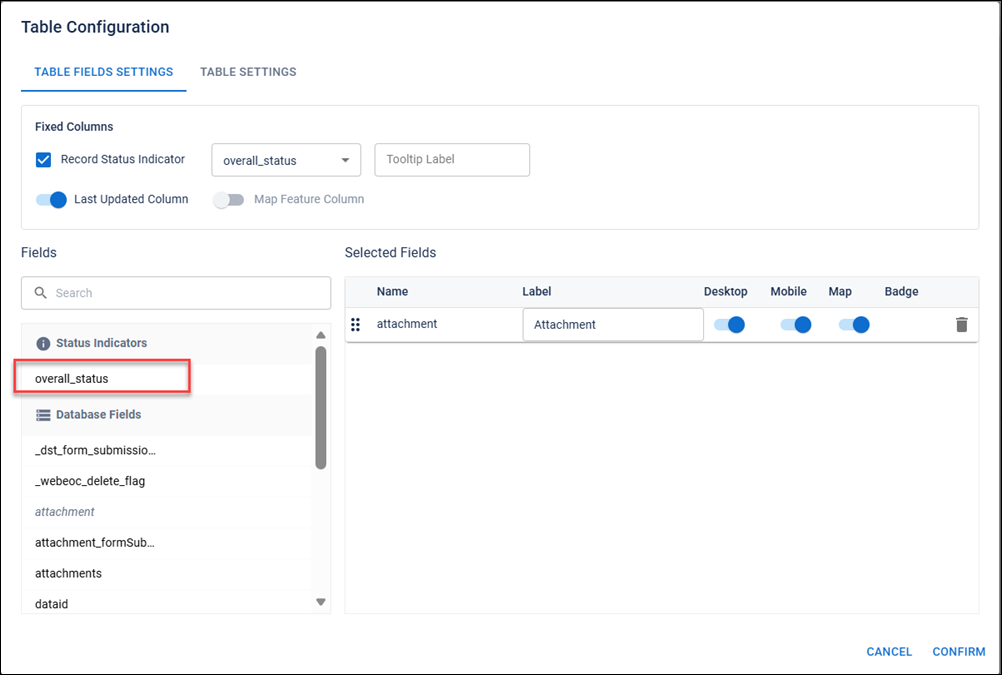
In List views, the Table Fields Settings component now sorts configured status fields to the top of the Fields list on the Table Fields Settings tab.
Help Update
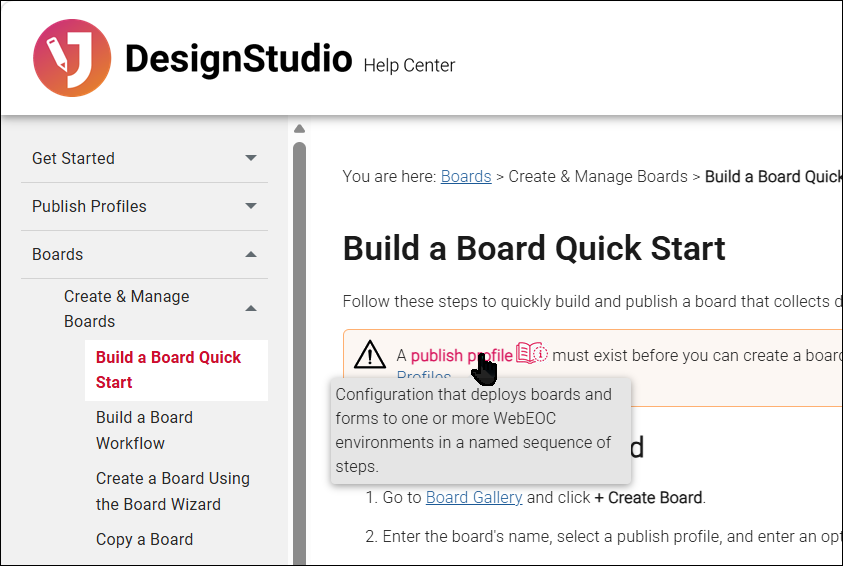
The DesignStudio Help Center now includes in-page glossary terms. Hover over these terms to view a pop-up definition. We welcome your thoughts on this new Help feature; to provide feedback, click the Help Center feedback button  : on any page to generate an email to the Documentation team.
Resolutions
List Views and Filters
-
List View Filter Overlap: Fixed an issue where the filter controls created with Nexus Component Styling components overlapped other screen elements when they displayed on the board in WebEOC. Now, filter controls display as designed on List view pages.
-
Filter Pill
Clickable button in a List view that applies a predefined filter to board data, with optional expressions and multiple-filter grouping. Placement: Fixed an issue where, when you dropped a filter pill component onto the canvas, it did not display in the standard location. Now, when you drop a filter pill onto the canvas, it docks above the Create New button. -
Table Fields Settings Header Alignment: Fixed an issue that occurred after the user added fields to the table using the Table Fields Settings component. Headers and columns were misaligned on the board in WebEOC. With the fix, headers and columns are aligned in List views configured with the Table Fields Settings component.
-
Map View Table Alignment: Fixed an issue where, if you opened a map on a List view in WebEOC for a board created in DesignStudio, the header and columns could become misaligned. With the fix, opening a map no longer affects the List display.
-
List View Height Fix: List views created using Nexus Component Styling did not use the full available height in WebEOC. With the fix, the List view displays using all of the available height.
-
Mass Delete View Visibility: The List Mass Delete view displayed as an option is some drop-downs in DesignStudio. This view, which should not be used, has been removed.
-
Tab Group
Component that adds navigation tabs allowing users to switch between different board views. View Filtering: Fixed an issue with creating tab groups where History views incorrectly appeared as selectable options in tab groups. History views cannot be used with tab groups; only List and Dashboard views can. -
Associated Input and Delete View Drop-downs Auto-Selection: Fixed issues when creating Delete, Details, or Dashboard views. The Input View drop-down did not populate with the correct Input view. The currently selected Input view now populates this drop-down by default. Additionally, the auto-generated Delete view also displayed incorrectly in the Input View drop-down. This view has also been removed.
-
Properties Panel Visibility: Fixed issues that allowed users to view internal/developer-only properties in the Properties panel.
Status Indicators
-
Status Indicator Naming Conflicts: Fixed invalid status indicator configuration that caused WebEOC to crash. Users could set two invalid conditions on the Configure Status Indicators dialog. Now, in both cases, a validation error prevents users from saving these invalid configurations:
-
Multiple identical status indicator Status Names
-
Identical Status Name and Field Name
-
-
Status Indicator Column Sorting: Fixed an issue where if a user sorted a List view in WebEOC on a status indicator column, the board crashed. With the fix, sorting by a status indicator column functions as expected.
-
Status Indicator Preview Accuracy: Fixed the row-level status indicator preview showing a random icon instead of the configured one.
Date and Time
-
Date-Only Field Display: Fixed an issue where fields created with the Date component incorrectly displayed a time value.
-
Datetime Column Formatting: Fixed issues with fields created with the Date/Time component, which were formatted using 24-hour time regardless of the configured time setting. Additionally, in the WebEOC Mobile App, Date/Time fields displayed unformatted raw values. With the fix, the hour is formatted according to configured setting, and the WebEOC Mobile app displays data in Date/Time fields correctly.
Components and Boards
-
Decimal Field Input Fix: Fixed an issue where users could not enter decimal values when a field's type was set to decimal number.
Accordion
Container with collapsible sections that store components, supporting nesting and optional view links. Height Spacing: Fixed accordion components retaining extra white space after a user switched height from Large to Fit. -
Rich-Text Editor Rendering: Fixed the rich-text editor failing to load when placed alongside three other components in a single row on the canvas.
-
Dark Mode Slide-Out Styling: Fixed an issue with boards created using Nexus Component Styling and configured to use dark mode. In some cases, the slide-outs did not display in dark mode. With the fix, slide-outs configured to use dark mode display with the correct styling in WebEOC.
-
Number Field Default Text: Fixed an issue with the Nexus Component Styling version of the Number component. If you entered text in the Default Text field, it did not display in the field. Now, text entered in the Default Text field displays by default in the field on the board.
-
Multiple Files Component Naming: Fixed an issue with the Nexus Component Styling version of the Multiple Files component. After you added the component to an Input view, copying the component resulted in a copy with no name. With the fix, copy works as expected.
-
Board Publish Without Open View: Fixed an issue preventing boards from publishing when no view was open.
-
Expression Name Validation: Fixed an issue with components that use expressions (Filter Pill, Card, and Mini-expression Card). In previous versions, DesignStudio allowed any field that stored an expression name to accept spaces, which could crash the board. With the fix, all spaces entered in expression name fields are converted to underscores.
-
Details View Button Sizing: Fixed inconsistent sizing of Share and Comments buttons in the Details view header.
-
Filter Pill Color Issue: Fixed an issue where a filter pill's color configuration was not reflected in the board in WebEOC. With the fix, filter pill colors set in DesignStudio display in WebEOC.
Forms & File Uploads
-
File Upload Reliability: Fixed an issue that occurred for boards that use the File component, where there were intermittent failures when users uploaded files. Now, boards that use the File component allow users to upload files without issue.
-
Details/List Views Single File Display: Fixed an issue related to Details and List views created in DesignStudio using the File component that allows users to attach a file or image to a board record. After the attachment was saved, it displayed incorrectly in WebEOC. With the fix, attachments display as icons as expected.
-
Details/List Views Multiple File Display: Fixed an issue related to Details and List views created in DesignStudio using the Multiple Files component that allowed users to attach multiple files or images to a board record. After the attachments were saved, they displayed incorrectly in WebEOC. With the fix, attachments display as icons as expected.
-
Form Attachment Display: Fixed an issue related to a form with attached files or images. After the form was submitted, the file or image did not display in WebEOC. Now, files or images submitted on forms display as expected.
-
Submissions Status Icon Refresh: Fixed an issue where a form was submitted and an error occurred, but the Submissions page showed an incorrect status icon until the page was manually refreshed. With the fix, the Submissions page displays the correct error icon.
-
User Form Settings Edit Permissions: Fixed an issue where DesignStudio non-admin users could not update settings on forms. With the fix, users can edit forms as expected.
Previous Versions
Release notes for previous versions are available here.