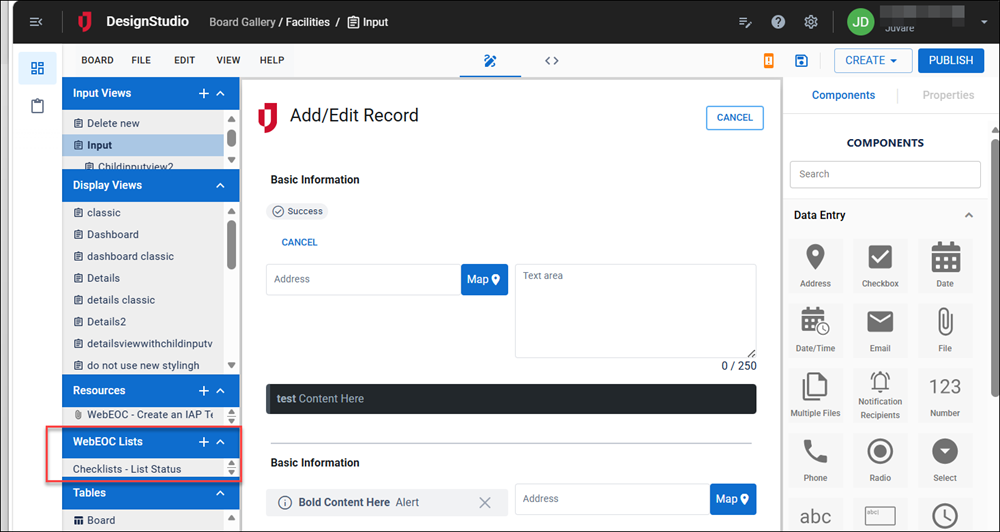
In the Explorer, the WebEOC Lists section lets you import the WebEOC lists used by your board. After the list has been imported, its values can be refreshed. Refreshing pulls the list definition from WebEOC and replaces the version in DesignStudio with the updated WebEOC version.
After the WebEOC list has been imported, it can be used across the board in Select, Toggle Radio, and Status Indicators components.
If a list in the board has not yet been imported, you can import it from the WebEOC List Name drop-down on the Select, Toggle Radio Component that displays buttons where users select one option at a time instead of radio buttons., and Status Indicators components. It is also automatically added to the WebEOC Lists section of the Explorer.
To import a WebEOC list
-
In the Board Gallery, locate the board for which you want to import a list, and then click Design.
-
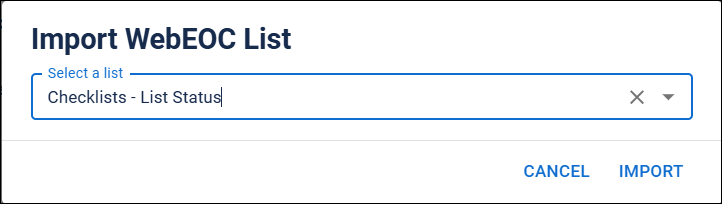
In the Explorer, in the WebEOC Lists section, click the + icon. The Import WebEOC List dialog opens.
-
Select the list.
-
Click Import.
To view and refresh the values in a WebEOC List
-
In the Board Gallery, locate the board for which you want to refresh a list, and then click Design.
-
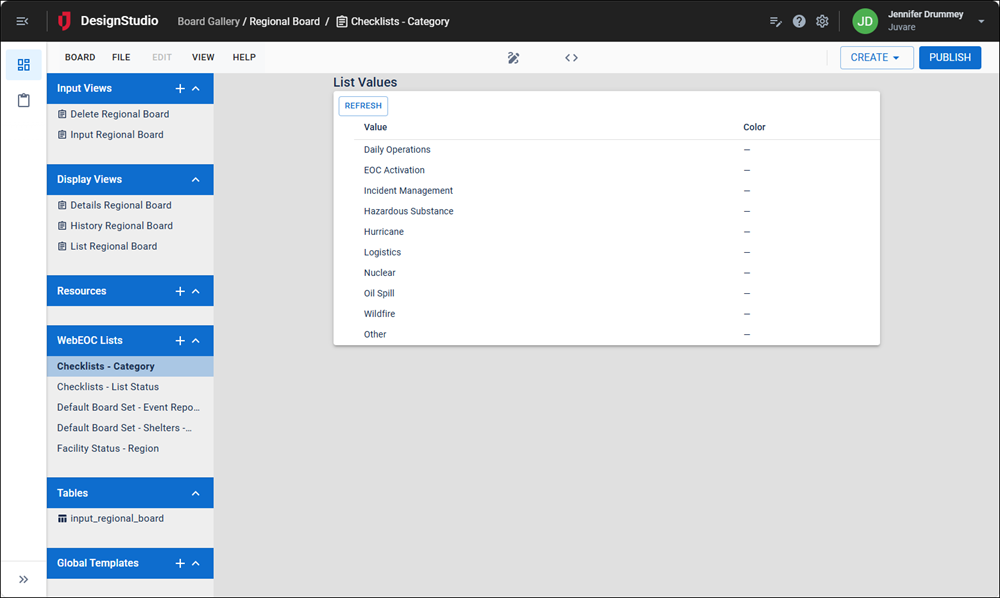
In the Explorer, in the WebEOC Lists section, click the list name. The List Values page displays.
-
Click Refresh. The values are updated across every view that uses this list.
You can also refresh the list values from WebEOC by clicking the more icon
 and selecting Refresh.
When you view the list values following these steps, DesignStudio opens in Configuration mode to display the list values. Open Design mode to return to working in your board.
To delete a WebEOC list
-
In the Board Gallery, locate the board for which you want to delete a list, and then click Design.
-
In the Explorer, in the WebEOC Lists section, locate the list and click the more icon
. -
Select Delete.
Deleting a list in DesignStudio has no effect on the list in WebEOC.
Related Concepts
Related Tasks
Create a Board Using the Board Wizard
Preview Boards on Multiple Devices
Preview Boards in Light and Dark Modes
View History and Restore Versions
Reference Materials