This component is not available as a Classic Styling component and can only be used if you select the Use Nexus Component Styling checkbox when creating a view.

The Status Indicators Visual element using color and icon to display a record's status on a list view based on its value. component allow you to define how icons and colors display for fields on boards to indicate a record’s status. For example, you may format the Operational status as showing in green with a thumbs-up icon. You can base the status indicator colors, icons, and values on a WebEOC list or a static list you create.
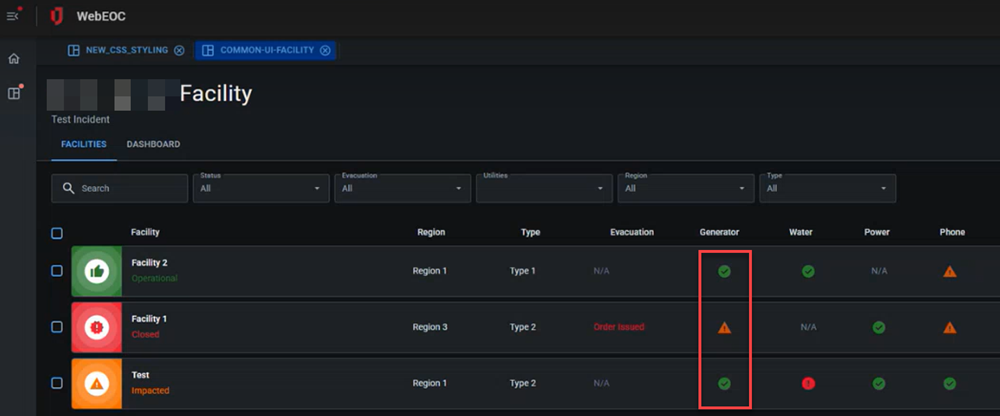
The Status Indicators component is supported in the List view and is found in the Toolbox section of the Components tray.
See Add Board Components for details about adding components to a view.
The initial settings for this component are configured when creating the List view on the Card Table Configuration page. After saving the List view, perform updates using this component.
To edit status indicators
-
In a List view, in the Toolbox section, click the Status Indicators component. The Configure Status Indicators dialog opens.
-
On the Indicator Properties tab, in the Status Name field, enter the status name as it should appear to the user.
Changing this can break existing configurations that reference the old status names.
-
In the Field Name drop-down, select the field in the List view that contains and displays the status values.
-
In the Status Source drop-down, select:
-
WebEOC List if the select list pulls options from a list created in WebEOC.
-
Static List if the select list pulls options from a list built as part of these settings.
-
-
If Status Source is WebEOC List, in the WebEOC List Name field, either:
-
Select the WebEOC list name containing the options to use from the drop-down.
If you have imported a WebEOC list into this board, it displays as an option in the WebEOC List Name drop-down.
-
Click the + sign to import a WebEOC list.
If you add a WebEOC list via the WebEOC List Name drop-down and it has not previously been imported, it will be added to the Explorer in the Board workspace in the WebEOC Lists section, where its values can be refreshed as needed. See refresh values for details.
-
-
If you selected Static List, continue configuration on the Status Icon Config tab as described below.
-
Optionally, click the search icon in the Mobile Icon field to select an icon to use for this status indicator in the mobile view. When the board displays on mobile, this icon is used for this status.
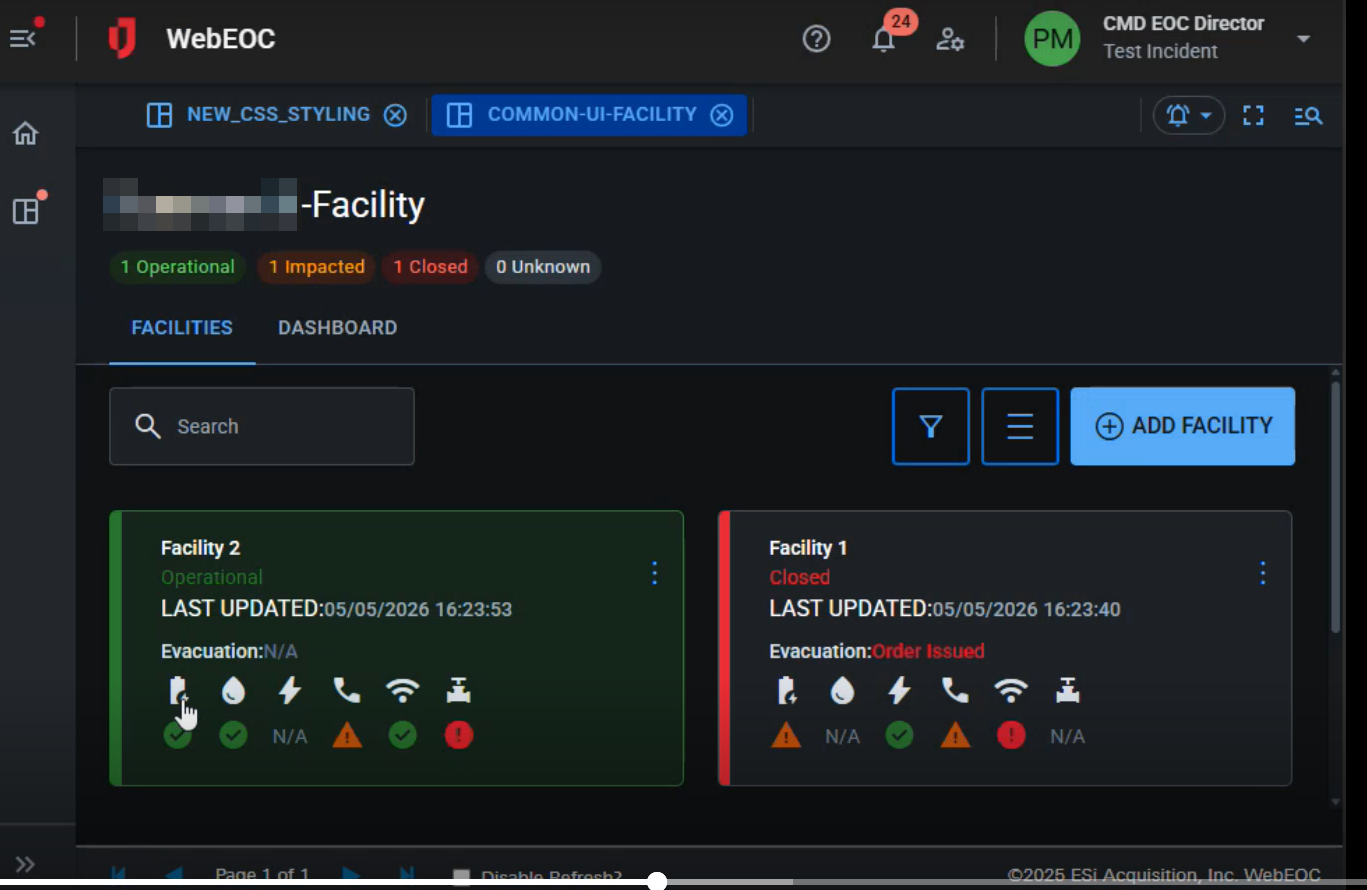
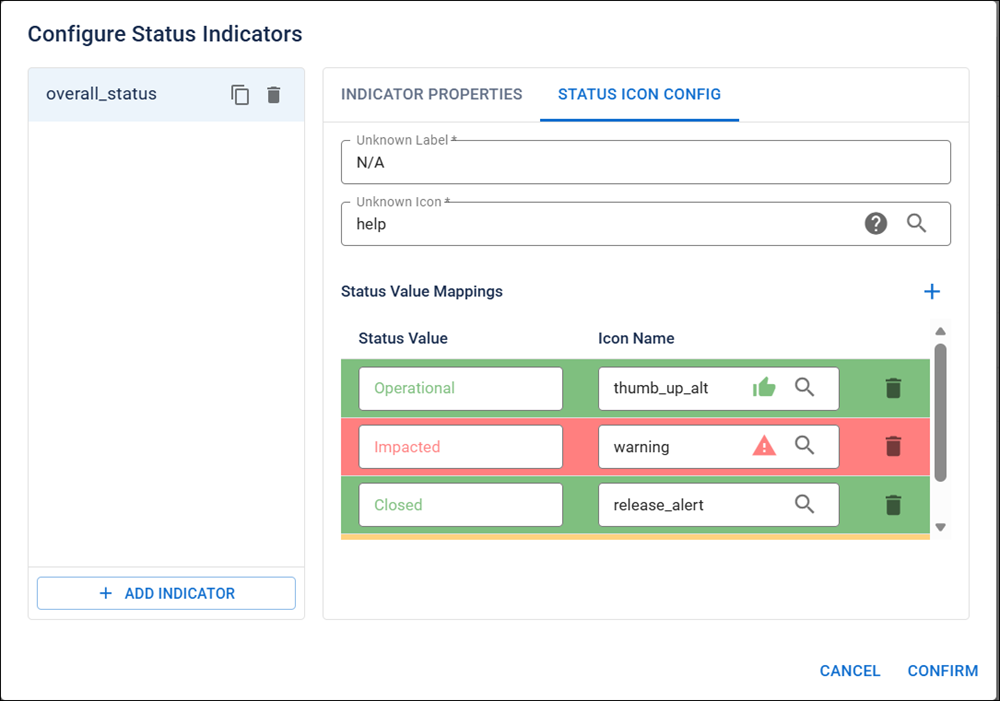
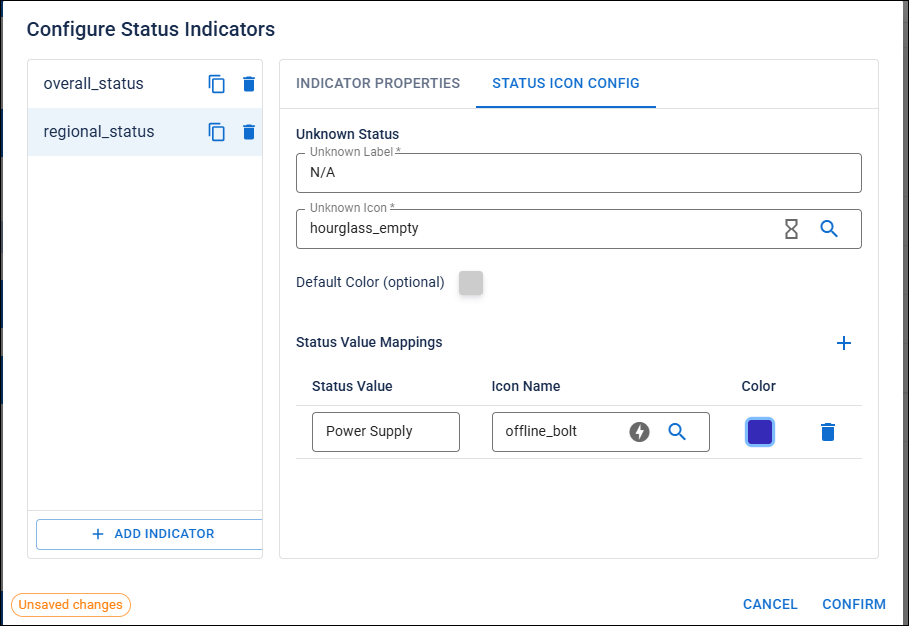
On the Status Icon Config tab, in the Unknown Status section, configure settings for the status indicator icon for those values that are not mapped to known values. If a value that is not included in the WebEOC list or the static list is saved in the field, these settings are used to configure how these unknown values display.
-
In the Unknown Label field, enter a label for the unknown value.
-
Click the Unknown Icon field to select an icon that displays for status values that are not mapped to those in the WebEOC list or the static list.
-
In the Default Color field, select the color for the icon.
-
In the Status Value Mappings section, click the + sign to add field-level status indicators.
-
Click Confirm.
Next, add a status indicator to a List view using the Table Fields Settings Component Nexus Component Styling.
To create new status indicators
-
In a List view, in the Toolbox section, click the Status Indicators component. The Configure Status Indicators dialog opens.
-
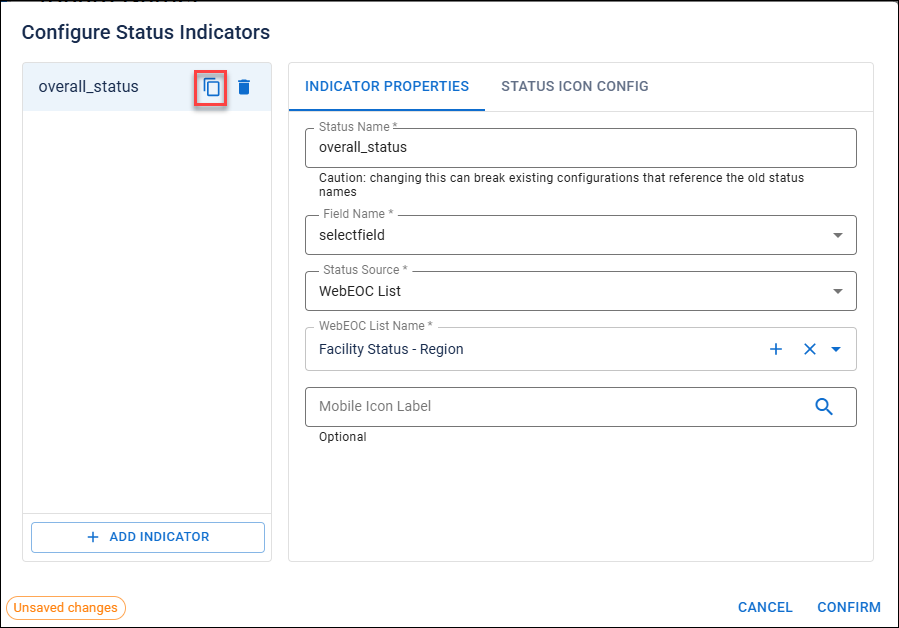
Click the copy icon.
-
On the Indicator Properties tab, in the Status Name field, enter the status name as it should appear to the user.
-
In the Field Name drop-down, select the field in the List view that contains the status indicator name.
-
In the Status Source drop-down, select:
-
WebEOC List if the select list pulls options from a list created in WebEOC.
-
Static List if the select list pulls options from a list built as part of these settings.
-
-
If Status Source is WebEOC List, in the WebEOC List Name field, either:
-
Select the WebEOC list name containing the options to use from the drop-down.
If you have imported a WebEOC list into this board, it displays as an option in the WebEOC List Name drop-down.
-
Click the + sign to import a WebEOC list.
If you add a WebEOC list via the WebEOC List Name drop-down and it has not previously been imported, it will be added to the Explorer in the Board workspace in the WebEOC Lists section, where its values can be refreshed as needed. See refresh values for details.
-
-
If you selected Static List, continue configuration on the Status Icon Config tab as described below.
-
Optionally, click the search icon in the Mobile Icon field to select an icon to use for this status indicator in the mobile view. When the board displays on mobile, this icon is used for this status.
On the Status Icon Config tab, in the Unknown Status section, configure settings for the status indicator icon for those values that are not mapped to known values. If a value that is not included in the WebEOC list is saved in the field, these settings are used to configure how these unknown values display.
-
In the Unknown Label field, enter a label for the unknown value.
-
Click the Unknown Icon field to select an icon that displays for status values that are not mapped to those in the WebEOC list.
-
In the Default Color field, select the color for the icon.
-
In the Status Value Mappings section, click the + sign to update field-level status indicators to icons.
-
Click Confirm.
Next, add a status indicator to a List view using the Table Fields Settings Component Nexus Component Styling.
Related Concepts
Create a List View Classic Styling
Create a List View Nexus Component Styling
Related Tasks
Add a Filter and/or Search Button to a List View Classic Styling
Edit a Collapsible Embedded Map Classic Styling
Assign a Delete View to a List View Classic Styling
Update the View Header for a List View Nexus Component Styling
Table Fields Settings Component Nexus Component Styling