Import a Patient Data File
Administrators can upload patient data in bulk using a Microsoft Excel® or comma-separated values (CSV) file. Properly setting up your patient import file helps you avoid import errors or incorrect data being added to EMTrack.
To import a patient data file
-
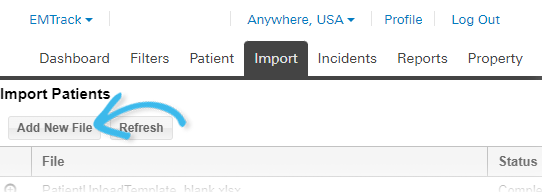
Navigate to the Import tab.
-
Click Add New File. The Import Patients window opens to Step 1 of 4 - Locate the .xls, .xlsx or .csv file to upload.
-
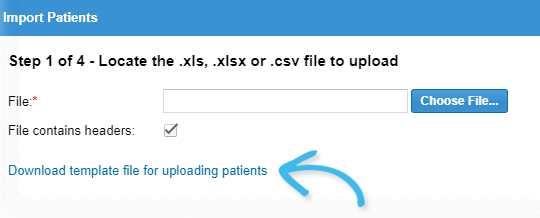
As appropriate, click Download template file for uploading patients. Refer to Download Patient Import Template and Set up Patient Import File for additional information.
-
When your patient data file is ready, on the Import Patients window - Step 1 of 4, click Choose File. Depending on your browser, the Open or Locate window opens.
-
Navigate to the location
 Generally refers to the region or to a division, such as a provider facility or mobile provider. Every user is granted access to at least one location. where your patient data file is stored, and click to select it.
 -
Click Open. The browser window closes, and the name of the file you selected appears on the Import Patients window.
-
As appropriate, select the File contains headers checkbox if your file contains a header row. This checkbox is selected by default.
-
Click Next. The Import Patients window opens to Step 2 of 4 - Specify Common Fields.
-
Select or enter the following information.
Import Patients fields Field Description Incident
Incident Involvement
Name or type of incident
Current Location Information
Current Location
Site or facility where the person is located.
Sub Location
Secondary location or sub-site where the person is located.
Comment
Additional information the user feels would be helpful to document.
Destination Location Information
Destination Location
Site or facility to which the person is being transported.
Sub Location
Secondary location or sub-site to which the person is being transported.
You must specify Current Location and/or Destination Location.
-
Click Next. The Import Patients window opens to Step 3 of 4 - Map Columns and column headers from your file are automatically mapped to EMTrack Field Names.
-
Verify that the data is mapped correctly. As appropriate, change the field mapping by clicking the drop-down list in the EMTrack Field Name column for the appropriate row. For more information, refer to Set up Patient Import File.
-
Click Next. The Import Patients window opens to Step 4 of 4 - Review Patient Import; and the patient data has been verified. As appropriate, click Back or Cancel to make changes.
-
Click Start Import. The window closes, and the Import tab displays a status page.
Related Concepts