Create a Folder
With the File Library A respository for the files you want to store and share., you can manage related documents and files in one place. To assist in organizing your uploaded documents, create a folder in the library.
To create a folder
-
In the main menu, click the integrations icon
 . The Integrations page opens.
 -
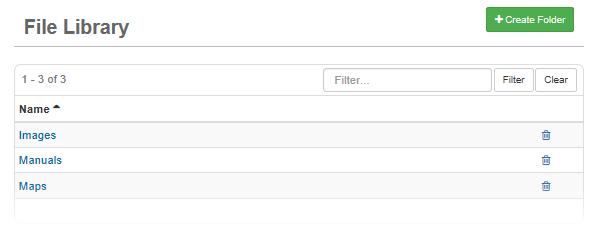
Click the File Library tab. The File Library page opens.
-
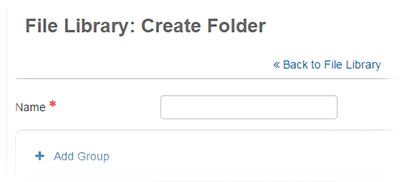
Click Create Folder. The File Library: Create Folder page opens.
-
Enter a name for the folder.
-
Select one or more groups to assign.
-
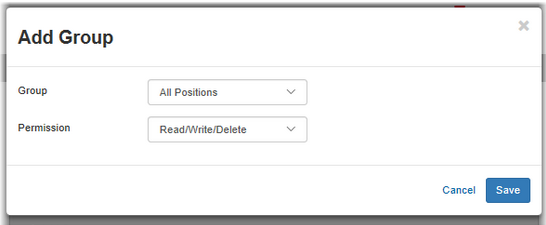
To add a group to the list, click Add Group.
-
To remove a group, select it and then click the Remove button.
-
-
Click the Permission drop-down list and select the appropriate permissions for this group.
With Read permissions, a user can only view files in that folder. With Read/Write permissions, a user can view all files residing in that folder and add files to the folder. With Read/Write/Delete permissions, a user can view, add, edit, and delete files in the folder.
-
Click Save.