Post a Message to COGs
To post a message to COGs
-
In the main menu, click the plug-ins icon. The Plug-Ins page opens.
-
Click IPAWS Messaging. The IPAWS Messaging page opens, displaying all messages in your Inbox.
-
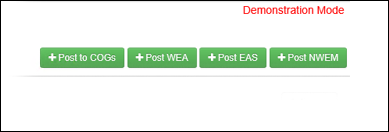
Click Post to COGs in the upper right.
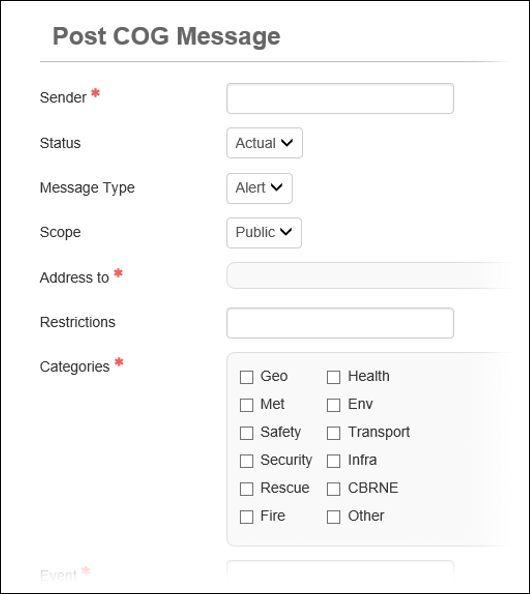
The Post COG Message page opens.
-
Enter the message information in the fields.
COG message fields Field
Definition
Sender
Individual sending the message.
Status
Status of the message.
Message Type
Type of message being sent.
Address to
All COGs to send the message to.
COGs available in this field are determined by your administrator.
Restrictions
Any restrictions that apply to the message.
Categories
All categories that describe the message.
Event
Type of event that originated the message.
Event Codes
A code that best describes the type of event.
Urgency Urgency of the event. Severity Severity of the event. Certainty Certainty of the event. Expiration Time Time after which the alert is no longer valid. Affected Areas Counties in which the message should be distributed.
If you have permissions to send messages in more than one state, you can select counties in all states available to you. Click the Map button to draw the area of distribution on the map. You can also view the distribution area from the preview page. See Define a Distribution Area on a Map for details.
Response Type Appropriate response for the event described in the message. Headline Headline for the message. Description Any additional details about the event. Instructions Instructions for the recipients on how to respond to the event. -
Click Preview Message at the bottom of the page. The preview page opens.
If you want to make changes, click Cancel on the preview page. The Post COG Message page re-opens.
- Click Post Message.
Related Concepts
IPAWS Messaging User Guide Overview
Reference Materials
Related Tasks