Update, Cancel, or Delete Messages
After a message has been sent, you can update it with additional details or cancel it if the information in the message is no longer current. These options do not withdraw the original message from the recipients' Inbox. Instead, they enable you to send a new message that references the original and states whether it needs to be updated or canceled.
To update a message
-
In the main menu, click the plug-ins icon. The Plug-Ins page opens.
-
Click IPAWS Messaging. The IPAWS Messaging page opens, displaying all messages in your Inbox.
-
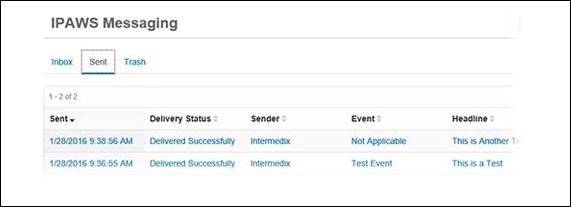
Click the Sent tab.
-
Open the message you want to update by clicking any of its active links within the table columns.
-
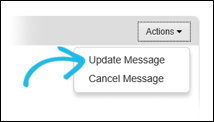
In the upper right, click the Actions button and select Update Message from the menu.
-
On the Post Update Message page, modify message information as necessary.
-
Click Preview Message.
If you want to make more changes, click Cancel on the preview page. The Post Update Message page re-opens.
-
Click Post Message.
To cancel a message
-
In the main menu, click the plug-ins icon. The Plug-Ins page opens.
-
Click IPAWS Messaging. The IPAWS Messaging page opens, displaying all messages in your Inbox.
-
Click the Sent tab.
-
Open the message you want to cancel by clicking any of its active links within the table columns.
-
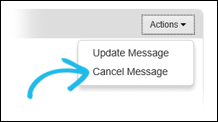
In the top right, click the Actions button and select Cancel Message from the menu.
-
When the confirmation window opens, click OK.
To move a message to the Trash folder
-
In the main menu, click the plug-ins icon. The Plug-Ins page opens.
-
Click IPAWS Messaging. The IPAWS Messaging page opens, displaying all messages in your Inbox.
-
Click either the Inbox or Sent tab.
-
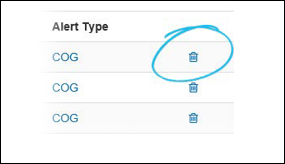
Click the trash can icon in the final column of the table that corresponds to the message you want moved to the trash.
-
When the confirmation window opens, click OK. The message now appears in the Trash folder.
-
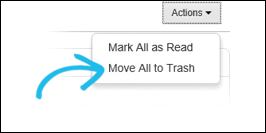
To move all message in a given tab to the Trash, click the Actions button in the upper right, and select Move All to Trash from the menu.