View Messages
To view IPAWS messages
-
In the main menu, click the plug-ins icon. The Plug-Ins page opens.
-
Click IPAWS Messaging. The IPAWS Messaging page opens, displaying all messages in your Inbox.
-
To make sure IPAWS
 Integrated Public Alert and Warning System. A simple, flexible tool that can be used by the alerting authorities to send emergency messages to the general public Messaging displays the most current messages, click the blue Get Messages button near the top right.
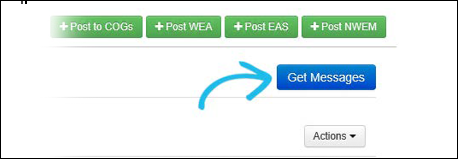
When you open the plugin, the Inbox is shown by default. You can switch between the Inbox, Sent, and Trash folders using the tabs.
The Actions button, just below the Get Messages button, allows you to mark all messages as Read and move messages to the Trash folder. To perform either action, select the applicable messages from the Inbox and choose the appropriate option from the Actions menu.
View Message Details
To open a message, click its name in the list of messages. The IPAWS Message Detail page opens, displaying detailed message information.
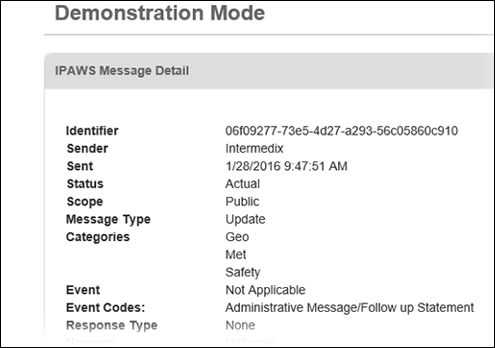
When a message has a defined distribution area, the Map option becomes available in the Actions menu. Click this link to view the distribution area on the map.
Related Concepts
IPAWS Messaging User Guide Overview
Reference Materials
Related Tasks