Export and Import Tags
To export tags
-
In the main menu, click the integrations icon
 . The Integrations page opens.
 -
Click the WebEOC Tagging tab.
-
Click the view tags icon for the appropriate group.
-
Above the list of tags, open the Actions menu and click the Export tags link.
-
Follow browser prompts to save the file in CSV format.
To import tags
-
In the main menu, click the integrations icon
. The Integrations page opens. -
Click the WebEOC Tagging tab.
-
Click the view tags icon for the appropriate group.
-
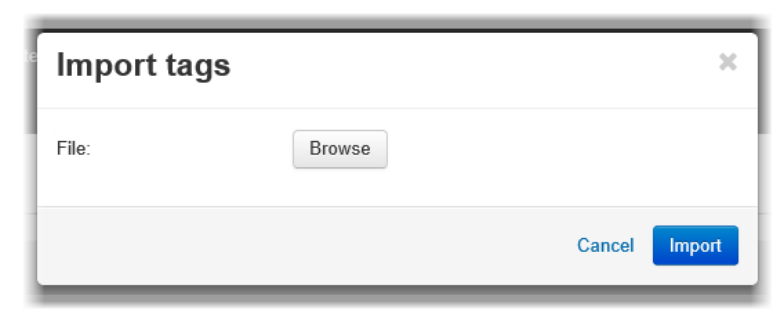
Above the list of tags, open the Actions menu and click the Import tags link.
-
To find the file on your computer, click Browse.
-
Click Import.