Use Tags in the Advanced File Library
To use tags in the Advanced File Library
-
In the main menu, click the integrations icon
 . The Integrations page opens.
 -
Click the Advanced File Library tab.
-
Find a folder or file to apply tags to and click its corresponding edit link.
-
On the page that opens, in the Tags section, begin typing the name of the tag and then select the tag from the list provided.
-
Click Save.
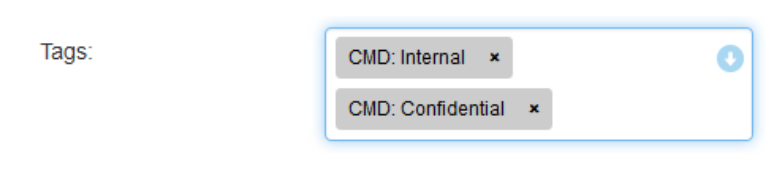
Alternatively, if you do not know the name of a tag, click the down arrow to see all available tags and select one from the list.
If you do do not see tag options available, ensure the tag group you are looking for was created and assigned to the Advanced File Library A respository for the files you want to store and share.. See Create Tag Groups.
A tag label displays the tag group and the name of the tag, as seen above. To remove the tag, click the x icon next to the tag's name.
To search by tags in the Advanced File Library
-
In the main menu, click the integrations icon
. The Integrations page opens. -
Click the Advanced File Library tab.
-
For Tag Search, do one of the following:
-
Begin typing the name of the tag and then select the appropriate tag from the list.
-
Click the down arrow and select the applicable tag from the list of available tags.
-
Related Concepts
Related Tasks