Create and Manage Assets
In the Assets tab, you can configure the asset categories, icons, and custom fields used for critical assets. These are visible in the Critical Asset pages: Facility, Equipment, and Supply Chain.
To manage or add new assets, including asset categories, icons, and custom fields, follow the instructions by expanding the headings below.
 Add an asset category
-
On the main menu, click
 Settings. The Portal Settings page opens.
 -
Click the Assets tab, then click Assets on the left.
-
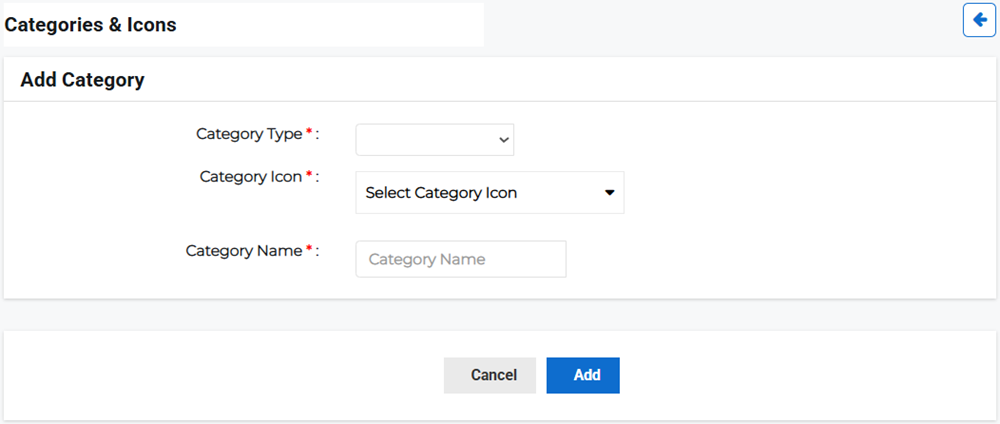
Click Add Category.
-
Enter the asset category details:
-
Category Type: Select an asset category type: Facility, Equipment, Supply Chain.
-
Category Icon: Select a predefined icon.
-
Category Name: Enter a name for the category.
-
-
Click Add.
Edit an asset category or icon
-
On the main menu, click
Settings. The Portal Settings page opens. -
Click the Assets tab, then click Assets on the left.
-
Click the Actions button next to the appropriate category then select Edit from the menu.

-
Edit any of the fields or the icon type then click Update.
Delete an asset category or icon
-
On the main menu, click
Settings. The Portal Settings page opens. -
Click the Assets tab, then click Assets on the left.
-
Click the Actions button next to the appropriate category then select Delete from the menu.
-
Confirm the deletion.
Add an asset custom field
-
On the main menu, click
Settings. The Portal Settings page opens. -
Click the Assets tab, then click Custom Fields on the left.
-
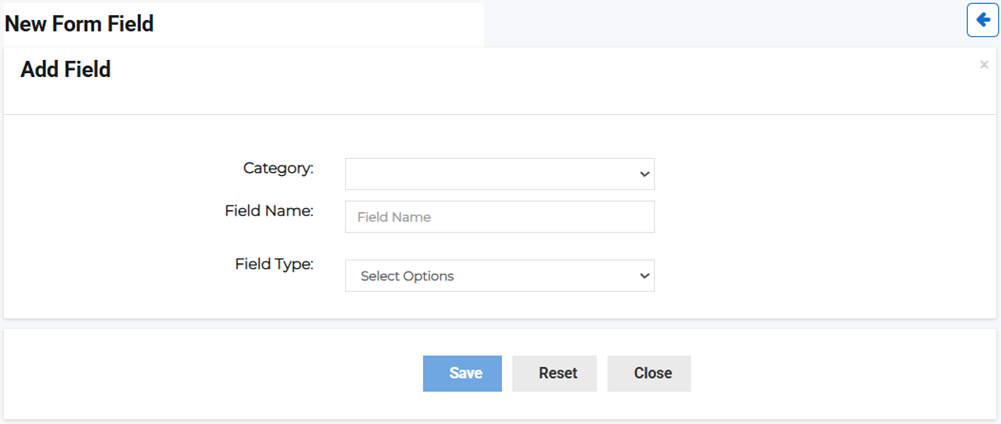
Click Add Custom Field.
-
Enter the asset category details:
-
Category Type: Select an asset category type: Facility, Equipment, Supply Chain.
-
Category Icon: Enter the custom field name.
-
Category Name: Select the field type, for example Text Box or Date Range.
-
-
Click Save.
Edit an asset custom field
-
On the main menu, click
Settings. The Portal Settings page opens. -
Click the Assets tab, then click Custom Fields on the left.
-
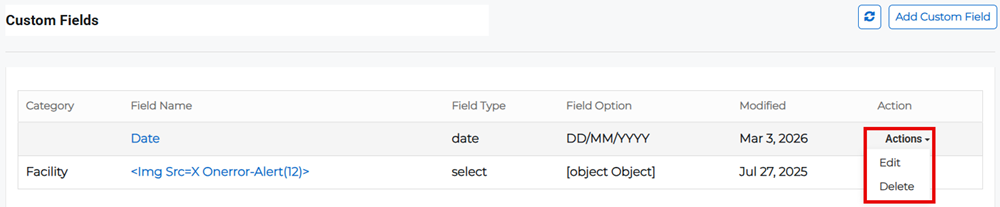
Click the Actions button next to the appropriate category then select Edit from the menu.
-
Edit any of the fields then click Save.
Delete an asset custom field
-
On the main menu, click
Settings. The Portal Settings page opens. -
Click the Assets tab, then click Custom Fields on the left.
-
Click the Actions button next to the appropriate category then select Delete from the menu.
-
Confirm the deletion.