Create and Manage Contact Settings
To create and manage contact settings, including adding record types and setting contact legends, follow the instructions by expanding the headings below.
 Add a record type
-
On the main menu, click
 Settings. The Portal Settings page opens.
 -
Click the Contacts tab, then click Add Record Type on the left.
-
Click New Record Type.
-
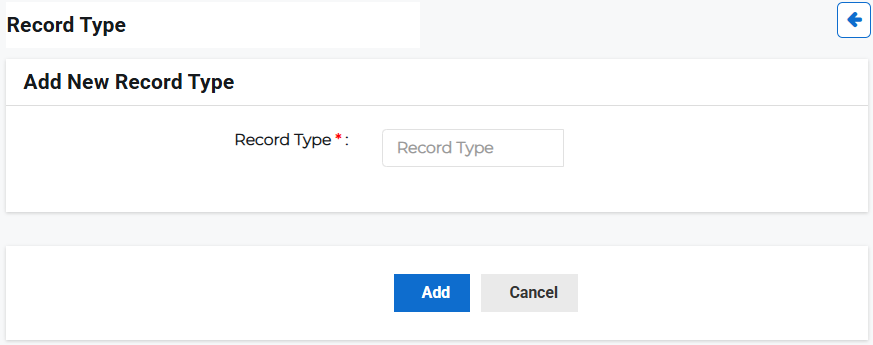
Enter a Record Type, for example Customer or Employee.
-
Click Add.
Set Legends
-
On the main menu, click
Settings. The Portal Settings page opens. -
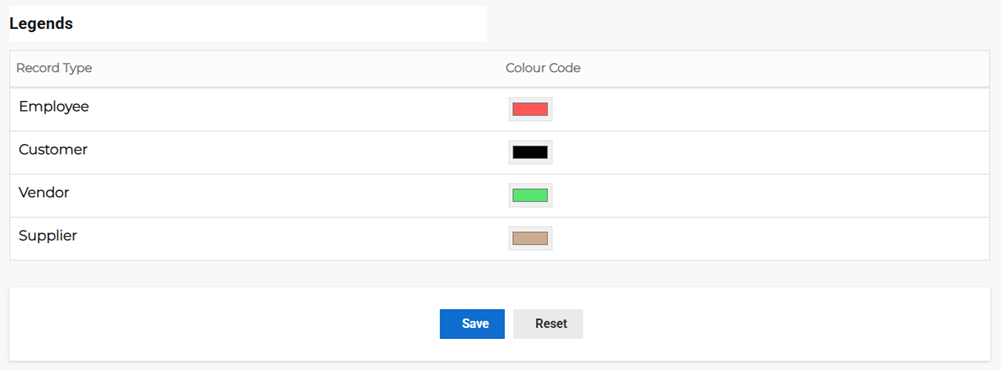
Click the Contacts tab, then click Set Legends on the left.
-
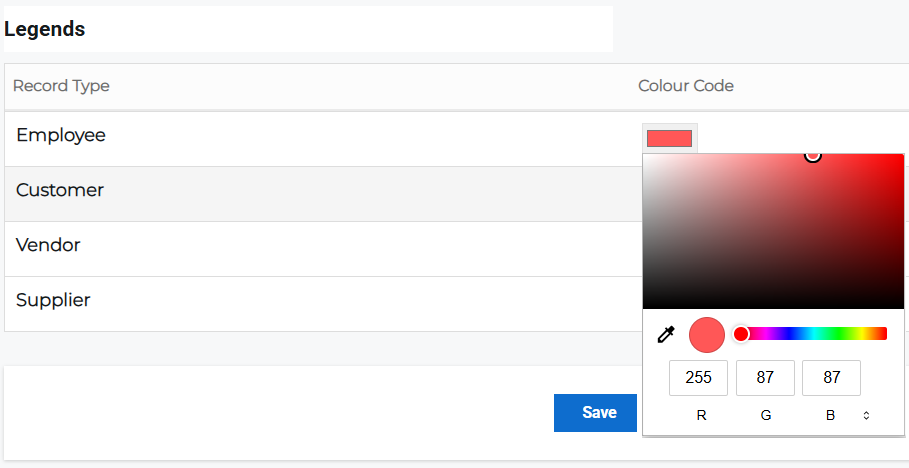
Click the color preview next to the respective record type to open the color picker.
-
Enter the RGB color code, use the eyedropper icon to select a color on screen, click within the color box, or slide the dot on the color spectrum to select a preferred color.
-
Click Save.
To set the contact legend for maps, navigate to the VRI tab, and modify the map lists and/or weather layer colors.