Manage Tasks
After creating a new task area in an incident Crisis Track allows you to track damage for several events through the Incidents feature. You can create a new incident, edit incidents, and deactivate or delete old incidents. Each incident keeps the data separate. Information such as equipment, employees, and structures are listed across all incidents., you now have the ability to:
-
View task details.
-
Edit the task.
-
Copy the task to reuse it for another purpose.
-
Delete the task.
To view task details
Video:How To View a Task 
In the incident Tasks module, click View next to the task you would like to see. Inside of a task you can view Entries that are included as part of this task. These entries can also be viewed on a map. Entries are activities associated with a task, such as a road closure or a structural assessment.
The Tasks module can be viewed in either the tasks list view or a map view.
-
The tasks list organizes
Official entities, such as public health authorities, healthcare agencies, and corporations. the tasks in a table where you can view the task details, including the name and type of task, a description of what the task entails, the date the task was created, the count of structures affected in the task, and a total damage cost. -
The map view organizes the tasks into a map of the affected area and allows you to see the distribution of the tasks.
For more information on viewing task entries, including in the map view, see Entries Module. For more about editing entries in a task area, see Edit Entries for a Task.
To edit a task
-
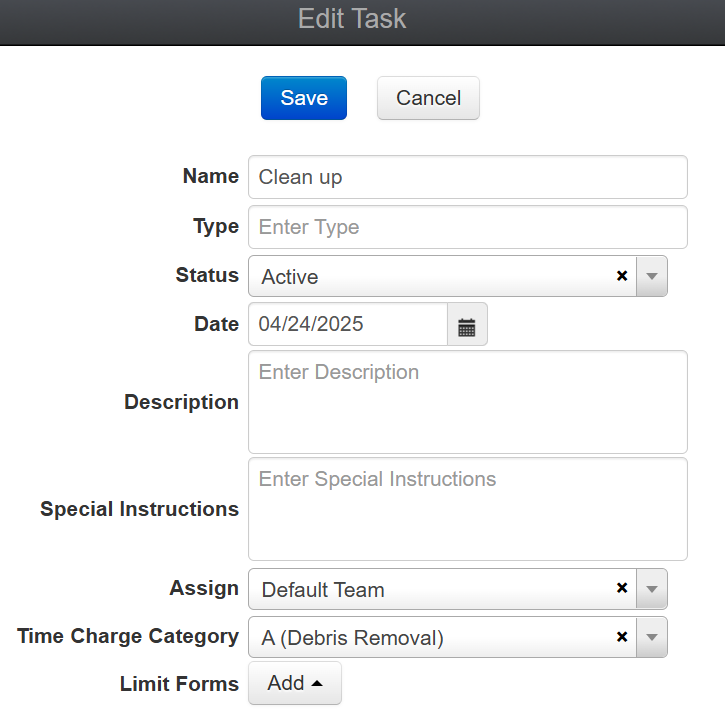
In the Tasks module, click Edit for the task you want to edit. The Edit Task page opens.
-
Edit the details using the definitions below. Each field is optional, but we recommend you fill in as much as possible.
-
Name: Name of the task.
-
Type: The type of this task using your own terminology.
-
Status: The status of the task.
-
Date: The start date of the task.
-
Description: A description of the task.
-
Special Instructions: Any instructions that may be helpful for the team that completes this task, such as safety and coordination instructions.
-
Assign: The team to which this task is assigned. For more information about assigning a team to a task, see Assign a Team to a Task in an Incident.
-
Time Charge Category: The FEMA time charge category for the work being performed for this task.
-
Limit Forms: The forms available for this task. If this is left blank, then all forms will be available.
-
-
Click Save. This opens the Task Details task map where you can edit the task area map and structure assignments (both are optional). To set the task area from a queryable map layer instead of drawing it manually, see To add a task area to an existing task below.
To add a task area to an existing task
-
In the Tasks module, click Edit for the task you want to edit. The Edit Task page opens.
-
Click Save. This opens the Task Details task map where you can edit the task area map.
-
If your incident has a queryable map layer added (for example, a layer showing a flood or fire boundary), you can set the task area directly from that layer instead of drawing it manually.
-
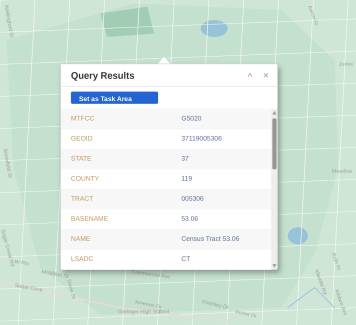
On the Task Details task map, click the Query this layer icon, then click the layer feature (polygon or line) you want to use as the task area.
-
In the Query Results window that appears, click Set as Task Area.
-
The task area updates and saves automatically. If you need to revert to the previous area, click Undo.
-
-
You can then assign structures to the task area, or save the task.
To change a task's jurisdiction
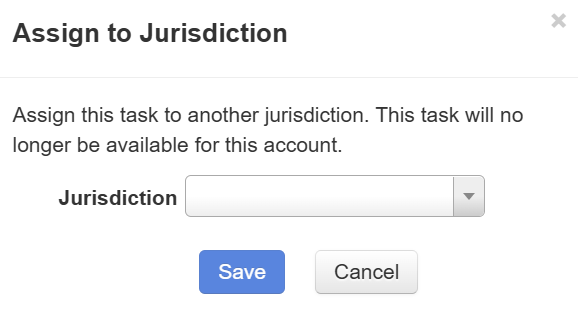
If you are viewing tasks within a jurisdiction, you can assign the task to a different jurisdiction. If you do, the task will no longer be available in your jurisdiction.
-
In the Tasks module, click Change for the task for which you want to modify the jurisdiction. The Assign to Jurisdiction window appears.
-
Select the jurisdiction you want to assign from the menu.
-
Click Save.
To copy a task
You can reuse a task for another purpose by copying it. For example, if you've created a Windshield Survey task area and assigned all the structures to Initial Damage Reports, you can reuse the area once you're ready to conduct damage assessments by copying all the Initial Damage Reports to Residential Damage assessment forms in a Damage Assessment task.
Video:How To Copy a Task
-
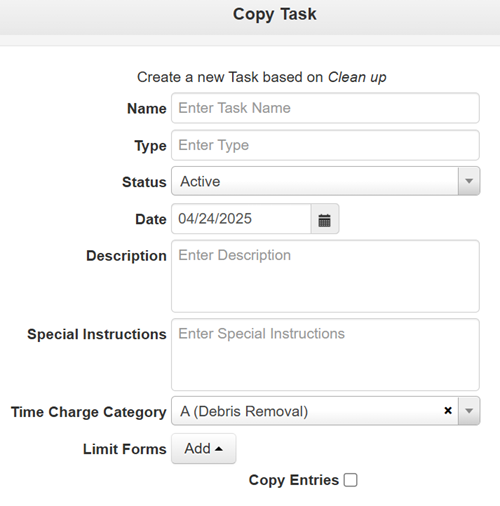
Open the incident, select the Tasks module, and select Copy next to the task area you would like to reuse. The Copy Task page opens.
-
Rename the Task, enter the task type, description, and special instructions.
You can also limit the forms that are available to this task area.
-
If you assigned structures to the original task and would like to copy the entries into the new task, select the Copy Entries checkbox.
If you decide to copy the entries, choose whether to copy the entries into the same form used in the original task area or to copy them into another form.
-
Click Save. Your copied task will now appear in the Task list.
To delete a task
-
In the Tasks module, click Delete for the task you want to delete. The Delete Task window appears.
-
Confirm if you want to delete only the task or the task and all its entries.