Filters
The Filters tab includes powerful search criteria that allow you to pinpoint the clients and details you need.
You can perform a one-time search to locate patient and client records. You can also save a search, making it a reusable filter Search criteria that allow you to pinpoint the clients and details you need.. Filters are the building blocks for creating gadgets Groupings of data. There are 5 gadget types: Incidents - Region, Incidents - Division, Client List, Client Summary, Regional Client Summary. to use in designing and building your dashboards Comprised of groupings of data, called gadgets.. Saving a filter involves naming it, selecting display options to define how your search results should be presented within the gadget, and specifying who can access the filter.
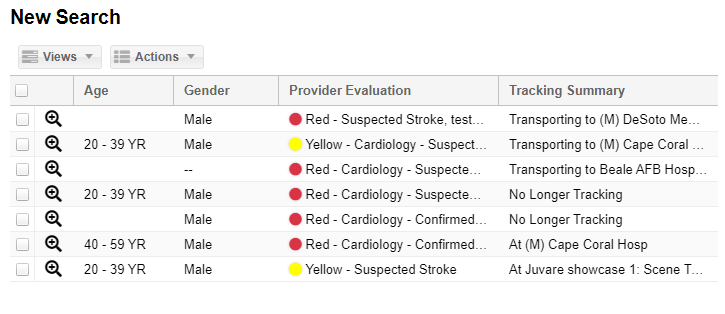
When searching for patients or client records, follow the steps and instructions to make filter use quick and easy:
-
Review if an existing filter has already been created and/or shared with you. Refer to View Filters for more information.
-
If you need to create a new filter, set up search criteria. Refer to Search for Patient Records for more information.
-
Refine your search to ensure it gives the results you expect, then save it as a new filter. Refer to Add a Filter for more information.
-
You can edit the filter at any time or copy an existing filter to use as the foundation for a new one. Refer to Edit a Filter for more information.
-
You can also change filter settings such as who owns the filter or with whom the filter is shared. Refer to Change Filter Ownership and Change Filter Sharing for more information.
-