Create a Regional Incident
To create a regional incident
-
-
In the main menu, click the incidents icon
 . The Incidents page opens.
 -
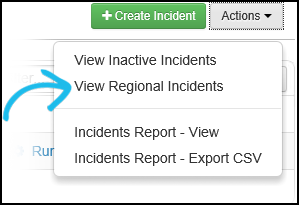
On the Incidents tab, click the Actions button and select View Regional Incidents from the drop-down list.
-
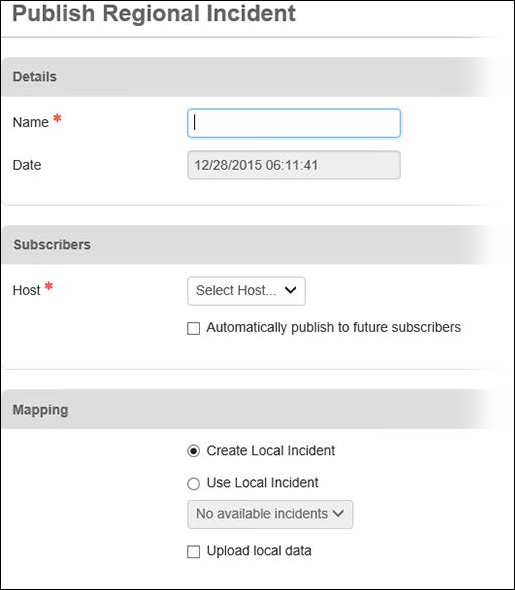
On the Regional Incidents page, click Publish New Regional Incident. The Publish Regional Incident page opens.
-
In the Details section, enter a name for the regional incident in the Name field.
The Date field automatically populates and is therefore read-only.
-
In the Subscribers section, select the host from the Host drop-down list.
This is the WebEOC Fusion server that you are publishing the regional incident to.
- Once a host is selected, the Add Subscriber link becomes available. Click Add Subscriber and, in the Add Subscriber window, select the check box next to each subscriber you want to share this incident with.
You can select multiple subscribers. To include all subscribers, select the check box next to the Name column heading. If you have a long list of subscribers, use the Filter field to manage subscribers and find the appropriate ones you want to add.
-
Click Add.
-
Optionally, select the Automatically publish to future subscribers check box if you want to apply this feature.
-
In the Mapping section, select the Create Local Incident radio button to create the regional incident and its corresponding local incident.
-
If you select the Create Local Incident radio button, the Incidents: Edit Incident page opens for the new local incident after you click Publish. This page allows you to assign groups to use the local incident.
-
Click Add Group and select the check box next to each group you want added.
-
Click Add.
-
In the Regional Incidents Mapping section, the regional incident that this local incident is mapped to appears.
At a later time, you can remove the mapped connection by selecting the check box next to the regional incident and clicking Remove.
-
Click Save to save the local incident settings.
If you select the Create Local Incident option, the locally made incident is named exactly the same as the regional incident.
-
-
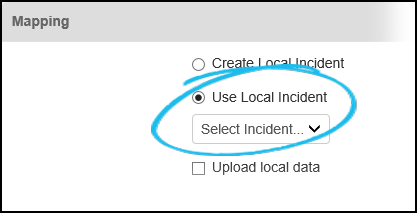
Alternatively, select the Use Local Incident radio button to map this regional incident to an existing local incident.
-
If you select Use Local Incident, you must also select the incident you want to map to from the drop-down list.
-
You must log in to the local incident in order to use the regional incident. If you want to upload the local data, select the Upload local data check box.
If Upload local data is selected, only data associated with the selected local incident in the subscription boards for this host is uploaded. Uploaded data is only retrievable by WebEOC version 7.3 or later.
-
- Click Publish to publish the regional incident.
Related Concepts
WebEOC Fusion Subscription Boards Guide
Reference Materials
Related Tasks
Subscribe to a Regional Incident