Subscribe to a Regional Incident
To subscribe to a regional incident
-
-
In the main menu, click the incidents icon
 . The Incidents page opens.
 -
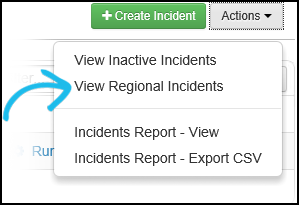
On the Incidents tab, click the Actions button and select View Regional Incidents from the drop-down list.
-
On the Regional Incidents page, click Subscribe to Regional Incident for the regional incident you want to subscribe to.
-
On the Subscribe to Regional Incident page, change the name of the incident in the Name field, if desired.
This only changes the name on your Unified Command Platform. The name of the newly created local incident may be changed through the Edit Incident window.
-
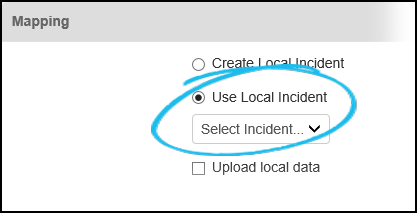
In the Mapping section, select the Create Local Incident option to create the regional incident and its corresponding local incident, or select the Use Local Incident radio button to map this regional incident to an existing local incident. If you select Use Local Incident, you must also select the incident you want to map to from the drop-down list.
-
You must log in to the local incident in order to use the regional incident. If you want to upload the local data, select the Upload local data checkbox.
If Upload local data is selected, only data associated with this incident in the subscription boards for this host is uploaded. Data from local boards and subscription boards on other hosts is not uploaded. Additionally, uploaded data is only retrievable by WebEOC version 7.3 or later.
-
Select the Download regional data check box if you want to download the regional data.
-
If you do not select this feature, you will only receive new regional data. You cannot see data that was posted before you subscribed.
-
Click Subscribe.
Related Concepts
WebEOC Fusion Subscription Boards Guide
Reference Materials
Related Tasks