Escalate from a Local to Regional Incident
Before you escalate a local incident to a regional one, you must first create the regional incident to map to, or there must already be a regional incident published by another subscriber. See Create a Regional Incident for instructions on creating a regional incident.
To escalate a local incident to a regional incident
-
-
In the main menu, click the incidents icon
 . The Incidents page opens.
 -
On the Active Incidents page, select the incident you want to escalate to a regional incident.
-
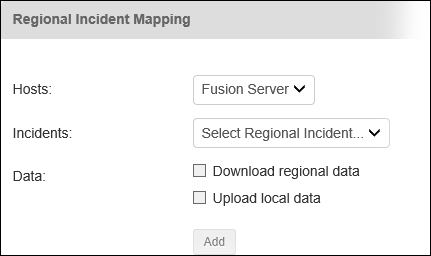
On the Incidents: Edit Incident page, go to the Regional Incident Mapping section at the bottom of the page.
-
Select the host server from the Hosts drop-down list.
-
Select the regional incident you want to map this local incident to from the Incidents drop-down list.
-
Select the Download regional data check box if you want to download the regional data.
-
Alternatively, select the Upload local data check box if you want to upload your local incident data.
-
Click Add to map this local incident to the regional incident. The mapped regional incident appears with your configuration data.
You can add one mapping to a regional incident per WebEOC Fusion host. If you are connected to multiple hosts, you may map to additional regional incidents, but a regional incident may be mapped to only one local incident.
- Click Save.
The Cancel button does not undo the incident mapping. To undo the incident mapping, you must remove the mapping by selecting the incident and clicking the Remove button.
Related Concepts
WebEOC Fusion Subscription Boards Guide
Reference Materials
Related Tasks