Publish a Subscription Board
To publish a board as a subscription board
-
In the main menu, click the workflows icon
 . The Workflows page opens.
 -
On the Boards page, select the board you want to publish as a subscription board.
-
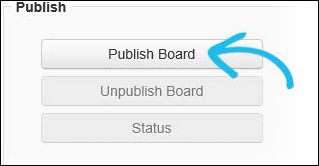
On the Board: Edit Board page, go to the Tools section and click Publish Board, located near the end of the page.
-
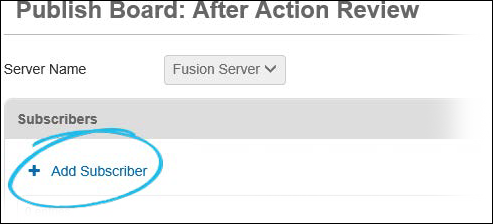
On the Publish Board: [Board Name] page, select the server from the drop-down list.
If there is only one server connected, it is selected by default.
-
Select the subscriber you want to share this board with by clicking Add Subscriber in the Subscribers section.
-
In the Display Views section of the Add Subscriber window, select the All check box to send the subscriber all the display views associated with this board, or select the display view check boxes individually.
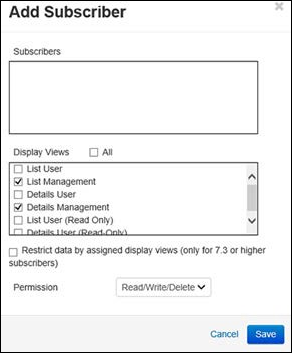
- Select the Restrict data by assigned display views check box if you want to restrict the data.
This restricts the subscriber's Unified Command Platform to the data allowed by the assigned display's view filters, preventing the Reporter and the API from using data the subscriber's users cannot see.
This feature requires that there are view filters turned on by default on all selected display views.
-
In the Permission drop-down list, select the maximum permission you want to allow the subscriber for posting to this board.
-
Click Save.
-
In the Future Subscribers section, select the Automatically publish to future subscribers check box if you want future subscribers to have access to this board.
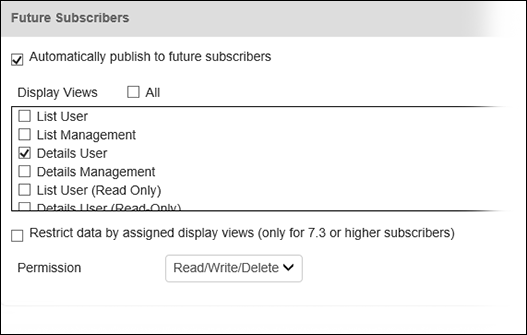
If you select this feature, you must also configure the permissions for the display views. To do so, select the All check box to send future subscribers all the display views associated with this board, or select the display view check boxes individually.
-
Select the Restrict data by assigned display views check box if you want to restrict the data.
-
In the Permission drop-down list, select the maximum permission you want to allow the subscriber for posting to this board. In the Data section, select the Upload previous posts checkbox if you want to upload the previous board data.
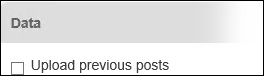
Once a board is published, this option cannot be checked or unchecked. This means that, for all boards published from this Unified Command Platform instance prior to its upgrade to WebEOC 7.3 or later, board posts cannot be uploaded to newly added Unified Command Platform subscribers.
If newly added Unified Command Platform subscribers must be able to get this board's data, follow the steps outlined in Manage Changes.
If this board is incident independent, then all board data is uploaded. If the board is not incident independent, only data that is currently mapped to a regional incident on the same WebEOC Fusion server uploads by this feature. Uploaded data is only retrievable by WebEOC version 7.3 or later
- Click Save to save the subscription board settings.
Related Concepts
WebEOC Fusion Subscription Boards Guide
Reference Materials
Related Tasks
Subscribe to a Regional Incident