Manage Changes
If you need to make changes to a currently published board, you can make those changes on the fly and republish them with ease.
To manage changes to a subscription board
-
In the main menu, click the workflows icon
 . The Workflows page opens.
 -
On the Boards tab, select your subscription board.
-
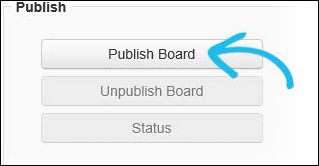
On the Board: Edit Board page, go to the Tools section and click Publish Board, located near the end of the page.
-
On the Publish Board: [Board Name] page, click Save to republish the board, or click Cancel to abort the operation.
Send Existing Data to Newly Added Subscribers
To upload data to newly added subscribers, you must unpublish the board and republish it with the Upload previous posts checkbox selected. This is done on the Publish Board page.
Once you republish the board, you must re-map the local incident to the same existing regional incident, selecting the Upload local data checkbox. This is achieved using the Edit Incident page.
Related Concepts
WebEOC Fusion Subscription Boards Guide
Reference Materials
Related Tasks
Subscribe to a Regional Incident