IPAWS Messaging Administrator Guide Overview
The IPAWS Integrated Public Alert and Warning System. A simple, flexible tool that can be used by the alerting authorities to send emergency messages to the general public Messaging plug-in is a simple, flexible tool that can be used by alerting authorities to send emergency messages to the general public through the Integrated Public Alert and Warning System (IPAWS). This plug-in can be installed on WebEOC Nexus to allow authorized personnel in your agency to distribute alerts through four different channels: COGs, EAS, NWEM, and WEA.
To gain access to IPAWS, your agency needs to sign an agreement with FEMA. The agreement enables FEMA to issue a COG (Collaborative Operating Group) ID and a digital certificate that you can use for exchanging messages with other COGs.
This section is intended for WebEOC Nexus administrators and describes the basics of setting the access permissions to the plug-in, uploading the digital certificate, and editing COG information.
You need appropriate permissions to perform these tasks.
To access the Admin window of IPAWS Messaging
-
In the main menu, click the integrations icon
 . The Integrations page opens.
 -
Click the IPAWS Messaging tab.
Modes
IPAWS has two system modes, or environments, that can be used to send messages for different purposes. Each mode requires a separate digital certificate. Administrators can enable a mode in the Administration section of the plug-in by uploading a certificate for it. Administrators also have the ability to switch between modes.
Only one mode can be enabled at a given time.
The IPAWS Messaging plug-in works in the following modes.
-
Production: This mode should be used to distribute actual alerts to the general public. Messages sent in this environment are routed to the selected COGs. For security purposes, only authorized WebEOC Nexus users should be able to use this mode. When a user attempts to send an alert in the production mode, the system requires the user to acknowledge that the message is going to be sent to IPAWS.
-
Demonstration: This mode is used for testing and training. Messages sent in the demonstration mode are not distributed to other COGs.
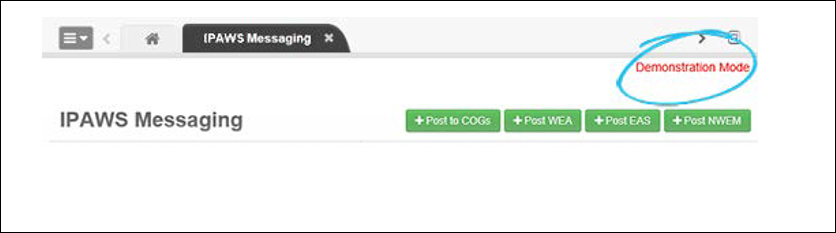
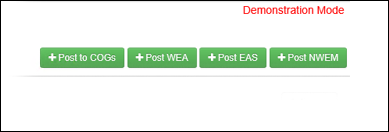
WebEOC Nexus displays your current mode in the upper right corner and is visible on all pages of the plug-in.