Create and Manage Map Lists
In the Map Lists tab, you can create a list of maps for your locations. This is useful for having predefined close-up views of certain locations in the Visual Risk Intelligence page.
To manage or add new map lists, follow the instructions by expanding the headings below.
 Add a map setting
-
On the main menu, click
 Settings. The Portal Settings page opens.
 -
Click the VRI tab, then click Map Lists on the left.
-
Click Add New Map Setting.
-
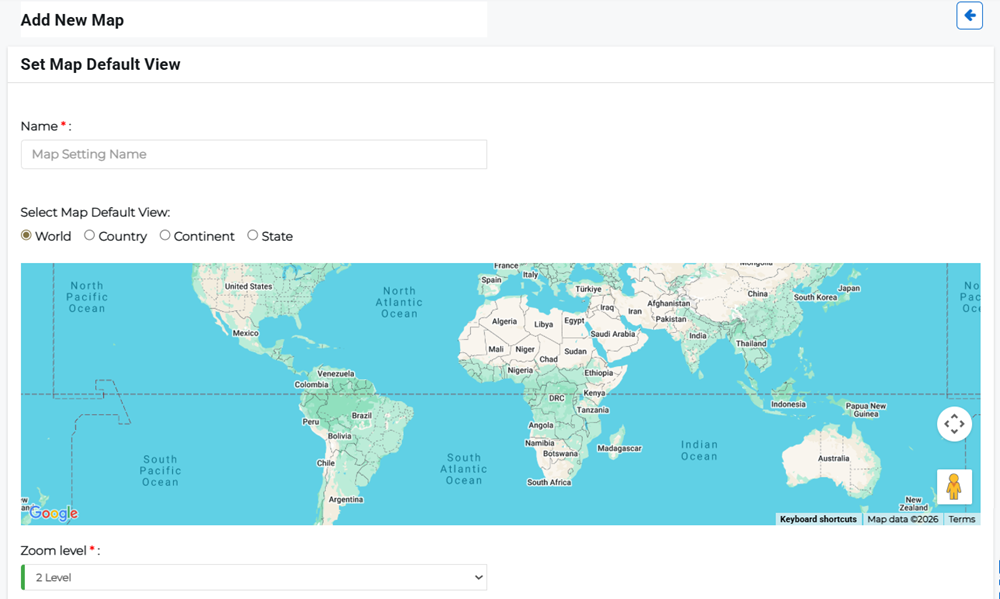
Enter the name of the new map setting then select the default map view:
-
World View: Displays a view of the world.
-
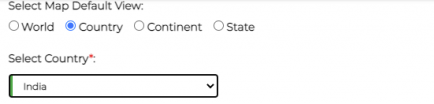
Country View: Displays a view of the selected country.
-
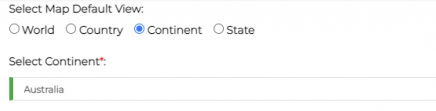
Continent view: Displays a view of the selected continent.
-
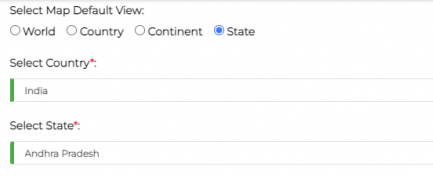
State view: Displays the selected country and state or province. If the country does not have states or provinces, the selection may default to counties.
-
-
Specify the Zoom level from levels 0 to 24 for the default zoom level.
Zooming in or out on the map automatically adjusts the zoom level selection to match.
-
Click Submit.
Edit or delete a map setting
-
On the main menu, click
Settings. The Portal Settings page opens. -
Click the VRI tab, then click Map Lists on the left.
-
Click the Actions button next to the appropriate setting, then select edit to change the setting details or Delete to remove it.
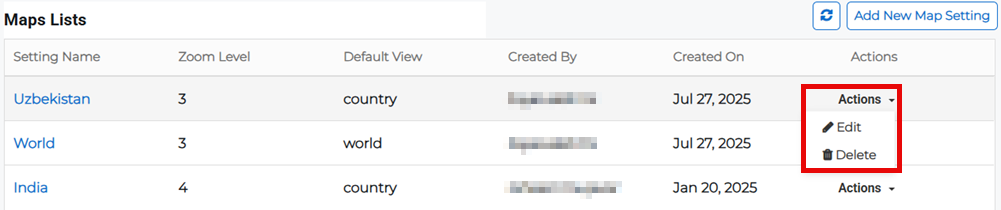
Alternatively, you can click the setting name link and click the Actions then Delete from the settings page.