Configure Weather Layer Colors
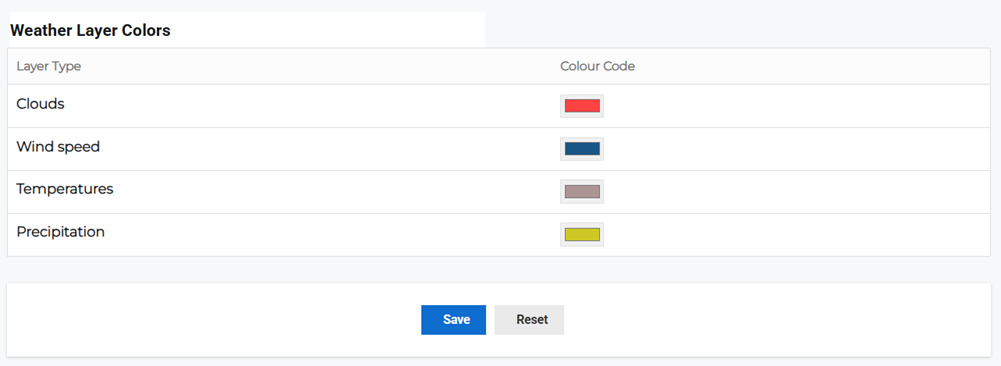
In the Weather Layer Colors tab, you can edit the color of the weather layers that appear on your VRI maps. These are visible in the Visual Risk Intelligence page.
You can change the colors as necessary for each weather layer type: clouds, wind speed, temperature, and precipitation.
To configure weather layer colors
-
On the main menu, click
 Settings. The Portal Settings page opens.
 -
Click the VRI tab, then click Weather Layer Colors on the left.
-
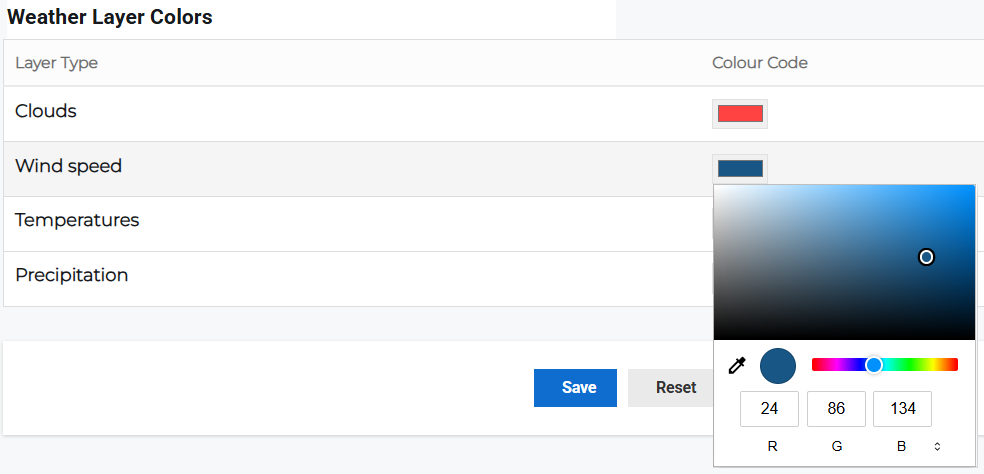
Click the color preview next to each of the layer types to open the color picker.
-
Enter the RGB color code, use the eyedropper icon to select a color on screen, click within the color box, or slide the dot on the color spectrum to select a preferred color.
-
Click Save.
Related Concepts
Reference Materials