Use the Messages tab to communicate with incident participants during an active incident. From the Messages tab, you can create messages, reply to message threads, attach images, search and filter messages, and add messages as objectives.
The message response feature limits the ability to respond to a message to the message creator or the direct recipient. Other users can still see the message in the Message Log, but they can’t respond to the thread.
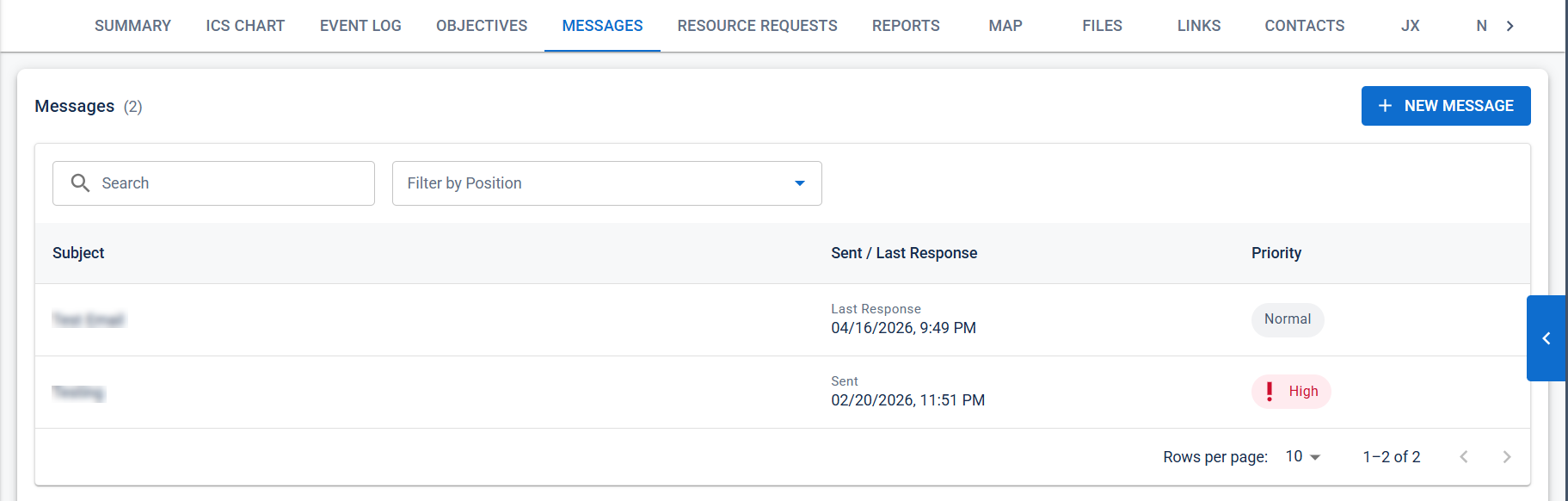
View messages
-
In the Home page, open the incident.
-
On the Incident Dashboard, select Messages.
The Messages tab displays all messages for the current incident.
Each message includes:
-
Subject
-
Sent or Last Response date and time
-
Priority
-
Unread message indicator
-
Attachment indicator, when applicable
Messages are displayed in reverse chronological order, with the most recent activity shown first.
Search and filter messages
Use the available filters to locate messages.
Search messages
Enter a keyword in the Search box to search message subjects and message content.
Filter messages
Select one or more positions from Filter by Position.
Select Clear to remove all filters.
View a message thread
Selecting a message opens the complete message thread.
The message thread displays:
-
Recipients
-
Sender
-
Date and time
-
Message content
-
Image attachments
-
Replies
-
All messages are expanded by default. You can expand or collapse individual messages within the thread.
-
Selecting the sender opens the sender's contact
 The internal and external people that participate in, might be affected by, or need to be notified about an incident. information.
Add a message as an objective
You can create an incident objective from any message in the thread.
To add a message as an objective:
-
Open the message thread.
-
Select + Add Objective.
-
Complete the remaining objective information.
-
Select Save.
For more information about adding a objective, refer to Add Objectives to an Incident.
The message content is auto updated to the objective description.