Import a Board and Create Groups
To begin setting up this example for request routing, import a board and create groups.
Import a Resource Requesting Board
Boards may have been installed during implementation.
See Import and Export Boards for details.
This example is written for the Requests, Inventory, Deployment (RID) board. However, it can similarly be applied to the Requests/Tasks board.
Organizational Groups and Feature Groups
WebEOC Nexus uses two types of groups to configure user interaction: Organizational groups A cluster of positions that, with process permissions, defines the structure for process flow. and feature groups.
-
Organizational groups cluster positions together and, together with process permissions
A setting that grants an organizational group access to a process flow's views., create the structure for process flow. See Plan and Create an Organization Group for details. -
Feature group permissions are normally based on the duties performed, positions assumed, and information required during an incident. Each user in WebEOC is assigned to a position that can then be assigned to a feature group
A group that grants positions access to features such as boards, maps, links, menus, and plug-ins.. Because feature group privileges also determine the options displayed (such as boards, maps, links, menus, and plug-ins), even single-user positions must be assigned to a feature group. See Plan and Create a Feature Group for details.
Create Organizational Groups
See Plan and Create an Organization Group for details.
Create the following organizational groups.
-
County – Sebastian – Users
-
County – Sebastian – Controller
-
City – Orangevale – Users
-
City – Orangevale – Controller
-
City – Rockland – Users
-
City – Rockland – Controller
To create the organizational groups for this example
-
In the main menu, click the accounts icon
 . The Accounts page opens.
 -
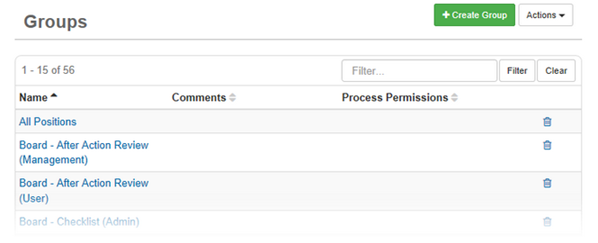
Click the Groups tab. The Groups page opens.
-
Click Create Group.
-
For Name, enter a descriptive name for the organizational group, for example, County – Sebastian – User.
-
For Comments, enter a description or additional information about this organizational group.
-
Select the Organizational Group checkbox.
-
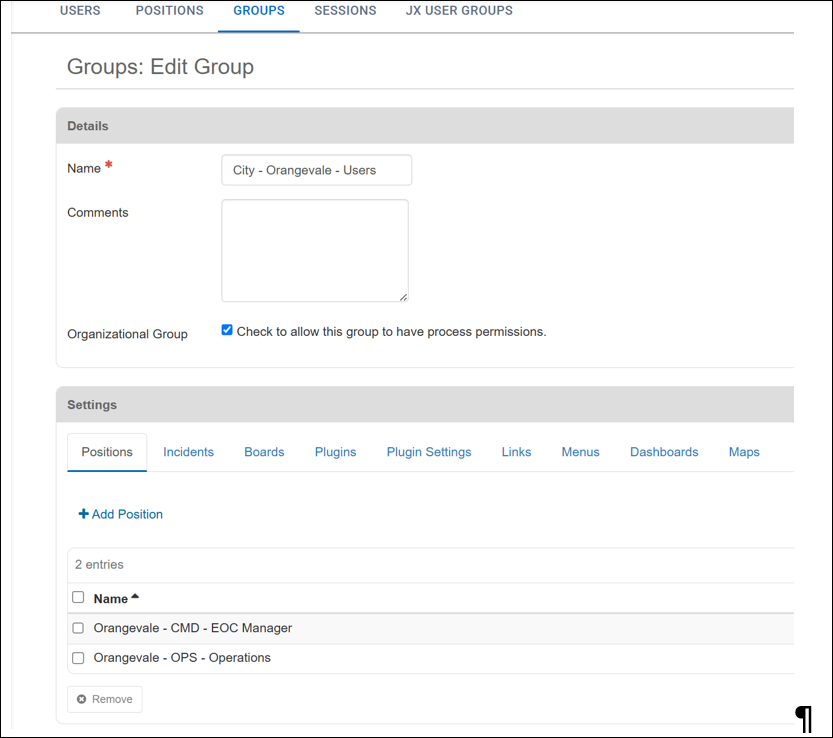
In the Settings area, if it is not already selected, click the Positions tab, and then click Add Position.
-
In the Add Position window, select all the positions that belong to the jurisdiction this organizational group represents.
For the City – Orangevale – Users group, add all the Orangevale positions which can route requests within the city but not to the county.
For this example that is:
-
Orangevale – CMD – EOC Manager
-
Orangevale – OPS – Operations
-
For the City – Orangevale – Controller group, include all positions which can route requests within the city AND to the county. For this example that is the position Orangevale – LOG – Logistics Section Chief.
-
Click Add.
-
Click Save in the bottom right to save the organizational group.
To maintain separation of concerns, it is recommended that no other features be assigned to an organizational group. Meaning, do not assign boards, plug-ins, dashboards, etc. to an organizational group. Assign these features to positions using feature groups.
Create Feature Groups
See Plan and Create a Feature Group for details.
Create the following feature groups:
-
Board – Resource Request – Users
-
Board – Resource Request – Controller
For simplicity in this example, all users, regardless of jurisdiction, are put into a single feature group. In most cases, the best practice would implement separate feature groups for each user type (user and controller) in each jurisdiction (for example, Board – Orangevale – Resource Request – Users). This practice allows for more granular configuration.
To create the feature groups for this example
-
In the main menu, click the accounts icon
. The Accounts page opens. -
Click the Groups tab. The Groups page opens.
-
Click Create Group.
-
For Name, enter a name for the feature group, such as Board – Resource Request – Users.
-
In the Settings area, if it is not already selected, click the Positions tab, and then click Add Position.
-
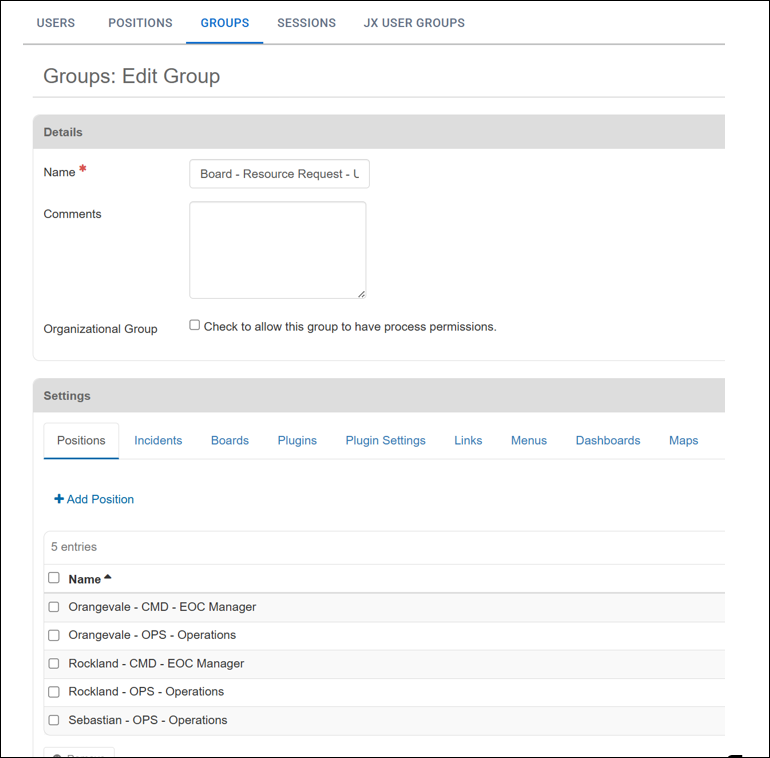
In the Add Position window, assign one or more positions to the feature group by selecting all the positions that should have the described access (either User or Controller).
-
For the City – Orangevale – Users group, add all the Orangevale positions that can route requests within the city but not to the county.
For this example, that is:
-
Orangevale – CMD – EOC Manager
-
Orangevale – OPS – Operations
-
-
For the City – Orangevale – Controller group, include all positions that can route requests within the city AND to the county. For this example, that is Orangevale – LOG – Logistics Section Chief.
-
-
-
Click Add and then Save.
-
In the Settings section, select the Boards tab
-
Click Add Board.
-
In the Board drop-down, select Requests Inventory Deployments.
See Requests, Inventory, and Deployments for details about this board.
-
In the Display View drop-down, select List – Request – Agency.
This view ensures that users only see requests assigned to their agency.
-
Under Board Permission Tags select the Permissioned Assignment option and ensure that Open Assignment is NOT selected.
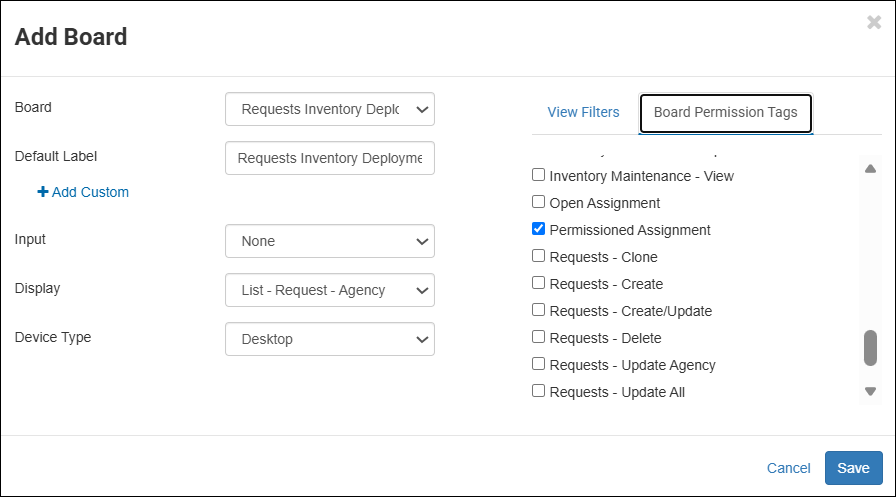
The Permissioned Assignment board permission only allows users to route requests based on the groups we will be assigning in the next steps.
-
Select Save in the Add Board window
-
Select Save again in the Groups: Edit Group window
-
Repeat these steps for each feature group.
Continue this example with configure process permissions.