Select an Incident
Optionally, select the Automatically subscribe to new incidents checkbox. If a new incident is created in WebEOC Nexus, information from this incident is automatically pushed to ArcGIS without you having to manually select new incidents each time they are created.
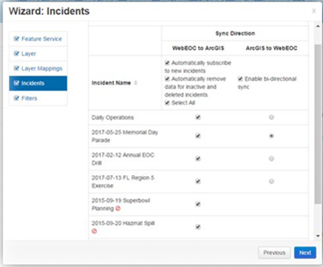
Select Automatically remove data for inactive and deleted incidents to delete appropriate records in ArcGIS when a configured incident is marked inactive or deleted in WebEOC Nexus.
Inactive incidents are clearly marked with a red circle. Data syncing from WebEOC Nexus to ArcGIS is allowed for inactive incidents, but bidirectional data syncing is disabled for inactive incidents.
You can pull new records and updates from ArcGIS and sync them to WebEOC Nexus using the ArcGIS to WebEOC column by selecting Enable bi-directional sync. Then, you must select an incident, since a record cannot exist in WebEOC Nexus without being associated to a WebEOC Nexus incident. Select the button in that column for one active incident. You are limited to selecting one incident.
Note the following about working with records in ArcGIS:
-
When a user creates a new record in ArcGIS and associates it with:
-
An existing and active incident in WebEOC Nexus, the record is appropriately associated with that incident in WebEOC Nexus.
-
An incident that does not exist in WebEOC Nexus, or exists but is inactive, the system associates the record in WebEOC Nexus to the incident that is selected in the ArcGIS to WebEOC column of the Incidents page.
-
-
When a user changes the incident for an existing record in ArcGIS, if the user specifies:
-
An existing and active WebEOC Nexus incident, the WebEOC Nexus record is moved to that incident.
-
An incident that does not exist in WebEOC Nexus, or exists but is inactive, the incident name change in ArcGIS is reverted to the original incident value.
-