Add an Administrator Account
To add an administrator account
-
Log in to WebEOC Fusion.
-
In the Administration tab of the Admin window, click the Administrators subtab.
-
Click Create Administrator.
-
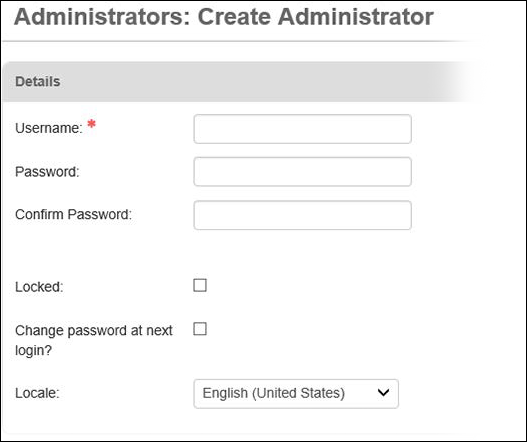
On the Administrators: Create Administrator page, enter a name in the Username field.
-
Enter a password in the Password field, and reenter the same password in the Confirm Password field. The password must comply with the following standards:
-
Be at least eight characters in length and contain at least one upper case letter, one lower case letter, and one number.
-
Be a password that has not been reused for the specified number of times configured in the Password History field of your WebEOC Fusion system.
-
-
Select the Locked checkbox only if you want to lock this administrator account.
-
Select the Change password at next login? checkbox if you want to force administrators to change their password the first time they log in.
This feature is useful if an administrator has set an initial password for another administrator or has re-set an administrator's password.
-
Select the appropriate locale in which the administrator is located from the Locale drop-down list.
-
When you have completed all applicable fields, click Save.
Related Concepts
Reference Materials
Related Tasks
Edit an Existing Administrator Account