Lock Subscriber Accounts
Administrators have the option to lock a single subscriber account or lock all subscriber accounts.
-
Log in to WebEOC Fusion.
-
In the Administration tab of the Admin window, click the Subscribers subtab.
-
On the Subscribers page, select the name of the subscriber account you want to lock from the Name column.
The Subscribers List can be filtered by entering in the Filter field the letter of the alphabet that corresponds to the first letter in the subscriber's name and then clicking Filter.
-
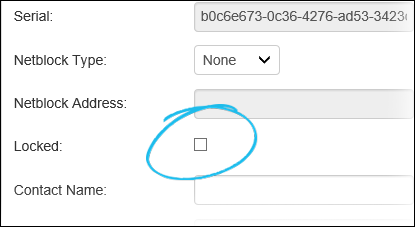
On the Subscribers: Edit Subscriber page, select the Locked checkbox.
-
Click Save to save your changes.
If an account was locked in error, or you wish to reactivate a locked account for a particular subscriber, you can unlock subscriber accounts.
To lock all subscriber accounts simultaneously
-
Log in to WebEOCFusion.
-
In the Administration tab of the Admin window, click the Subscribers subtab.
-
On the Subscribers page, click the Actions button in the upper right corner, just above the list of subscribers, and select Lock All Subscribers.
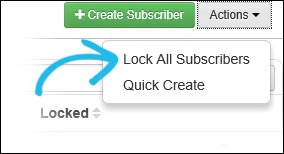
You are not asked to confirm this action. All subscriber accounts are now locked.
If an account was locked in error, or you wish to reactivate a locked account for a particular subscriber, you can unlock subscriber accounts.
Related Concepts
Reference Materials
Related Tasks
Edit an Existing Administrator Account