These notes describe updates in the WebEOC Nexus 10.20 release scheduled for June 26, 2026. More information is available in this help center or by contacting the Juvare Support Center at +1 (877) 771-0911 or support@juvare.com.
Enhancements
Login Flow Improvements
The login experience has been streamlined. In many cases, the Position Incident Selection page and the Additional Login Information page no longer display when a user logs in. After entering the user name on the Sign In page, the WebEOC Nexus Homepage The page displayed at login containing company messages, Quick Actions, and essential boards. displays.
Updates to the login flow include:
-
The Additional Login Information page no longer displays if the user’s information Is already stored in WebEOC Nexus: In previous versions, if your WebEOC Nexus instance had the Require Additional Login Information checkbox selected on the System Settings page on the General tab in the Admin View, a page still displayed during login containing the required information (name, location, phone, email, and comments), even if the user had previously saved it in WebEOC Nexus. Now, if the required information is already saved in the system, this page does not display.
The Additional Login Information page displays during login and the user must complete the fields if:
-
The user has no stored additional information. This could occur when the user first logs in, or if the information was never submitted.
-
An admin has selected the Require Additional Login Information checkbox when it was not previously selected.
-
An Admin clicks the Reset button in the Miscellaneous Options section on the General tab to force users to enter this information during login.
-
An admin has cleared the user's stored additional information in the fields. In this case, when the user logs in, WebEOC Nexus treats this login as if it were the user's first login.
-
-
Administrators have enhanced control over how the Require Additional Login Information checkbox works:
-
When this checkbox is selected on the General tab on the System Settings page, the Additional Login Information step displays during login for all users on that instance. Each user must provide the required information and will continue to see the Additional Login Information page until they enter it.
After the user enters the information on the Additional Login Information page, it is stored on the user’s User Account page in the Additional Information section. Users access this page by clicking the profile menu in the top right.
-
Administrators can click the Reset button on the General tab of the System Settings page, forcing users to re-enter their additional information on the Additional Login Information page during login. If the Administrator clicks this button, a warning dialog opens, explaining that this action will prompt all users to update all required additional information again. A timestamp displays above the Reset button, indicating the last time this setting was reset.
If an Admin clicks the Reset button, the Additional Login Information page displays during login. After users enter the information on the Additional Login Information page, it is stored on the user’s User Account page in the Additional Information section.
-
-
The Select Position and Incident page does not display during the login process when:
-
The user's previously selected position still exists, and they are still assigned to it.
-
The incident has not changed.
This feature was suggested through the Juvare Ideas Portal. We welcome your input to improve our products.
-
-
The Select Position and Incident page displays when:
-
The user is logging in to WebEOC Nexus for the first time, or, in the case of a new user, no previous position/incident has been stored.
-
In this case, both the Incident drop-down and the Position drop-down are empty and the user must select an option from each.
-
-
The position has been deleted.
-
In this case, both the Incident drop-down and the Position drop-down are empty and the user must select an option from each.
-
-
The user has been removed from the position.
-
The incident has changed, whether it has been closed, archived, or replaced.
-
When the Select Position and Incident page displays due to an incident change, the Position drop-down is populated with the user's previous position and the Incident drop-down is empty or shows a newly created incident. In this case, a warning displays that the previously used incident has changed.
The Continue button is disabled until the user selects a position and incident.
Users can opt in or out of selecting their position and incident during login by using the Remember my position and incident for future logins checkbox.
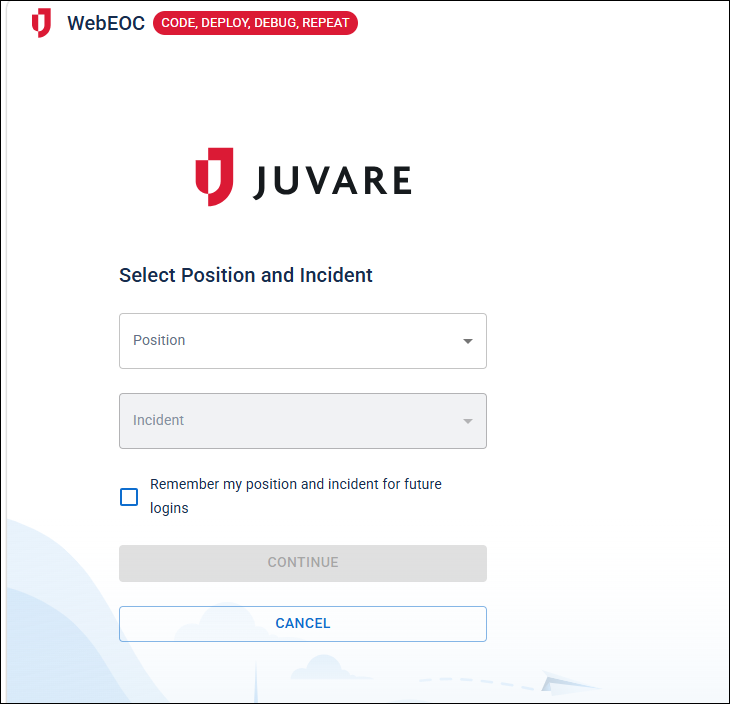
See Log In to WebEOC Nexus for details.
-
-
Geoalerting for Alerts and Board Notifications
Geoalerting is a powerful feature that streamlines alert creation by automatically identifying the recipients based on their geographic location (static address). Rather than selecting contacts manually, you simply draw an area on the map and the system finds all matching contacts and WebEOC Nexus users within it. This ensures the right people are notified instantly, whether you're coordinating a response to a natural disaster, a public safety incident, or an operational emergency.
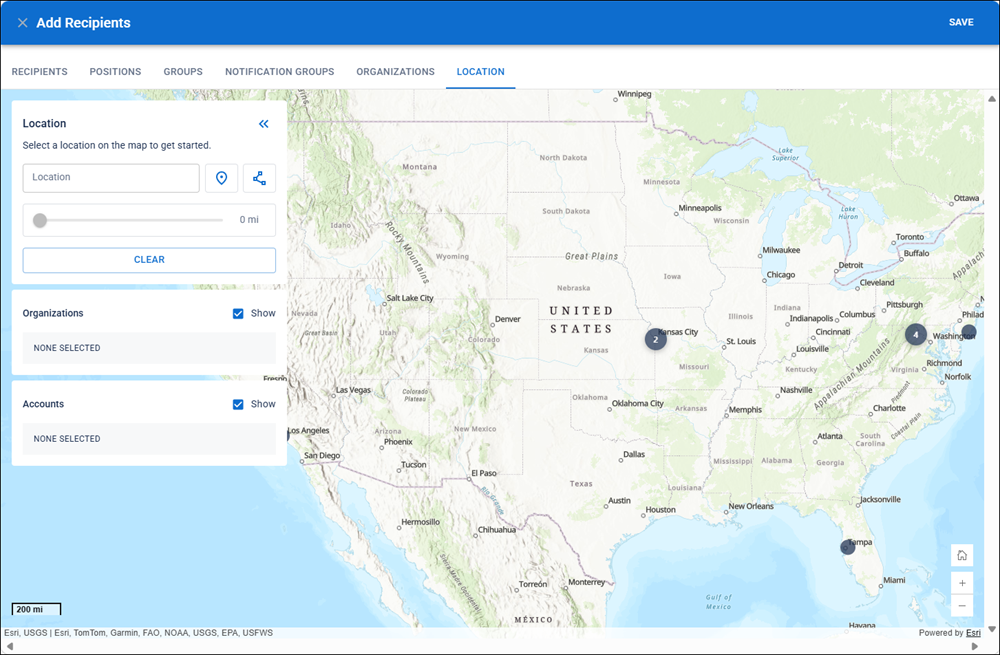
Important: For users to be selected for geoalerts, the following information must be stored:
-
Address Line 1 + City + State or
-
Address Line 1 + Postal Code
If these recipients are contacts, an administrator must complete these fields in their contact details, or the user must be members of an organization that has these fields completed in the organization profile.
If these recipients are WebEOC Nexus users, they must complete this information in their contacts details page.
See Create Alerts by Location for details.
Homepage Enhancements
-
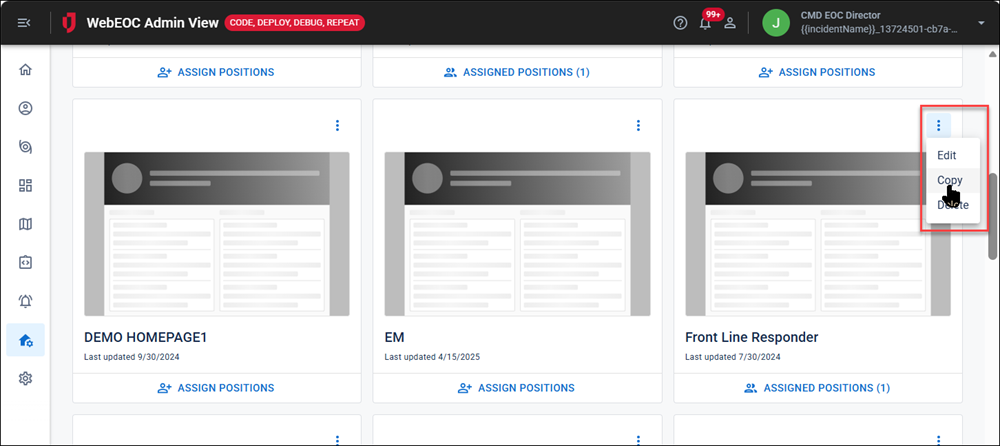
Administrators can duplicate an existing homepage as a starting point for a new one. This is helpful when managing multiple homepages that share a similar layout (same widget structure, branding, or role-based content with minor differences). See Copy a Homepage for details.
-
Boards and maps added through the Homepage Builder are no longer added to the Boards or Maps page in the User View. In previous versions, boards entered on the Homepage Builder as either Essential Boards
Widget on the homepage providing quick access to frequently-used boards, each with a customizable thumbnail for identification. or Quick Actions A clickable card or button on the homepage that provides one-click access to a board, map, external URL, or alert. and maps entered as Quick Actions also displayed on the Boards page and the Maps page, which caused duplicate items to display. Existing Homepage configurations are not updated as a result of this release. -
Quick action cards at the top of the homepage are now fully clickable to trigger the configured action. In previous versions, users had to click an arrow to access the Quick Action.
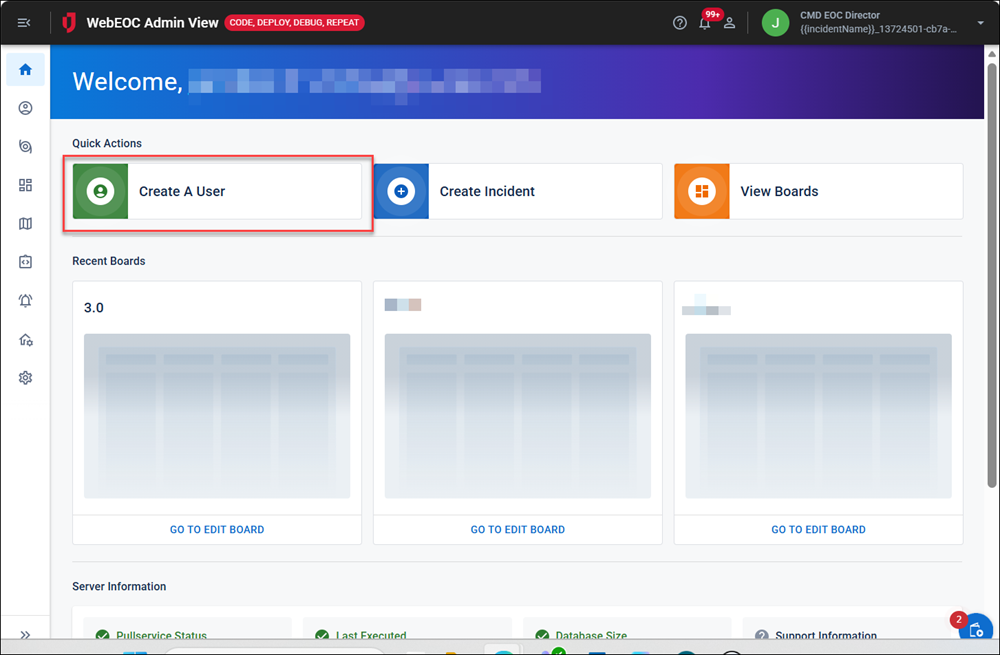
This feature was suggested through the Juvare Ideas Portal. We welcome your input to improve our products.
-
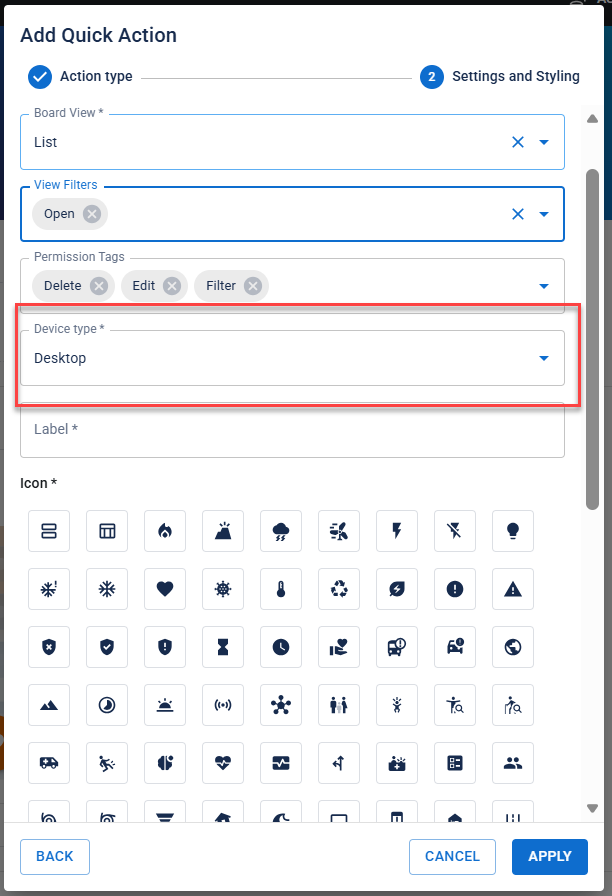
When adding a Quick Action that opens a board or when adding essential boards to the homepage, users can set a Device Type (Desktop, Mobile, or Desktop and Mobile) when creating or editing homepages.
-
Existing essential boards and board-type Quick actions created before WebEOC Nexus 10.20 continue to display Desktop on first edit.
-
Map, External URL, and Pinned Notifications Quick Actions are unchanged: no Device Type drop-down is shown, and saving them works exactly as before.
-
Updated Edit Board Dialog Layout
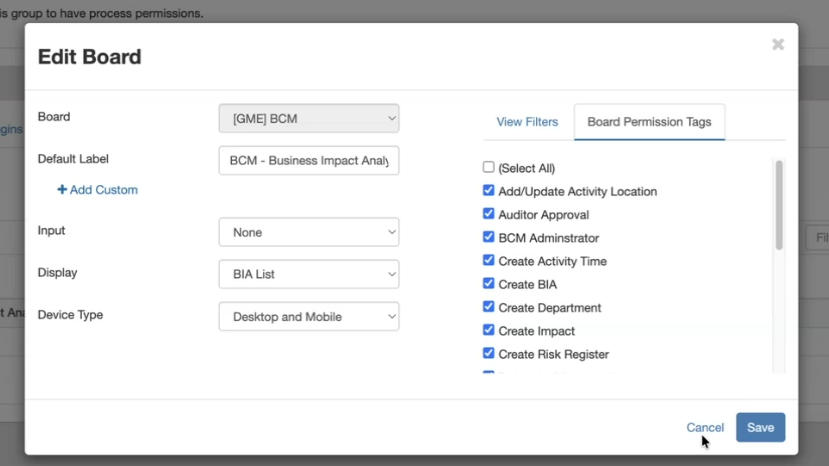
The Edit Board dialog layout has been updated to allow you to view more View Filters and Board Permission Tags and reduce scrolling as you edit board permissions for feature groups. See Feature Groups for details.
Tools Panel added to Input View Maps
All maps used in Input views now contain the Toolbox panel with widgets that are provided on all standard maps. This toolbox includes:
-
A Geo Search field that finds a geographic location or point of interest (POI).
-
A Board Search field that finds a board data point.
-
A Basemap list from which you can select an alternate basemap. Base maps that appear in the list are configured by your administrator.
-
The distance measuring and area Measurement tools.
-
An Export Map tool that exports the current map, in PDF or image format (PNG), into a new tab in your browser. Your browser tools determine what you can do with the map (for example, save, copy, or print the map).
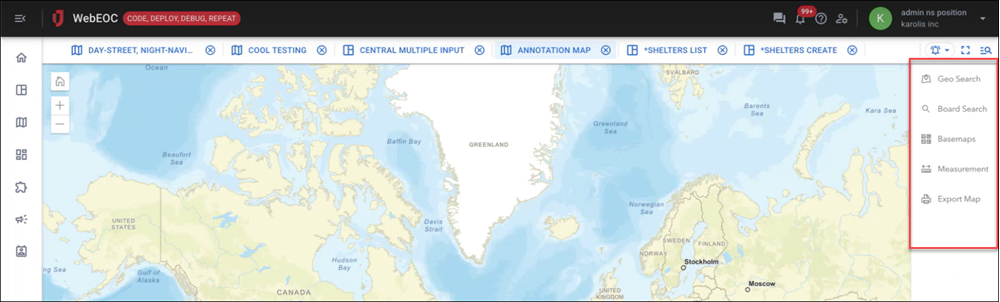
For details about how to use these widgets, see Navigate Maps.
REST API Enhancements
This release contains new and expanded endpoints for groups and positions.
-
Added create, read, update, and delete endpoints for positions. See:
-
Added patch support for partial updates to Groups. See Patch Group.
-
Added endpoint to assign child groups to a process permission
A setting that grants an organizational group access to a process flow's views. on a parent group. See Assign Process Permission Groups. -
Added endpoint to remove a group from a process permission. See Remove Group From Process Permission.
-
Added endpoint to batch assign positions to a group. See Batch Assign Group Positions.
-
Added endpoints to assign or remove a single position from a group. See Add a Position to a Group and Remove a Position from a Group.
-
Added endpoint to rename a group. See Rename a Group for details.
-
The Get Group endpoint now returns the full process permission list. See Get Group for details.
Juvare Exchange (JX) File Attachment Sync
Added or removed files from field types of <multiplefileinput> now sync correctly when sharing a board in JX. When a publisher adds or removes a file from a <multiplefileinput> field on a shared board record, that file is deleted or added for all JX subscribers of that shared board.
PDF <pdflink> Page Size Attribute
Board builders can now specify a page size when generating PDF links using the pagesize attribute on the <pdflink> tag. See <pdflink> for details.
@Mention Inbox Notifications
Users now receive inbox notifications when they are @mentioned in a board or comment thread.
Resolutions
-
Fixed an issue that occurred when sending board notifications. When a board notification was configured to attach a PDF of a Display view, and that Display view contained a <link> to the Juvare Common UI library CDN, for example,
assets.dev.juvare.com/.../juvare-common-ui.css
or
assets.juvare.com/.../common-ui-library.css
the WebKit-based PDF renderer hit a navigation timeout and the notification PDF failed to generate. With the fix, the PDF displays as expected.
-
Fixed an issue where publishing multiple attachments caused Juvare Exchange (JX) to crash.
-
Fixed an issue where clicking on Map Zoom for a board record did not zoom to its location on the embedded map. This occurred on a board List view, when the embedded map was not open or expanded when the List view loaded. Now, the Map Zoom option zooms in on the record board location after the embedded map expands.
Updates to Alerts
Enhancements
-
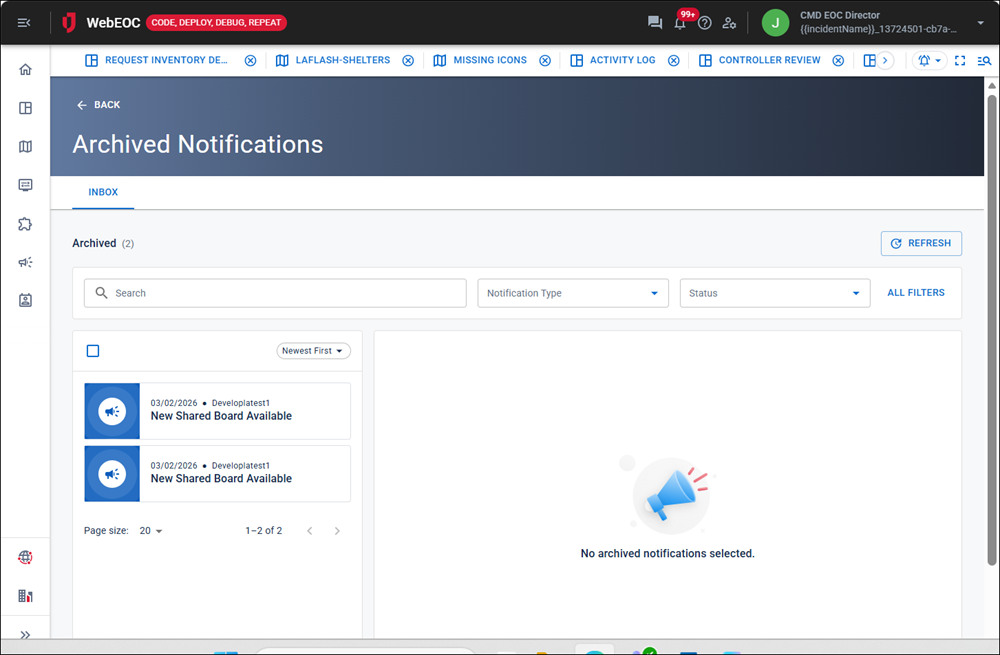
Archived Notifications: You can now view all archived Inbox notifications on a dedicated tab on the Archived Notifications page. This page is accessed from the Archived tab on the Notifications page, allowing you to choose to view archived Inbox, Sent, or Template notifications. Selecting any of these three tab options takes you to the page, where you can view the full archived notification details for that notification type.
-
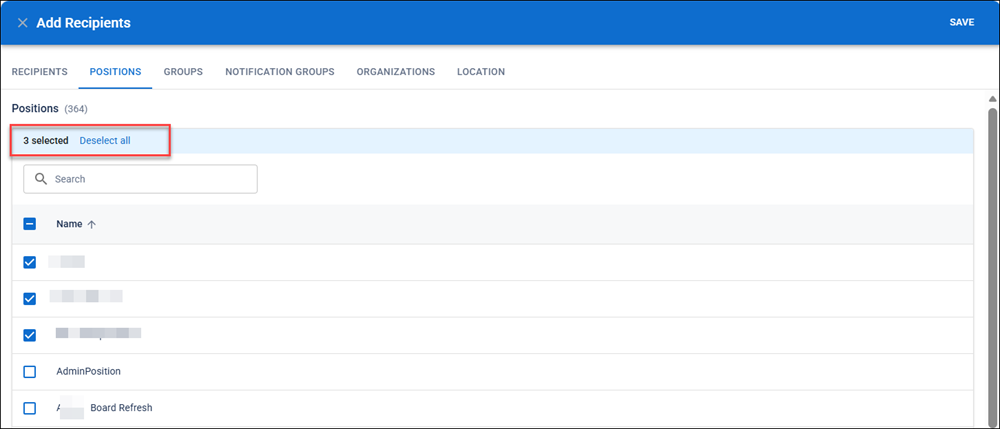
Selection summary chips: When you create an alert and select internal recipients on the Select Recipients page, the Add Recipients page now shows the number of recipients selected on each tab.
Resolutions
-
Fixed an issue that occurred when creating an alert based on a template or when creating a new alert. On the Define Delivery Options page, the selected delivery methods
Used to ensure messages reach recipients when creating a notification, and may include email, inbox, voice, text, fax, or pager. were not retained if the user returned to the page after the initial selection. Instead, the Inbox option was always selected if the user returned to the Define Delivery Options page, regardless of the selections the user made when creating the template or the alert. Now, delivery method selections are maintained on the Define Delivery Options page each time the page is opened. -
The following issues related to archived templates have been fixed:
-
Corrected sorting issue for Newest First sort.
-
Archived page header did not match the page’s design.
-
Users with the View and Message Members permission can now restore and archive templates.
-
On the Archived Notifications page, the tab names have been shortened to Inbox, Sent, and Template.
-
On the Archived Notifications page, on the Sent tab, the Create Notification button has been removed.
-
Updates to Contacts
Enhancement
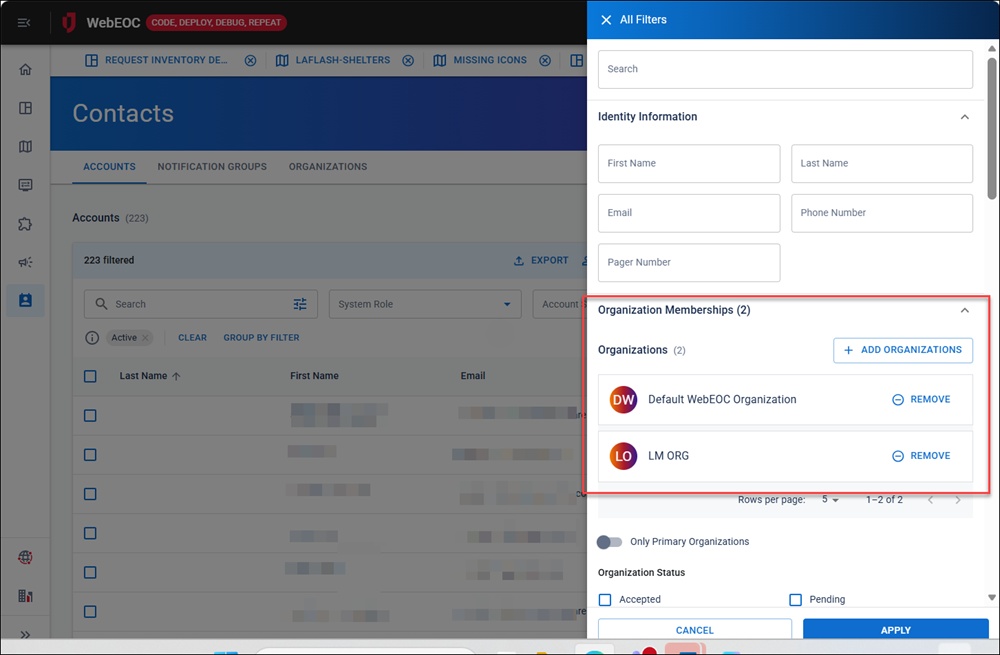
You can now filter accounts on the Accounts tab by organization membership.
To use the Organization Memberships filter
-
On the Accounts tab, click All Filters. The All Filters slide-out panel opens.
-
In the Organization Memberships section, click the Add Organizations button. The Select Organizations page opens.
-
Click Select for the organizations to filter by.
-
Click Save.
Accessibility Enhancements
-
Table captions and summaries have been added.
-
Users can open links on pending membership using keyboard navigation.
-
NonVisual Desktop Access (NVDA) no longer reads rows as clickable on the Archived tab.
Resolutions
-
Fixed an issue with filter-based groups
Allows you to automatically group accounts that meet a filter's criteria. not keeping the filter when the filter is opened. On the Accounts tab, you selected Group by Filter and created a new filter. On the Notification Groups tab, when you opened the filter, it did not reflect the criteria you saved. With the fix, filter-based groups behave as expected. -
An invisible default organization no longer blocks org admin from adding accounts.
Default organizations are made invisible if the Available in Organizations List checkbox is not checked on the New page when you add an organization.
-
Resolved an issue where organization changes were not displaying correctly on the History tab for the organization.
-
Fixed an issue where certain types of valid filters on the Accounts tab were showing errors instead of search results. With the fix, these errors no longer display.
Previous Versions
Release notes for previous versions are available here.