Map of Entries
The Map page in the Entries module shows the location of entries and other elements like team locations, task boundaries, and Areas of Concern. On the action bar, you can create, export, import, filter, and edit entries. If you have jurisdictions set up and want to show entries from this incident Crisis Track allows you to track damage for several events through the Incidents feature. You can create a new incident, edit incidents, and deactivate or delete old incidents. Each incident keeps the data separate. Information such as equipment, employees, and structures are listed across all incidents. and its jurisdictions, select the Show Jurisdictions checkbox.
This map also has panes and menus used to modify or work with the map. The following table describes these elements.
| Element | Description |
|---|---|
|
Map |
Displays aggregated data for your administrative region.
You can click map elements like entries to view more information about them. Clicking the home icon The numbers in the lower left indicate the map's scale, which changes as you zoom in or out. You can also set the scale by clicking these numbers and entering a value. The numbers in the lower right indicate the coordinates for the location where your cursor is positioned. By default, the coordinates are displayed as latitude and longitude, but you can select other units with the Map Settings feature in the Tools menu. By default, if there are many data points for certain types of data, those data points are grouped If a pin contains less than 5,000 entries by default, you can click it to expand the cluster and display each entry. You can also zoom in to a smaller area with fewer entries to view the individual entries in that area. Structures and reentry permits |
|
Left Pane |
Allows you to show or hide map elements representing the following types of data. You can expand or collapse the left pane by clicking the expand icon
|
|
Search Bar |
Allows you to search for specific entries.
When you enter your search terms, Crisis Track searches through in all the text fields in entries for this incident Entries |
| Edit Entries Pane |
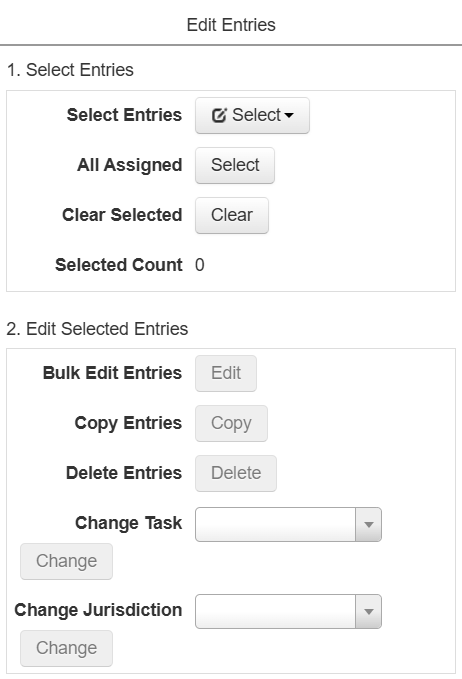
Allows you to edit, copy, delete, and change the task of multiple entries at once.
|
|
Tools Menu |
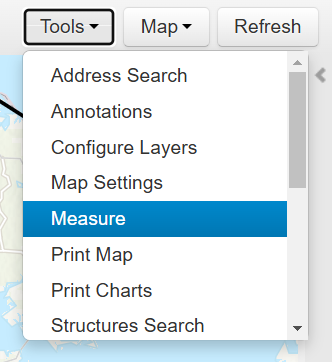
Allows you to edit or work with the map in various ways, such as adding elements, changing the map settings, or measuring distances. For more information, see Using the Entries Map Tools.
|
|
Map Menu |
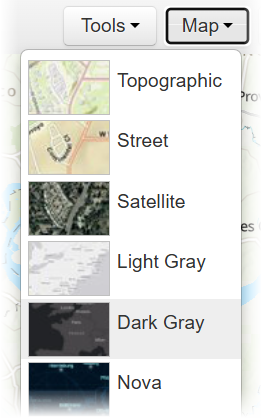
Allows you to change the appearance of the base map. This does not affect other map elements.
|
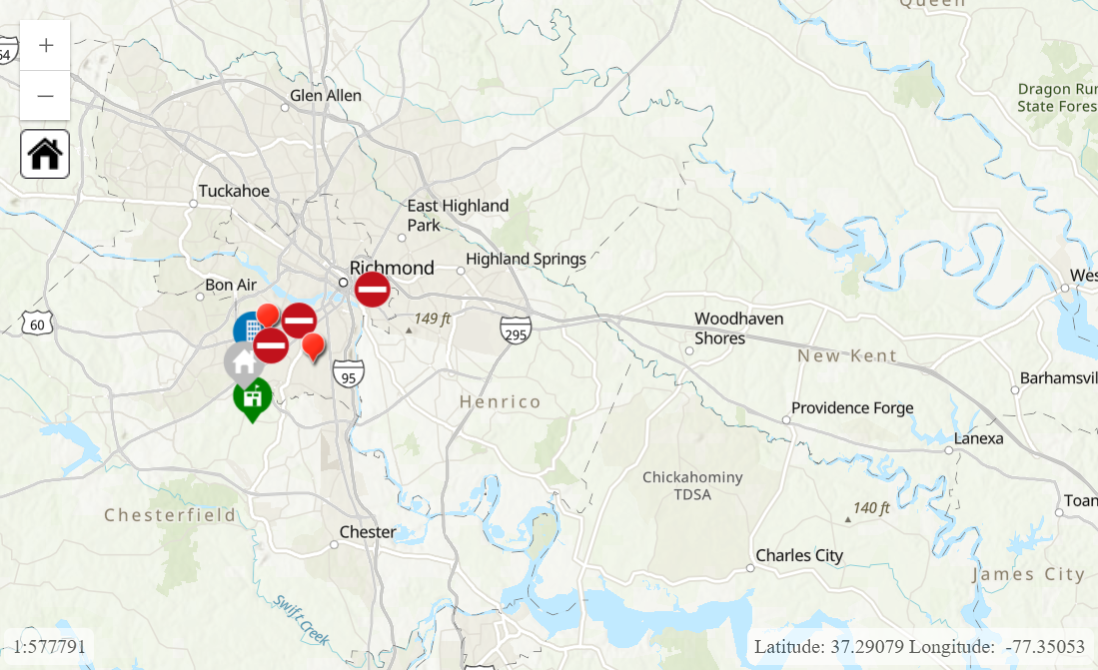
 focuses the map on the outer boundaries of your region. Pan the map by left-clicking and dragging, or rotate it by right-clicking and dragging. You can also pan with the arrow keys.
 on the left.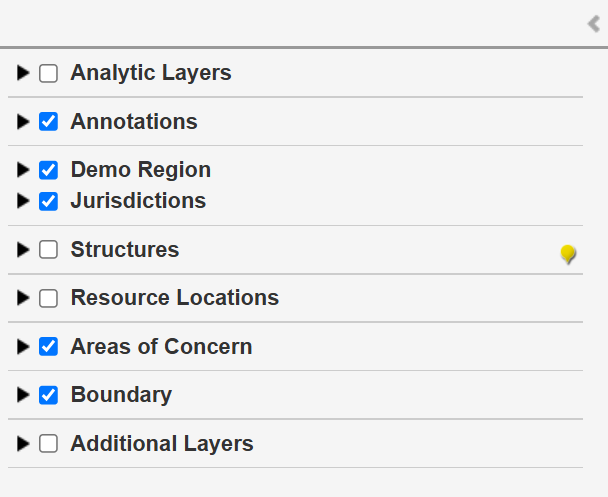
 to focus the map on that track.
 .
.  for the layer. You can only query one layer at a time, and you cannot query the base map while the query icon