Add Optional Fields to a Shared Board
After a board has been shared, you can add fields to it. These fields can only be added as optional fields, not required ones.
After you publish a board, then add new optional fields to a record type on the published board, that board’s subscribers receive an alert letting them know that the optional fields have been added.
You can add optional fields to a shared board that you own, whether it is a whole board or a shared, data-only board.
After adding optional fields to a shared board, you can also add a filter for the fields. See Edit Filters for a Shared Board for details.
To add optional fields on the Networks page
-
In the main menu, click the JX Networks icon
 . The Networks page opens.
 -
Click the row containing the network that has the shared board to add fields to. The network details page opens.
-
Click the Shared Boards tab.
-
For the Owned board, click the more icon
 and select Add New Optional Fields.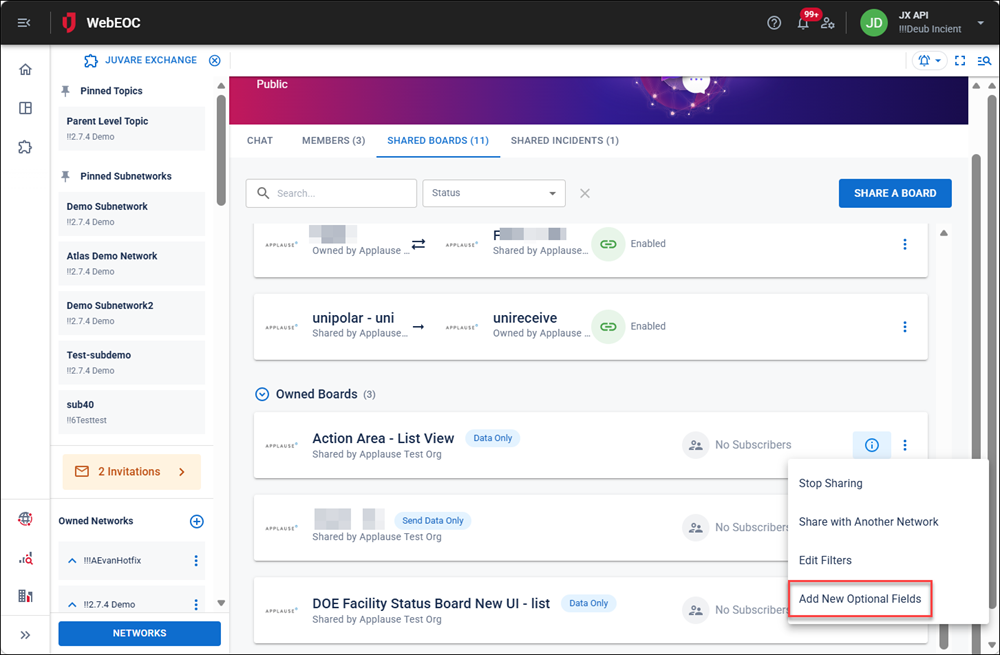
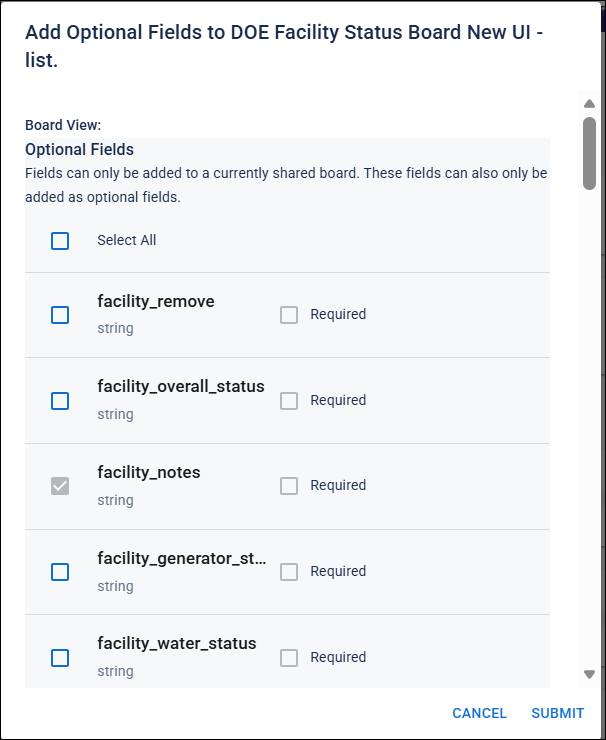
The Add Optional Fields to [Board Name] dialog opens.
-
Click the checkbox next to the field to add to the shared board.
-
Click Submit.
To add optional fields on the Shared Boards page on the Data Management tab
-
In the main menu, click the JX Networks icon
. The Networks page opens. -
Click the Data Management tab and select Shared Boards.
-
Locate the shared board to add the fields to.
-
Click the more icon
on the row and select Add New Optional Fields. The Add Optional Fields to [Board Name] dialog opens. -
Click the checkbox next to the field to add to the shared board.
-
Click Submit.
Use the chat feature to alert board subscribers about any new fields added to shared boards. They can then map these fields to their local versions as needed.