Stop Sharing a Board
You can stop sharing a board at any time by removing it from the networks it has been published to. When you stop sharing, you maintain access to the shared board, and a local version of it is downloaded and retained by all organizations in the network. Everyone can continue to work with the board, adding and editing data.
You can re-share the board with a network at any time by following the steps in Share a Board. If you choose to reshare the board at a later date, a new copy of the board is shared with the network and it exists side-by-side with any previous boards of the same name.
The JX chat feature is a convenient way to notify other organizations in the network that you have stopped sharing a board with them. For information on using chat, see Manage Chat Topics.
You can stop sharing a board on the Networks page or on the Data Management tab.
To stop sharing a board on the Networks page
-
In the main menu, click the JX Networks icon
 . The Networks page opens.
 -
Click the row containing the network that has the board to stop sharing. The network details page opens.
-
Click the Shared Boards tab.
-
Under Owned Boards, on the row of the board to stop sharing, click the more icon
 and select Stop Sharing.
 -
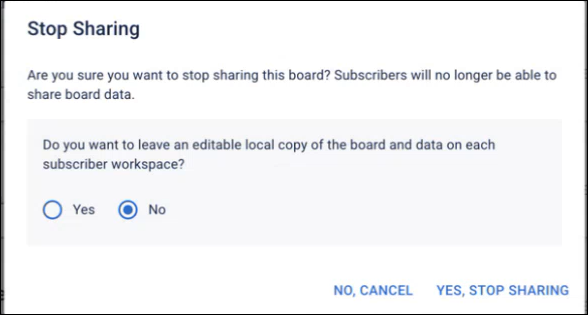
Click Yes, Stop Sharing.
If you stop sharing a whole board, you can leave an editable local copy on any subscriber’s instance or you can lock the subscriber’s local copy. If the subscriber can keep an editable copy of the board even if the board is unpublished the board behaves as if the subscriber had created it, operating just like a local board. If you select the option to lock the board, any local subscribed boards cannot be edited or exported. This allows subscribers to essentially archive the board, preserving the data in case it is required for audit purposes.
To stop sharing a board on the Data Management tab
-
In the main menu, click the JX Networks icon
. The Networks page opens. -
Click the Data Management tab and select Shared Boards.
-
Locate the board to stop sharing.
-
Click the more icon
on the row and select Stop Sharing. -
Click Yes, Stop Sharing.
If you stop sharing a whole board, you can leave an editable local copy on any subscriber’s instance or you can lock the subscriber’s local copy. If the subscriber can keep an editable copy of the board even if the board is unpublished the board behaves as if the subscriber had created it, operating just like a local board. If you select the option to lock the board, any local subscribed boards cannot be edited or exported. This allows subscribers to essentially archive the board, preserving the data in case it is required for audit purposes.