Map Data For a Shared Board
This task is performed by the administrator for a subscription board.
When an administrator of an owned board shares a data-only board, that subscription board’s administrator must map the data from the subscription board to their local version of the board.
The administrator for that local board controls how each field in the shared board they subscribed to maps to each field in the local board.
Example Mapping data provides a way to align incoming data from a shared, data-only board with local definitions of the data. For example, the shared board may use Open or Closed to indicate shelter status, while the local board uses Operational and Non-operational. By mapping subscription fields to the data model used by your local board, your users never see unknown values in their boards.
All required fields in the subscription board must be mapped before the subscription can be enabled.
To map data for the subscription board to your local board
-
In the main menu, click the JX Networks icon
 . The Networks page opens.
 -
Click the row with the network with the subscription board to map the data.
-
Click the Shared Boards tab.
-
Locate the shared data-only board that you are subscribed to.
-
Click the more icon
 and select View Data Mapping.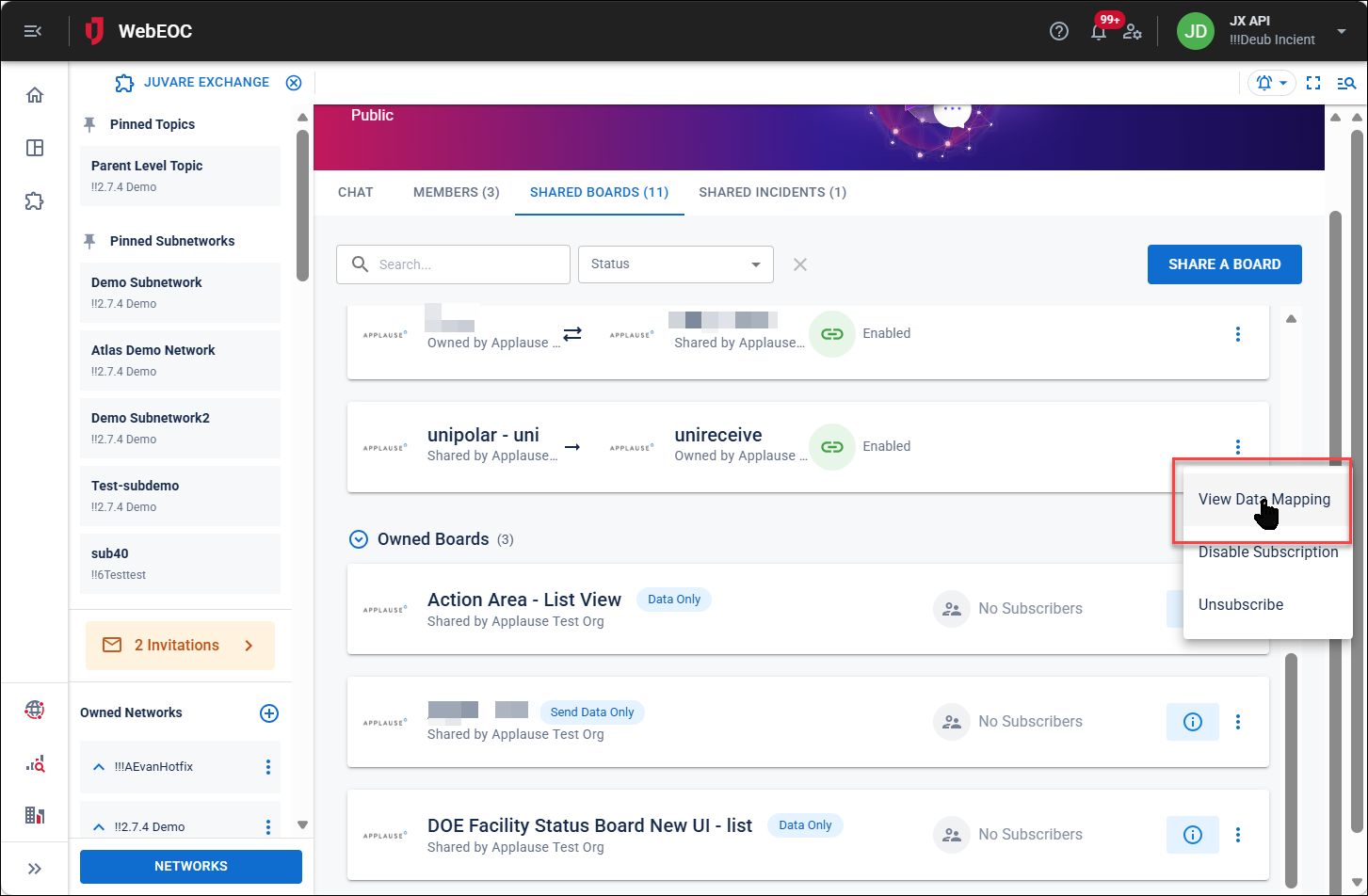
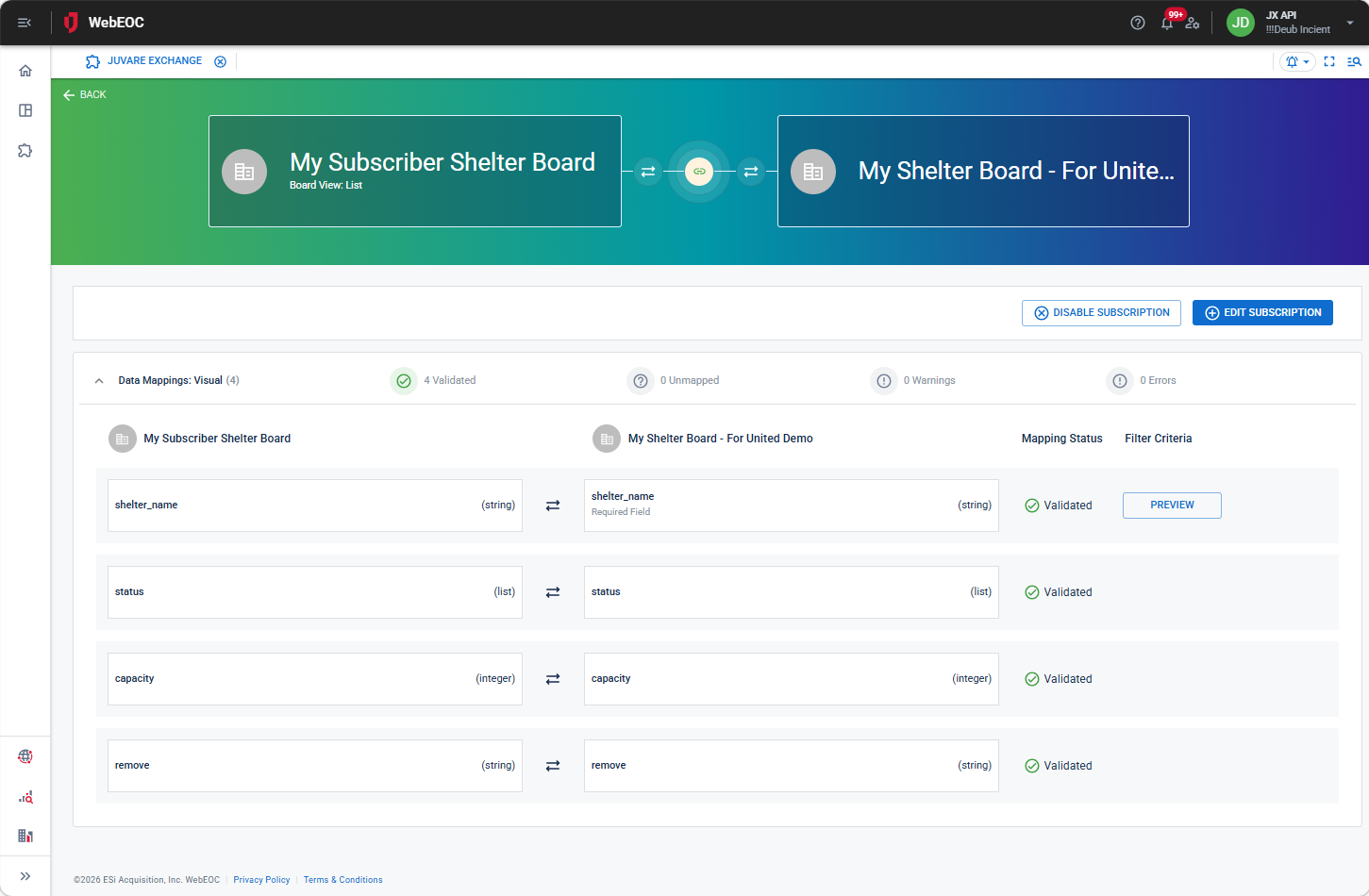
The Data Mapping page opens.
-
Click Edit Subscription in the top right.
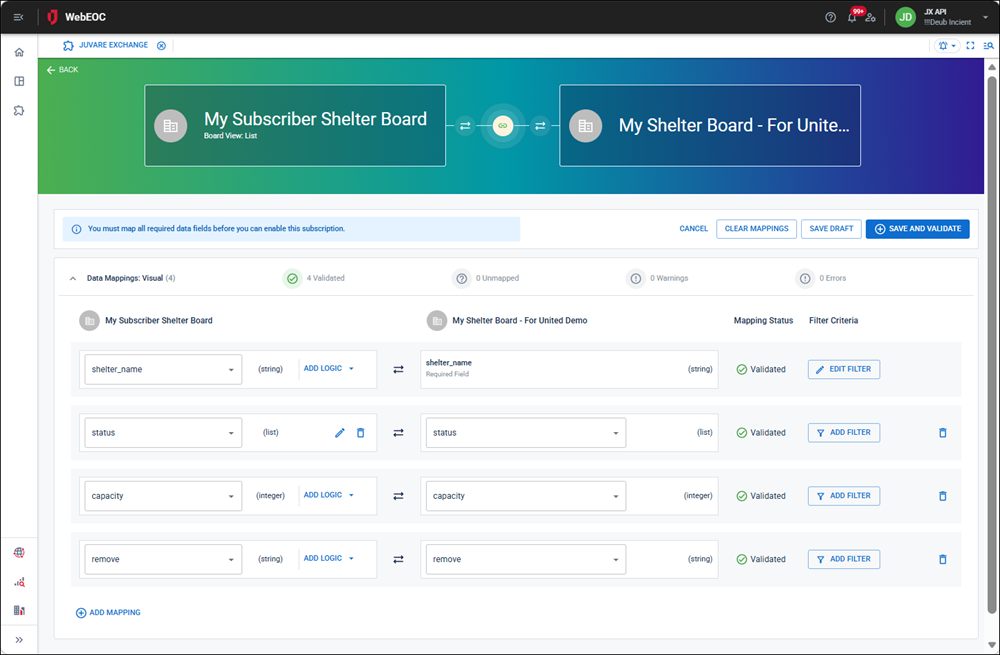
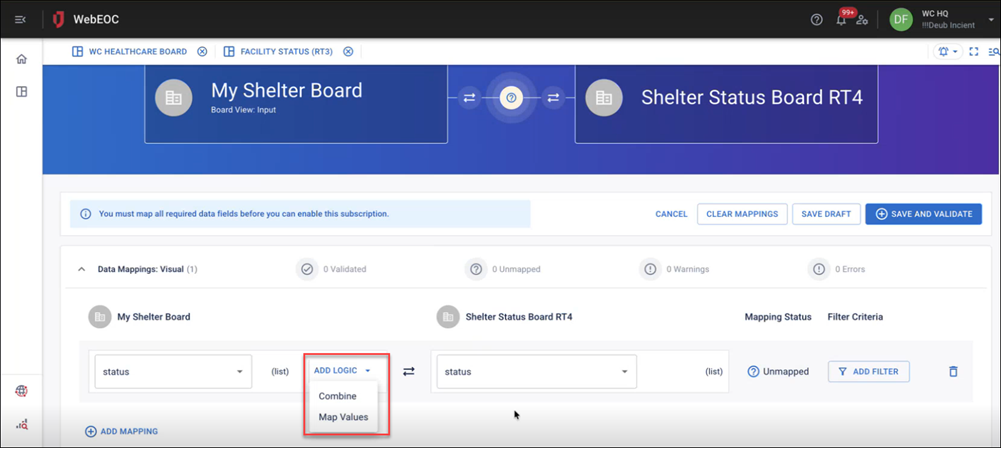
In the drop-down on the left, the field from your local board you selected to share with your subscription board is displayed. The data type of the local field displays, followed by an option to Add Logic when mapping the local board to the subscription board field. The name of the field on the subscription board that is automatically mapped to the local board displays to the right, along with its data type, the mapping status of the fields, and an option to add a filter.
Perform any of the following actions.
To clear all mappings between the subscription board and local board, click Clear Mappings.
To map a different local board field to a subscription board field
-
Select the local board field in the drop-down on the left.
-
Click Save and Validate.
To add logic to map combined local fields to the subscription field
-
Click Add Logic.
-
Select Combine. The Add Logic to Data Field dialog opens.
-
Click Combine With Another Data Field.
-
In the Enter Separator Text field, enter the text that displays between the combined fields.
-
In the Field drop-down, select the local field to combine with the existing local field.
-
Click Save.
To add logic to map a local field that is a list field that pulls values from a list in the shared board
-
For a local field with type list, click Add Logic and select Map Values.
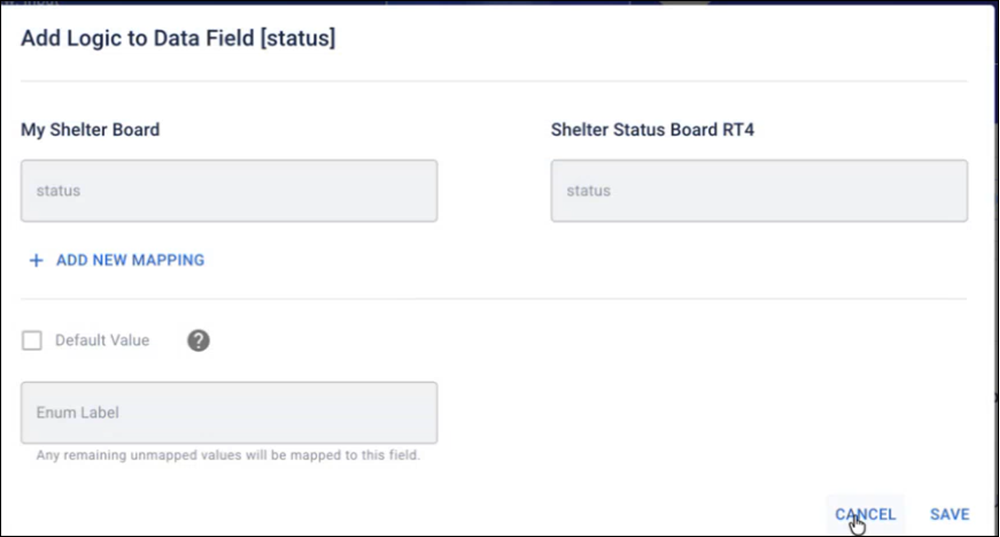
The Add Logic to Data Field dialog opens.
-
Select the values in the WebEOC list in the FieldName drop-down on the left, and select the subscription values to map to that value in the FieldName drop-down on the right.
-
If needed, click Add New Mapping to map additional values.
If the data flow is Send Data or Receive Data, you can also add a default value. Any value that is not mapped in the list will store the default value when it is mapped.
-
Select the Default Value checkbox,
-
Enter the default value in the field below it.
-
Click Save.
To add a filter to the mapped field
-
Click Add Filter on the mapping row. The Build Filter dialog opens.
-
In the Condition drop-down, select the condition for the filter.
-
In the Value field, enter the value for the filter.
-
To add additional filters, click Add.
When you add additional filters, they use OR logic.
-
When the filter is complete click Save.
To save a draft of the mappings to return to work on it later, click Save Draft in the top right.
To delete a mapped value
-
Click the trash can icon to the right of the row.
-
Click Save and Validate.
To map a static value to a field on the local board
These mappings can only be mapped to local board fields with a string data type.
Use this option to assign a fixed value to a target field. The static value will not change and will be applied to every record processed by the mapping. This is useful for default values, constant identifiers, or predefined labels.
-
Click Add Mapping.
-
Click Static Value. The Add Static value to map to [field name] opens.
-
In the Field Name field, enter the name of the field in the subscription board that will pass the static value.
-
In the Field Value field, enter the value that should populate the local board field.
This field must be a data type of string.
-
Click Save and Validate.
To add a mapping to a field on the subscription board to the local board
These mappings are for fields that were not yet mapped in the local board. This situation could arise when additional optional fields are added to shared boards, or when you want to add a field from your local board to map to a field on the subscription board. See Add Optional Fields to Shared Boards for details.
-
Click Add Mapping.
-
In the Select Field drop-down on the leftmost column, select the name of the field in the local board to map to the subscription board.
-
In the next Select Field drop-down, select the name of the field in the subscription board to map to the field on the local board.
-
This field must be a data type of string.
-
Click Save and Validate.
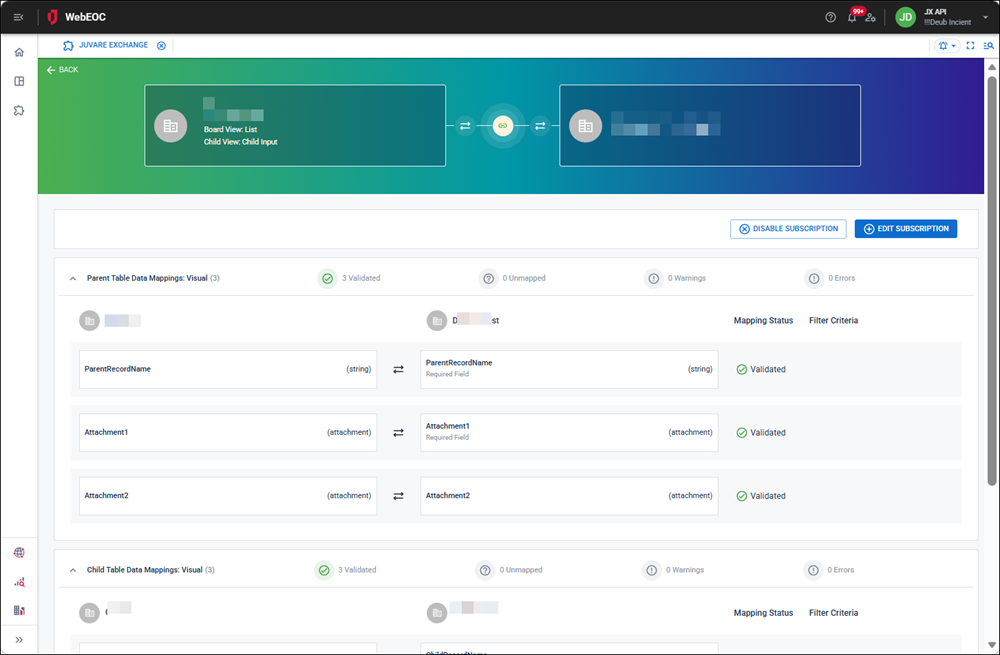
To map data for a shared board with a parent-child view
If the subscription board has a shared parent-child view, the steps described above to map the data apply. The only difference is that these steps must be performed in both the Parent and Child sections of the Data Mapping page.