Edit Filters for a Shared Board
After you have shared a board, you can add and edit filters for its fields. Board records will only be shared if the data in that field matches the filter criteria.
You can edit filters for a shared board you own, whether it is a whole board or a shared, data-only board.
You can edit filters on the Networks page or the Data Management tab.
To edit filters for a shared board on the Networks page
-
In the main menu, click the JX Networks icon
 . The Networks page opens.
 -
Click the row with the network with the shared board to edit the filter on.
-
Click the Shared Boards tab.
-
Locate the owned shared board.
-
Click the more icon
 and select Edit Filters. The Build Filter dialog opens.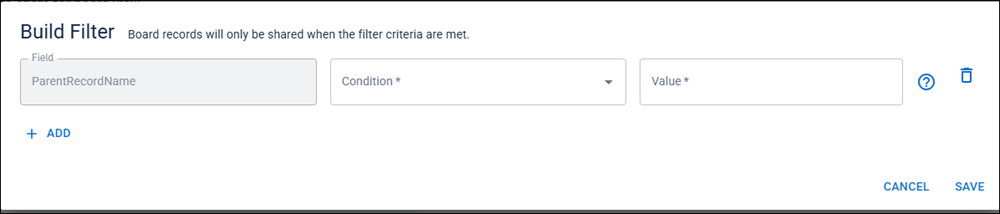
-
Locate the field and click Add Filter or Edit Filter. The Build Filter dialog shows additional fields.
-
In the Condition drop-down, select the condition for the filter.
-
In the Value field, enter the value for the filter.
-
Click Save beneath the filter.
-
To add additional filters, click Add. These filters are joined with AND logic.
-
Click Save in the bottom right when the filter is complete.
To edit filters for a shared board on the Data Management tab
-
In the main menu, click the JX Networks icon
. The Networks page opens. -
Click the Data Management tab and select Shared Boards.
-
Locate the owned shared board to edit the filter.
-
Click the more icon
and select Edit Filters. The Build Filter dialog opens. -
Locate the field and click Add Filter or Edit Filter. The Build Filter dialog opens.
-
In the Condition drop-down, select the condition for the filter.
-
In the Value field, enter the value for the filter.
-
Click Save beneath the filter.
-
To add additional filters, click Add. These filters are joined with AND logic.
-
Click Save in the bottom right when the filter is complete.