Create an IT Event Template
During IT incidents, predefined IT incident templates can be used to save time and simplify the user input process. These templates contain predefined data that populates when the template is applied, eliminating the need to manually re-enter this data.
To create an IT event template
-
On the main menu, click
 IT Event Management. The IT Event Management page opens.
 -
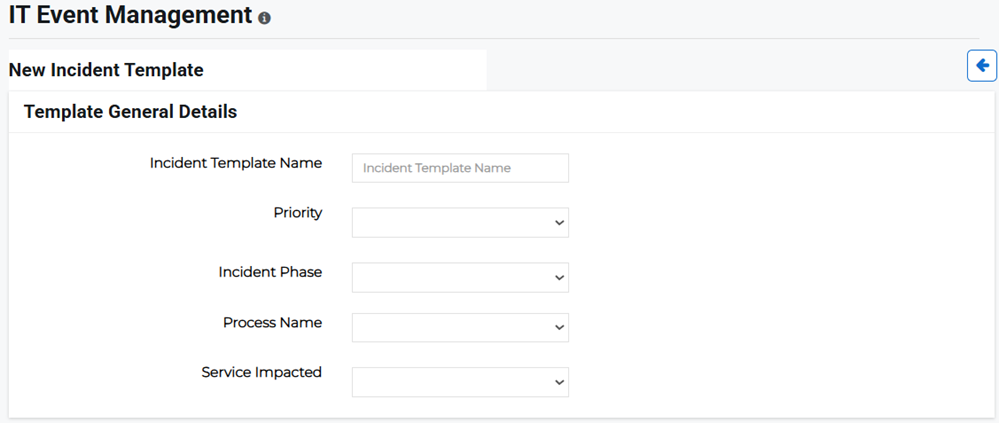
Click the Templates tab, then click Create Template in the upper right. The New Incident Template page opens.
-
Enter the template details information:
-
Incident Template Name: Enter the name of the incident template.
-
Priority: Select the incident priority (high, medium, low) from the menu.
-
Incident Phase: Select whether the incident contains a Single or Multiple phases.
-
Process Name: Select the impacted IT process from the menu.
-
Service Impacted: Select the impacted IT service from the menu.
-
Operator Form: Drag and drop the form fields from the left pane into the Operator Form box, or create new form fields.
-
-
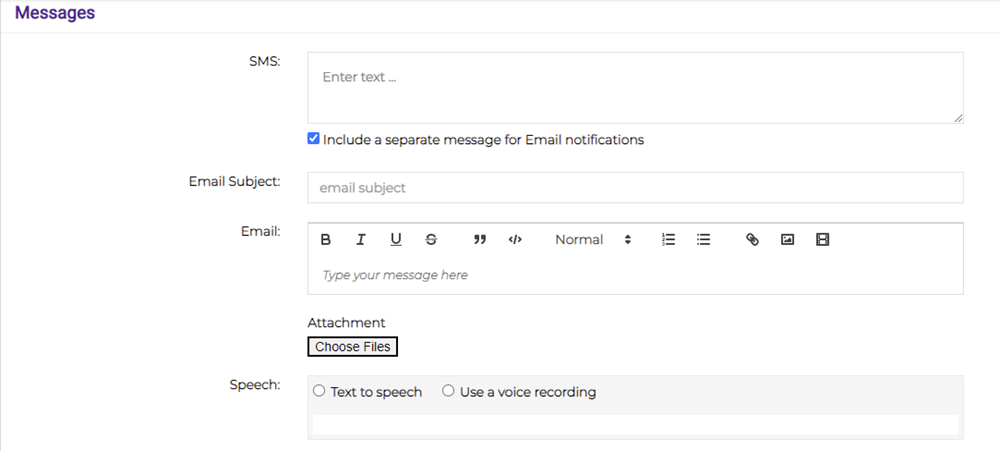
Enter the IT incident message in the SMS and/or email fields.
-
Specify whether you want to include a separate message for email notifications by enabling the checkbox.
-
Attach any relevant files.
-
Choose a speech option: Text to Speech, where text is converted to audio, or Use a voice recording, where you can record an audio file.
-
-
Select the IT shift calendar from the Calendar menu to notify relevant recipients.
-
Select the email format and settings from the menus.
-
Click Save if you want to save this template as a draft to edit later or Submit to finish.
Related Concepts
Related Tasks