View and Manage IT Events and Alerts
The list of IT events can be refreshed using the refresh  button in the upper right. You can also filter for IT event incidents by user or group, or filter incidents by the last 7 or 30 days. These options are above the incidents table.
To view and manage IT events, follow the instructions by expanding the headings below.
 View IT event alerts
IT event alerts are urgent notifications about the occurrence of an IT-specific disruption or degradation that is sent to responsible stakeholders to initiate appropriate action. IT event alerts provide organizations with the ability to accelerate on-call staff responses to unplanned IT issues, allowing them to restore services within their service level agreements.
IT alerting calendars and shift management keeps staff on-call schedules up to date and automatically determines who is on-call and who to escalate issues to, should the need arise.
-
On the main menu, click
 IT Event Management. The IT Event Management page opens.
 -
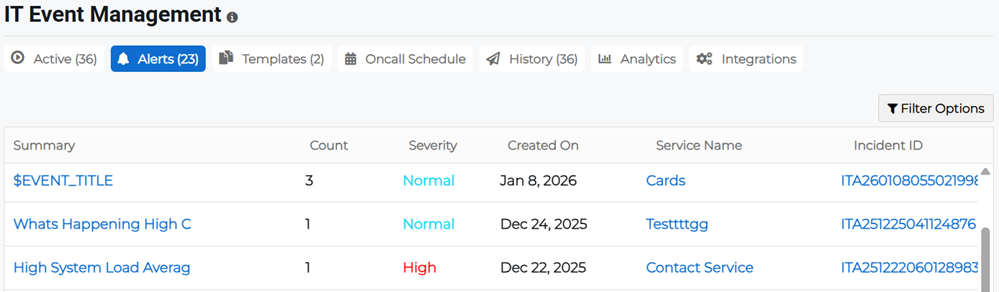
Click the Alerts tab to view the list of IT incidents that have already been created. This displays the IT incident details, such as IT Incident ID, Incident Title, Priority, Service, Launched On, and Incident Mode.
-
Click Filter Options to specify the service, severity, keyword, or date range that you want to filter for, or leave the list unfiltered to view all IT event alerts.
-
Click the alert summary link. The Alert Details slideout opens.
This allows you to view details such as the severity and summary of the alert, the alert history, and when it was created and by whom.
-
Click the service name link. The Service Details slideout opens.
This allows you to view details such as the service name, description, status, and owner, the associated process, the linked on-call calendars and teams, and information regarding the service integration.
For more information about the integration, rule set, maintenance mode, and service dependency details, refer to Manage IT Service Settings.
-
Click the incident ID link. The Incident Details slideout opens.
This allows you to view details related to the incident, including the incident title, ID, type, mode, and priority, the associated processes and services, who launched the incident and when, and when it was last updated.
For more information about incidents, refer to View and Manage Incidents.
View IT event template reports
-
On the main menu, click
IT Event Management. The IT Event Management page opens. -
Click the Active tab, then click the incident ID link in the list. The incident details page opens.
This page displays incident details, the message previews, target responders, form fields, phases and phase information, and operator notes.
-
Click Report to view the full report, including incident analysis, incident duration, average response time, the number of contacts who responded, and when the incident was closed, among other details.
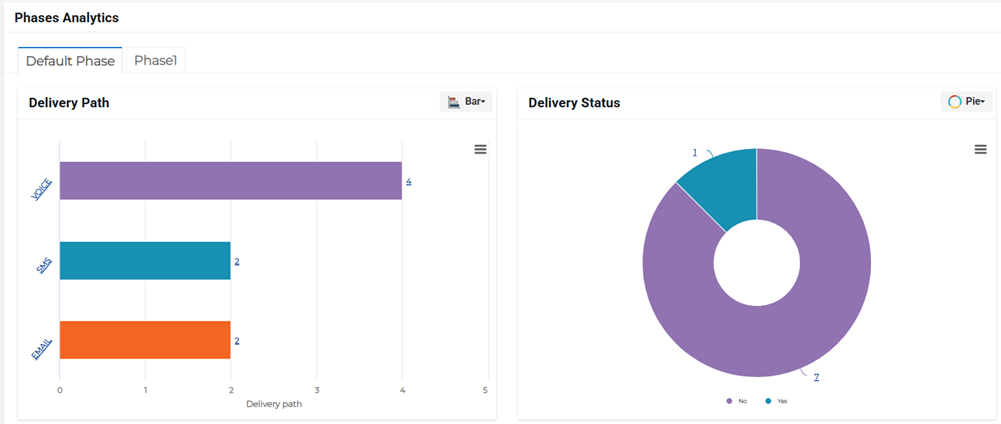
To export the report details, click the dropdown arrow on the Report button to access the menu, then select Excel or PDF to export to these formats.
Chat with Ops about an IT event incident
-
On the main menu, click
IT Event Management. The IT Event Management page opens. -
Click the Active tab, then click the incident ID link in the list. The incident details page opens.
-
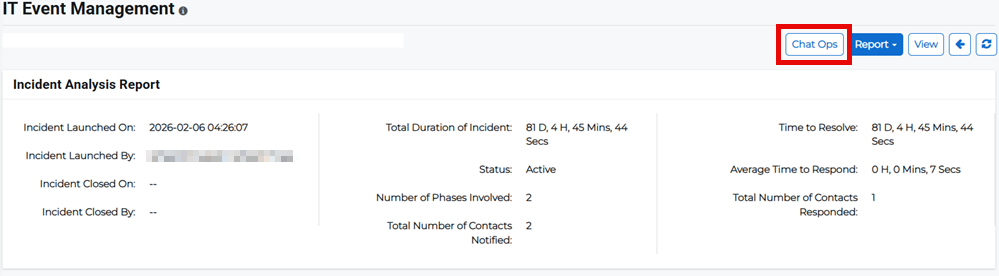
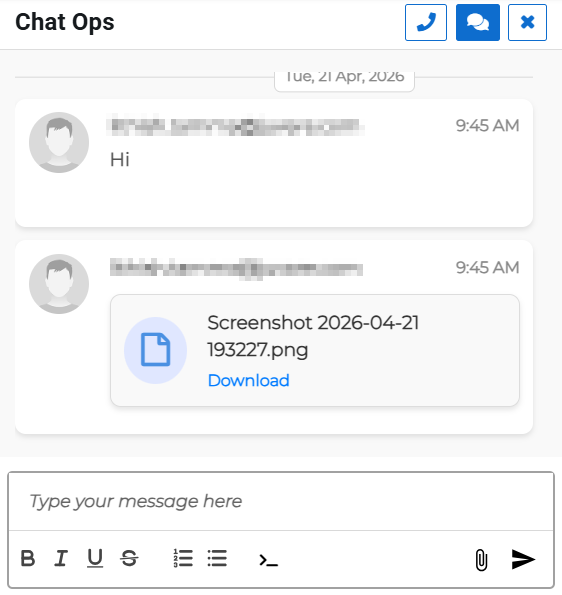
Click Chat Ops to speak to the Operations team regarding the incident template. The chat panel opens.
-
To chat with the Operations team, either:
-
Click the chat
 button to have a text conversation. Enter your messages and upload attachments, if necessary.
 -
Click the call
 button to initiate a voice call with the Operations team. This launches the incident management call space.
-
Export the IT event incident list
-
On the main menu, click
IT Event Management. The IT Event Management page opens. -
Click the Active or History tabs, then search or filter the list (as needed) or leave the list unfiltered if you want to export all incidents.
-
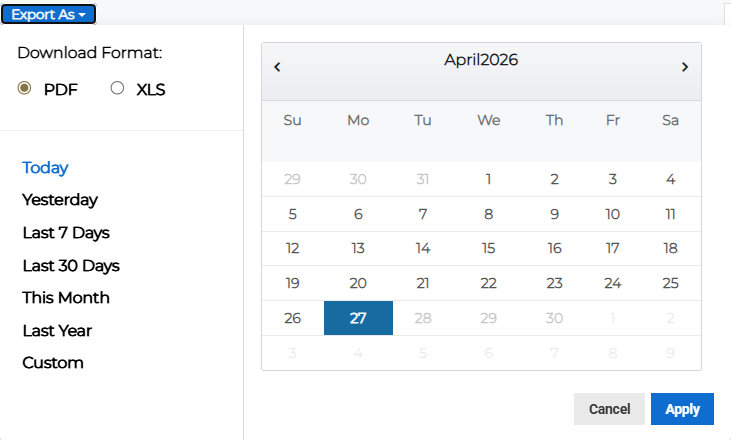
Click Export As at the top of the incident list. The export pop-up opens.
-
Select whether to export the list as a PDF or XLS file.
-
Specify the date range of the incidents you want to export.
-
Click Apply.
View IT event history
IT Event History represents a set of data with all details of an incident that documents the history of the incident from occurrence to resolution, including the original report, investigation, conclusions, remediation, verification of completion of remediation, and assessment of the resilience of improvements achieved.
Information for all previously launched IT event templates is located in the History tab of the IT Event Management page.
Click on an incident ID to view the incident details such as the incident title, priority, service, incident mode, when it was launched, and who it was launched by.
View IT event history report
-
On the main menu, click
IT Event Management. The IT Event Management page opens. -
Click the History tab, then click the incident ID link to view the IT event incident details. The incident view page opens.
-
Click Report to view the details of the incident.
To export the report details, click the dropdown arrow on the Report button to access the menu, then select Excel or PDF to export to these formats.