View IT Event Analytics
IT Event Analytics provides structured data to identify what happened during an outage, discover what parts of the system were involved, who attended and how the problem was handled, the root cause, and what can be done to prevent or minimize the risk of recurrence.
On the main menu, click  IT Event Management then click the Analytics tab to view details related to all IT event incidents.
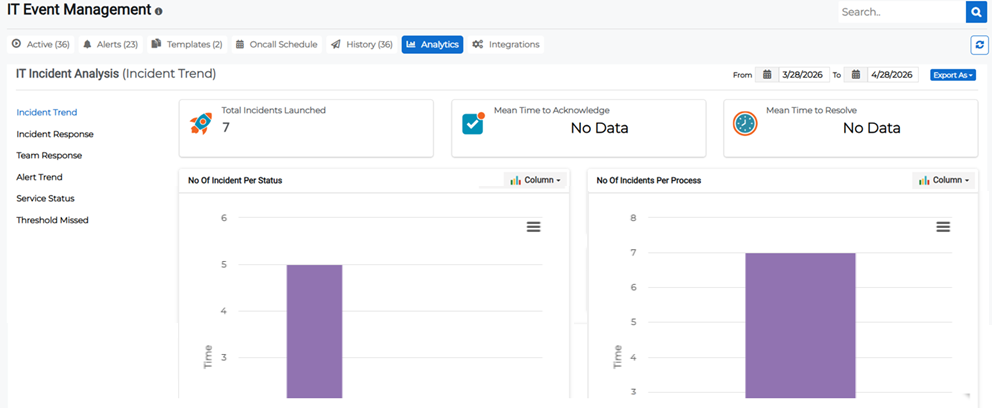
The latest IT event analytics can be displayed by clicking the refresh  button in the upper right.
To view IT event analytics, click IT Event Management then click theAnalytics tab and scroll down to the graph showing the information you are looking for. Expand the headings below for more information on each section.
You can search between dates for specific information.
 Incident Trend
Click Incident Trend on the left to view metrics for launched IT event incidents.
-
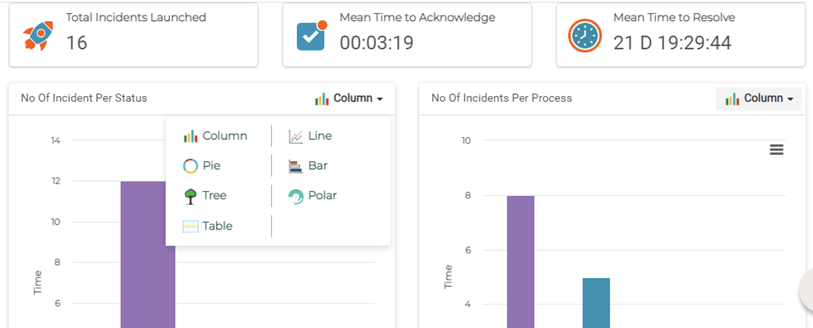
Mean Time to Acknowledge: The average time taken from when an alert is triggered to when the work begins on the alert. This metric is useful for tracking the alert system's efficiency and the team's responsiveness. MTTA is calculated by adding up the time between alert and acknowledgment, then dividing by the number of incidents.
Example If you had 10 incidents and there was a total of 60 minutes of time between alert and acknowledgment for all 10, you divide 60 by 10 and come up with an average of 6 minutes.
-
Mean Time to Resolve: The average time taken to fully resolve an incident. This includes the time spent detecting the incident, diagnosing and fixing an incident, and ensuring the incident does not recur.
It is the difference between extinguishing a fire and fireproofing the vulnerable area post extinguishing.
-
Number of Incidents Per Status, Process, or Service: The ratio of incidents per status or per process, shown in table view, pie chart, or bar chart.
-
Number of Incidents Launched By: The number of incidents launched by any given user.
-
Number of Incidents Date Wise:
-
Incidents Opened by Date and Service: The number of incidents opened by date and status (Active and Inactive).
-
Incidents Opened by Date and Process:
-
Incidents Opened by Date and Status:
Incident Response
Click Incident Response on the left to view metrics for incident responses.
-
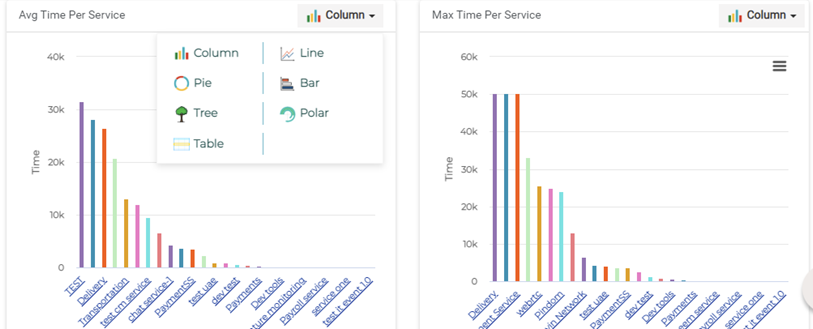
Average Time Per Service: The average length of time services were impacted.
-
Max Time Per Service: The maximum length of time services were impacted.
-
Mean Time to Acknowledge Per Service: The mean time it took for impacted services to be acknowledged.
-
Mean Time to Resolve Per Service: The mean time it took for impacted services to be resolved.
-
Mean Time Resolved by Date and Service: The mean time, by date and services, it took for impacted services to be resolved.
-
Mean Time Responded by Date and Service: The mean time, by date and services, to respond to impacted services.
-
Mean Time Responded by Date and Priority: The mean time, by date and priority, to respond to impacted services.
Team Response
Click Team Response on the left to view details related to Mean Time Team Response and Mean Time Resolved.

Alert Trend
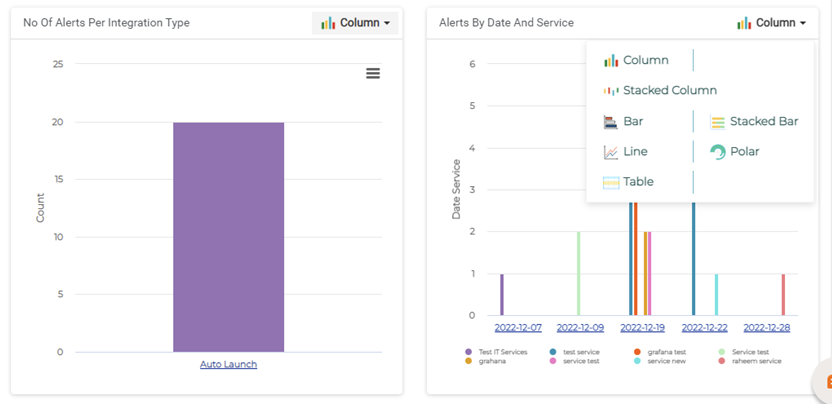
Click Alert Trend on the left to view details related to incident alerts, including the total number of alerts.
-
Number of Alerts Per Service
-
Number of Alerts Per Severity
-
Number of Alerts Per Integration Type
-
Alerts by Date and Service
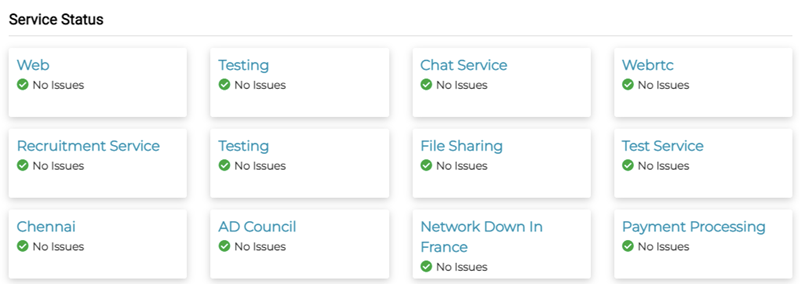
Service Status
Click Service Status on the left to view the current operational status of services.
Threshold Missed
Click Threshold Missed on the left to view a list of any incidents that were not responded to or resolved.