Manage Message Templates
You can edit, copy, or delete message templates that:
-
Are in Draft Status: Draft message templates, stored in the Drafts tab, have been created and saved but not submitted.
-
Have been sent or submitted for approval but have not yet been approved or rejected. These are located in the Sent/Submitted tab.
-
Are in Approved status: These are located in the Approved tab.
-
Have been rejected: These are located in the Rejected tab.
The list of message templates can be refreshed on any tab of the Message Templates page by using the refresh  button in the upper right.
To manage message templates, follow the instructions by expanding the headings below.
 Edit a message template
-
On the main menu, click
 Message Template. The Message Templates page opens.
 -
Click the appropriate tab for the message template you want to edit: Drafts, Sent/Submitted, Approved, or Rejected.
-
Click template name link. The template details page opens.
-
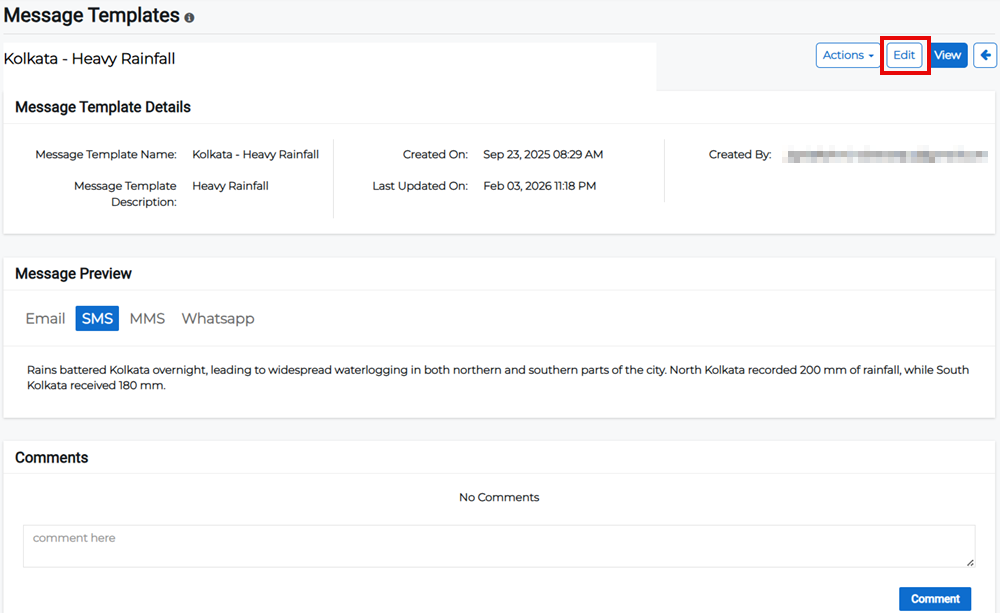
Click Edit in the upper right.
-
Edit the appropriate template details then click Submit.
Alternatively, click the Actions button for the appropriate message template and select Edit from the menu.
Copy a message template
-
On the main menu, click
Message Template. The Message Templates page opens. -
Click the appropriate tab for the message template you want to copy: Drafts, Sent/Submitted, Approved, or Rejected.
-
Click the template name link. The template details page opens.
-
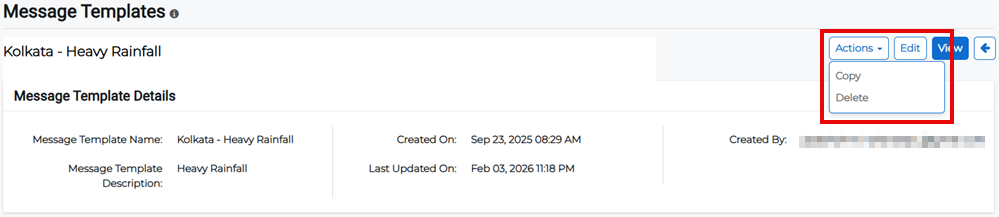
Click Actions and select Copy from the menu.
Delete a message template
-
On the main menu, click
Message Template. The Message Templates page opens. -
Click the appropriate tab for the message template you want to delete: Drafts, Sent/Submitted, Approved, or Rejected.
-
Click the template name link. The template details page opens.
-
Click Actions and select Delete from the menu.
-
Confirm the deletion.