Create a Notification
A notification is a message to provide users with timely alerts, reminders, and communication on potential threats, risks, and incidents. There are various types of notifications such as voice, text, email, and push notifications. Users can open the notification to read and respond, as needed.
To create a notification
-
On the main menu, click
 Notification Management. The Notifications page opens.
 -
Click the Templates tab then click Create Notification in the upper right. The Add Notification Template page opens.
-
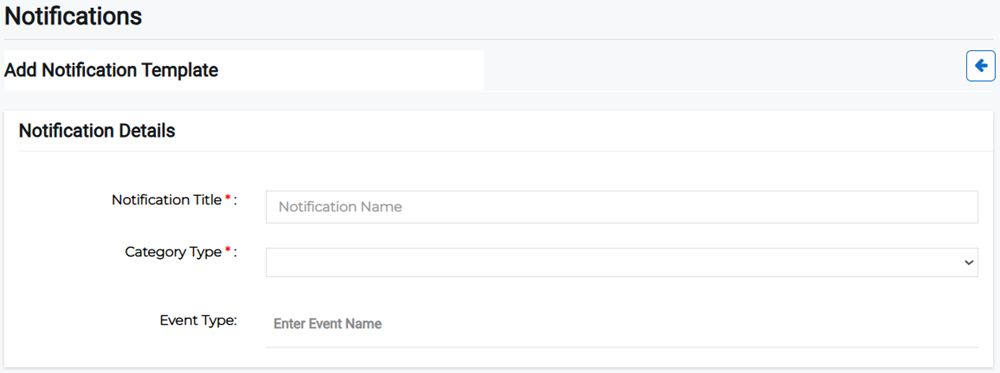
Enter the Notification Details:
-
Notification Title: Enter the notification template name.
-
Category Type: Select the category type from the menu. Notification categories allow your users to manage notification settings for each category that you have defined.
Example Notification category types include natural disasters, power outages, planned interruptions, and weather-related events.
-
Event Type: Enter the event type.
-
-
Select an existing template or create a new template to use. If you choose an existing template, enter the template name as it appears in the templates list. As you type, approved templates that match your text appear in the dropdown list.
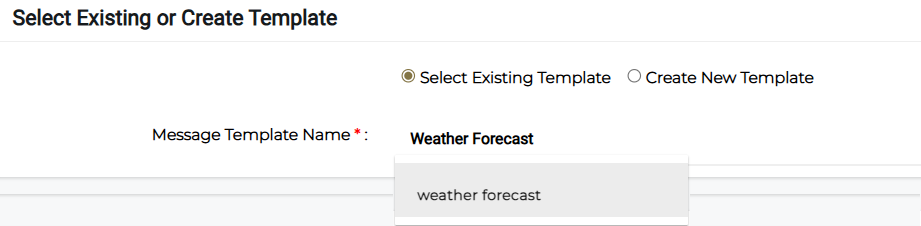
For more information about message templates, refer to Create a Message Template.
-
Preview the message for the Email, SMS, MMS, or Whatsapp template methods. You can check the text to speech or recorded voice in the MMS preview by clicking the previous button in the upper right of the Message Preview pane.
If you chose an existing template but the preview does not appear in the Message Preview pane, you may have entered the name incorrectly.
-
Select the user responses:
-
One Way: You can send a message to the recipient, but cannot receive responses.
-
Two Way: You can send a message that allows a response back from the recipient, from the options you specify. This helps you take appropriate support measures and conduct targeted surveys and polls.
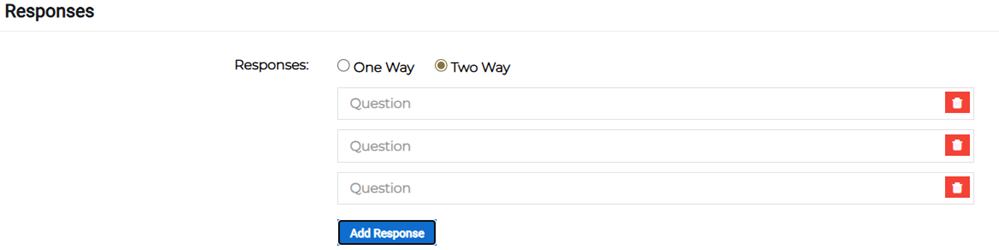
Example During disaster relief operations, notifications can be sent to verify if people are safe. Recipient response options may appear as "I am safe" or "I need help".
During an organization vaccination campaign, notifications can be sent to verify if employees are vaccinated. Recipient response options may appear as "Vaccinated with Booster Shot", "Vaccinated with No Booster Shot", "Vaccinated with No Second Dose", or "Not Vaccinated".
-
-
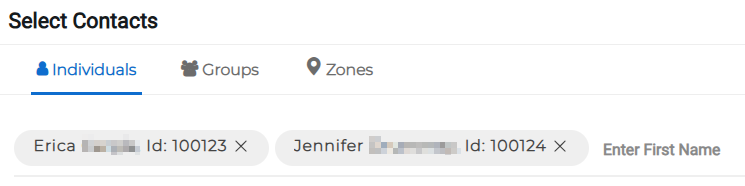
Select the required contacts. These may be specific individuals, or contacts based on groups or zones.
-
Specify the email format settings and select settings you want to use for this notification.

For information regarding settings, refer to Portal Settings.
-
Select the teams who have access.
-
Click Save if you want to save a draft template to edit later or Submit to finish.