Checklist User Guide
Overview
The Checklist board is a versatile tool specifically designed to create and manage a library of checklists for daily, weekly, monthly, or situational use. It aims to streamline task completion by providing an organized chronological list of essential duties for personnel involved in routine operations or emergency incidents.
When integrated with WebEOC Nexus alerts, assigned users receive immediate notification, ensuring prompt task execution. See Configure Board Notifications for details.
The board supports both mobile and desktop usage, allowing for seamless task completion across multiple platforms. A full task history is maintained within the board, providing accountability and valuable data for after action reviews.
Before using the Checklist board, it must be set up to enable use by granting feature groups the appropriate view access and board permission tags.
Key Capabilities
-
Create and manage checklists: Build and organize checklists for daily operations, events, or emergency response.
-
Activate the tasks as needed. This functionality enables tasks to be initiated at the appropriate times without delay.
-
Assign tasks: Designate checklist items to positions or users and automatically notify them of assignments.
-
Track progress: View real-time progress through completion bars and task indicators.
-
Work across devices: Update and complete checklist items from desktop or mobile devices.
-
Export completed checklists: Generate PDF exports for record keeping or inclusion in After Action Reviews.
-
Maintain accountability: Preserve task completion history for reference and audit purposes.
Access the Checklist Board
Depending on your WebEOC Nexus environment configuration, accessing your Checklist board may vary.
To access the board
-
On the main menu, click the Boards icon.
-
Click the Checklist board.
Checklist Board Tabs
The tabs that display on the Checklist board depend on your permissions.
The Checklist board contains the following tabs.
My Checklists
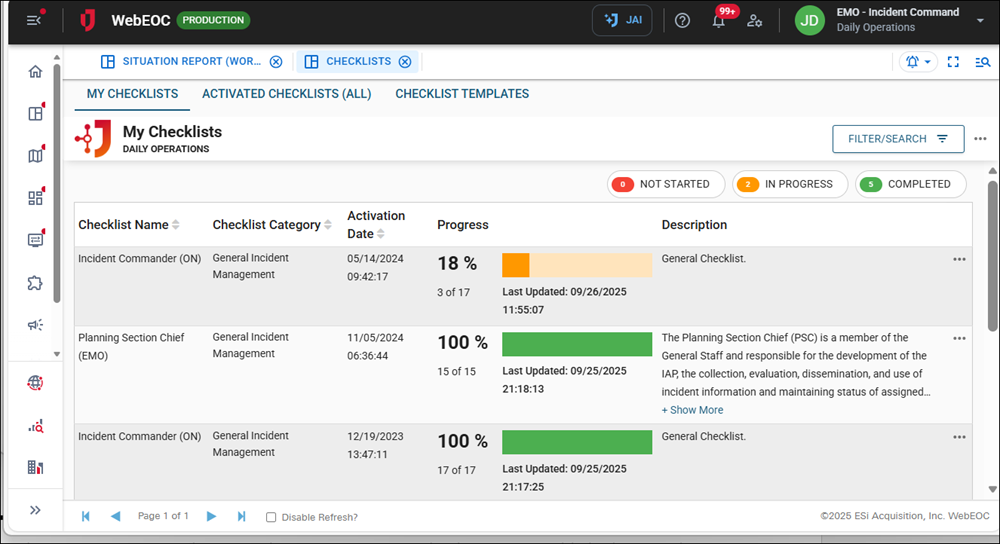
This tab provides a personalized view of your assigned checklists. This feature allows you to track your responsibilities, update task statuses, and ensure the timely completion of assigned checklist items. You receive automated notifications for new assignments and can mark tasks as completed in real time.
These notifications must be configured. See Configure Board Notifications for details.
When the My Checklists tab is open, the Dashboard tab does not display.
On the My Checklists tab, you can:
Activated Checklists (All)
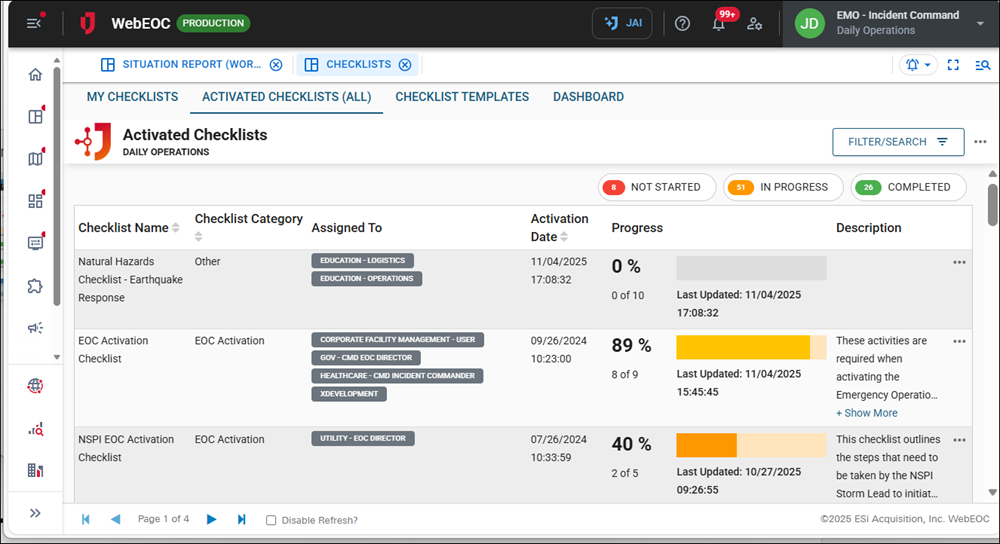
This tab presents all active checklists for a specific incident. This comprehensive view enhances situational awareness by enabling you to monitor progress, identify outstanding tasks, and ensure operational efficiency across multiple teams and locations.
On the Activated Checklists (All) tab, you can:
Checklist Templates
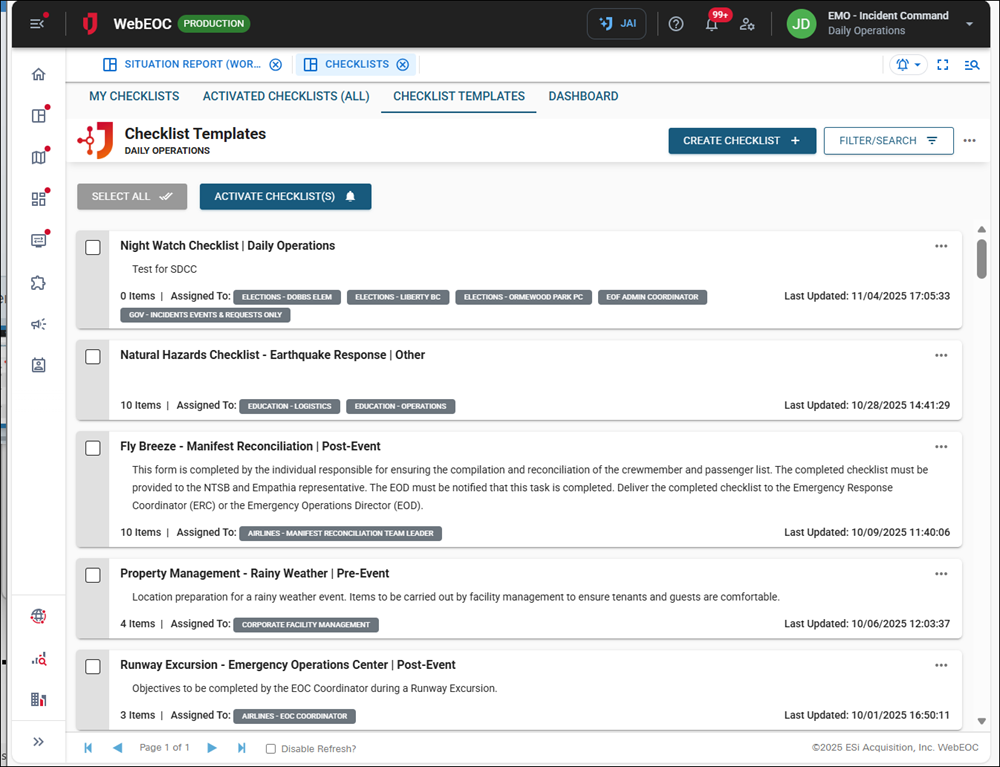
This tab stores a library of pre-configured checklists that can be activated as needed. Templates ensure standardization in operations and emergency response, allowing you to deploy checklists based on predefined processes swiftly.
On the Checklist Templates tab, you can:
Dashboard
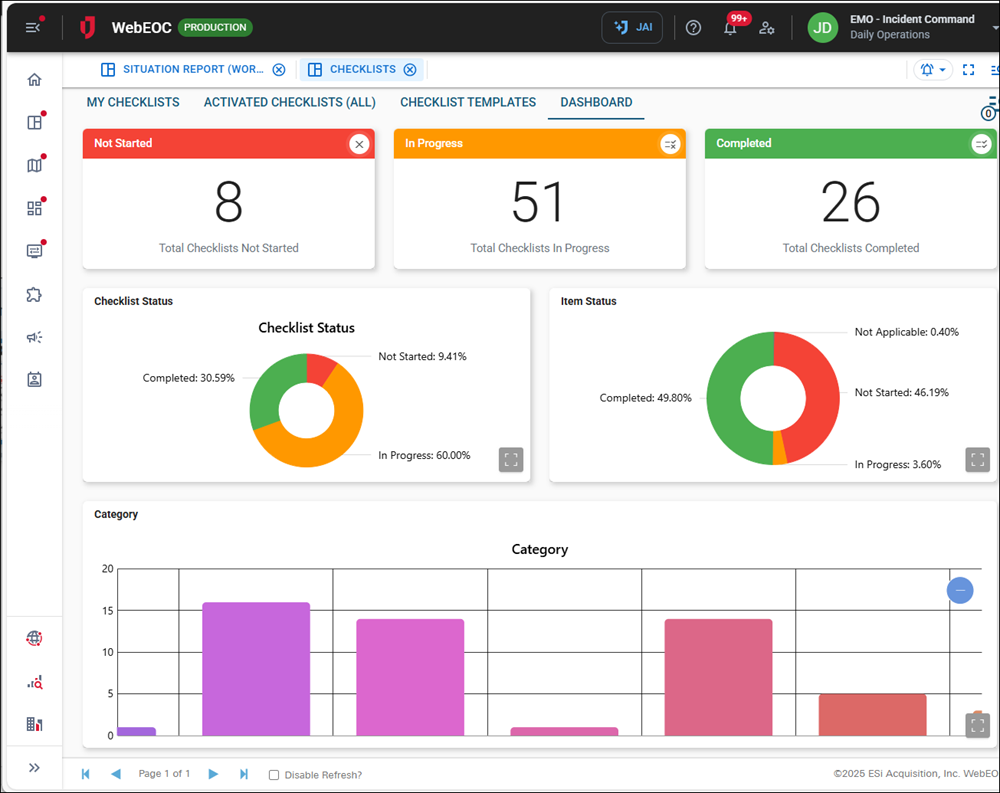
This tab provides a visual representation of checklist activity, offering insights into task progress and completion rates. It includes progress tracking for visual representation of active checklists, summary metrics for quick access to statistics on completed, pending, and overdue tasks, and graphical reports for viewing charts and graphs that summarize checklist performance.