View Notification History and Reports
The history can be refreshed using the refresh  button in the upper right. You can also filter the list by clicking Last 7 Days or Last 30 Days at the top of the list or search for specific terms in the search bar.
To view the notification history and history reports, follow the instructions by expanding the headings below.
 View notification history
-
On the main menu, click
 Notification Management. The Notifications page opens.
 -
Click the History tab.
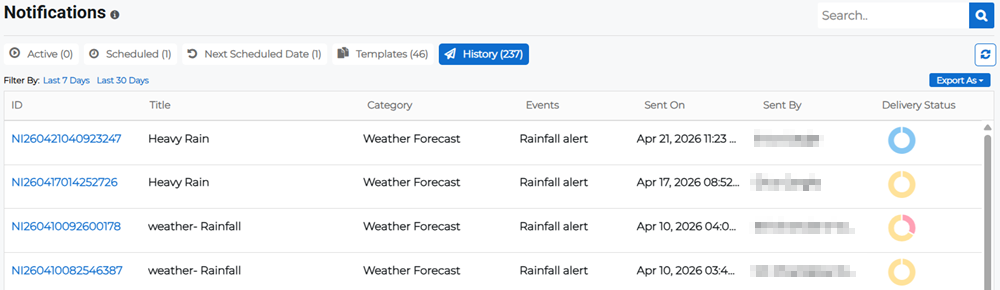
This list displays all notifications that have been sent, along with the notification ID, the notification's title, category, and event type, when it was sent, who sent it, and the delivery status.
Export the notification history
-
On the main menu, click
Notification Management. The Notifications page opens. -
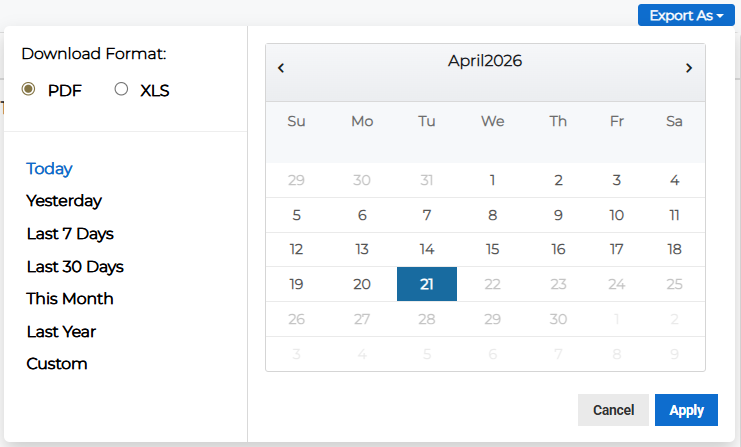
Click the History tab, then click the Export As button in the upper right. The export dialog opens.
-
Specify whether you want to export the list in PDF or XLS format.
-
Specify a date range for the exported list. This ranges from today only, yesterday only, the last 7 or 30 days, this month only, the last year, or a custom date range.
-
Click Apply. The file downloads automatically to your default download location.
View notification reports
The notification report informs you of the delivery success rate and status of the message notification that you have sent to one or multiple contacts.
-
On the main menu, click
Notification Management. The Notifications page opens. -
Click the History tab, then click the ID link for the appropriate notification. The notification details page opens.
-
Click the Report button in the upper right.
-
Review the following report panes:
-
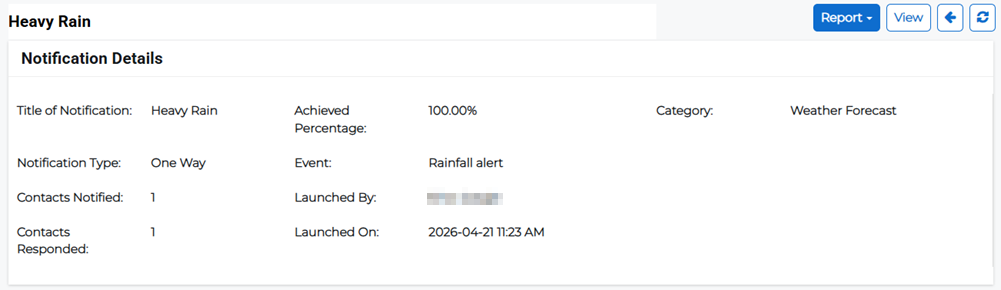
Notification Details: High-level statistics, such as notification title, type, category, event, number of contacts notified, number of contacts who responded, who launched the notification and when.
-
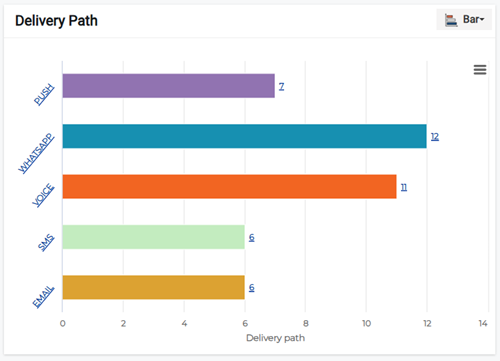
Delivery Path: Statistics about the delivery path methods used in the notification. This can be viewed as a column, pie, polar, line, bar, or tree chart.
-
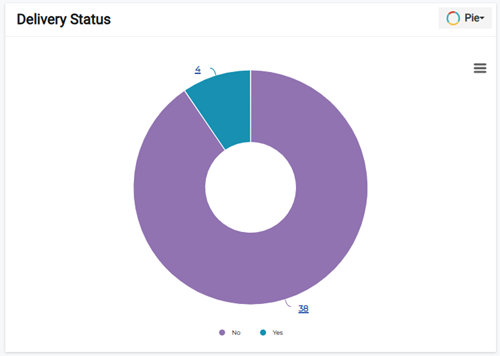
Delivery Status: Statistics about the delivery status of the notification. This can be viewed as a column, pie, polar, line, bar, or tree chart.
-
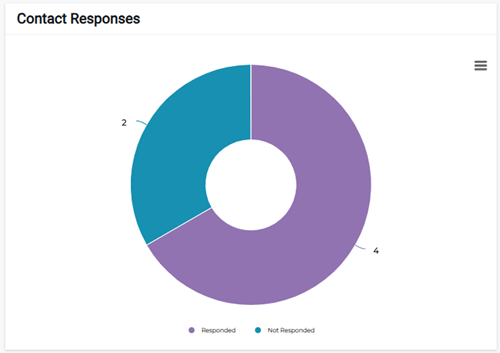
Contact Responses: If two-way response was enabled, statistics about how many contacts responded to the notification.
-
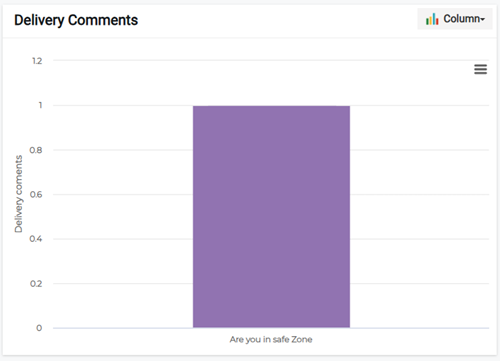
Delivery Comments: If the message is sent as a two way notification, you can view the graph by user response. This can be viewed as a column, pie, polar, line, bar, or tree chart.
-
Recipient Notification Cycle: View the recipients by notification cycle, including information about if and when they confirmed the notification.
-
Recipients: View the recipients by contact method or confirmation type. You can also search for recipients by name.
-
You can filter and view the Delivery Path and Delivery Status charts by Comment Type, Contact Type, Confirmation, Contact Name, and Send Date.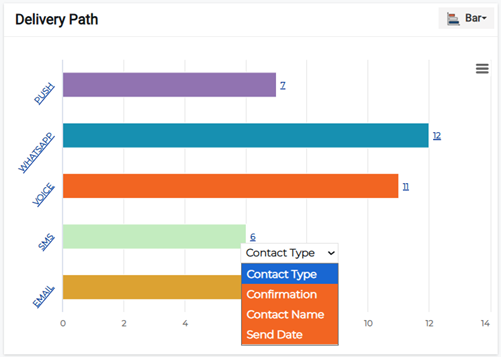
Click the menu  button for any of the charts to view the chart in full screen, print the chart, or download it as a PNG, JPEG, PDF, or SVG image.
Export the notification report
-
On the main menu, click
Notification Management. The Notifications page opens. -
Click the History tab, then click the ID link for the appropriate notification. The notification details page opens.
-
Click the Report button in the upper right. Ensure that you click the arrow icon within the button to open the export report menu.
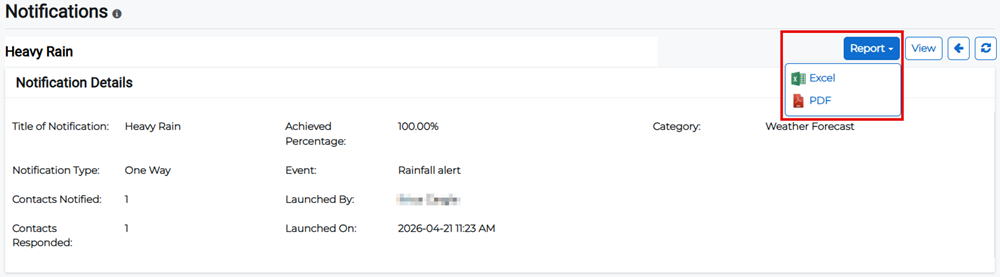
-
Select whether you want to export the report as an Excel or PDF file. The file automatically downloads to your default download location.