Manage Notifications
Notifications are split into five tabs on the Notifications page:
-
Active: Displays all notifications that are currently active.
-
Scheduled: Displays all notifications scheduled to launch in the future.
-
Next Scheduled Date: Displays all notifications that are scheduled to recur on a specific day/time.
-
Templates: Displays all draft and submitted notification templates.
-
History: Displays the history of sent notifications.
The list of notifications on any tab can be refreshed using the refresh  button in the upper right. You can also filter the lists by clicking Last 7 Days or Last 30 Days at the top of the list or search for specific terms in the search bar.
To manage notification templates, follow the instructions by expanding the headings below.
 Edit a notification template
-
On the main menu, click
 Notification Management. The Notifications page opens.
 -
Click the Templates tab, then click the template name link. The template details page opens.
-
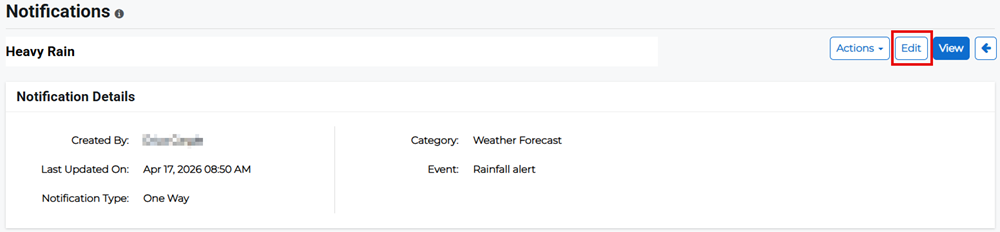
Click Edit in the upper right.
-
Edit the appropriate template details then click Submit.
Alternatively, if the notification is still in a draft status, click the Actions button for the appropriate notification template and select Edit from the menu.

Delete a notification template
-
On the main menu, click
Notification Management. The Notifications page opens. -
Click the Templates tab, then click the template name link. The template details page opens.
-
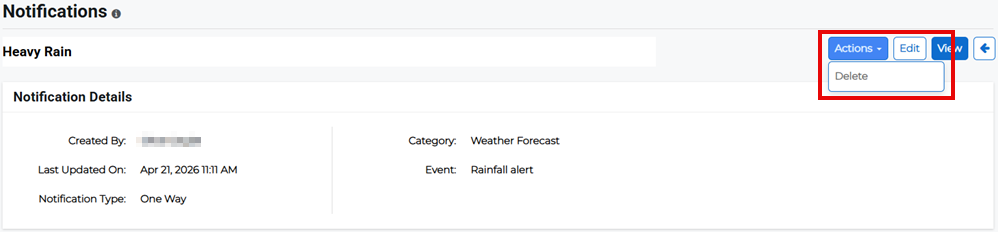
Click the Actions button in the upper right then select Delete from the menu.
-
Confirm the deletion.
Alternatively, if the notification is still in a draft status, click the Actions button for the appropriate notification template and select Delete from the menu.
Pause active notifications
-
On the main menu, click
Notification Management. The Notifications page opens. -
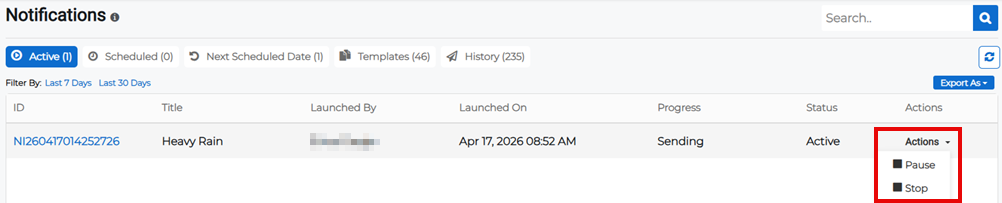
Click the Active tab, then click the Actions button for the appropriate notification and select Pause from the menu. This temporarily holds notifications from being sent.
Stop active notifications
-
On the main menu, click
Notification Management. The Notifications page opens. -
Click the Active tab, then click the Actions button for the appropriate notification and select Stop from the menu. This stops active notification from being sent permanently.
Export the list of active notifications
-
On the main menu, click
Notification Management. The Notifications page opens. -
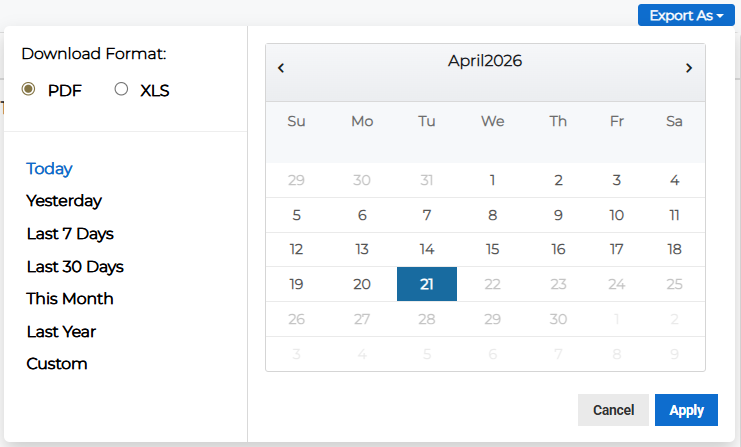
Click the Active tab, then click the Export As button in the upper right. The export dialog opens.
-
Specify whether you want to export the list in PDF or XLS format.
-
Specify a date range for the exported list. This ranges from today only, yesterday only, the last 7 or 30 days, this month only, the last year, or a custom date range.
-
Click Apply.
Pause scheduled notifications
-
On the main menu, click
Notification Management. The Notifications page opens. -
Click the Scheduled tab, then click the Actions button for the appropriate notification, then select Inactive to deactivate a scheduled notification. This temporarily holds notifications from being sent until they are reactivated.

-
To reactivate it, click the Actions button again and select Active.
Alternatively, pause scheduled notifications by clicking the notification's schedule ID link. The notification details page opens. Click the Actions button and select Inactive from the menu.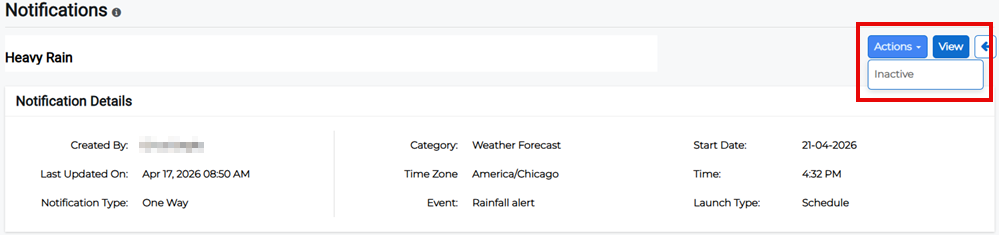
Pause recurring notifications
-
On the main menu, click
Notification Management. The Notifications page opens. -
Click the Next Scheduled Date tab, then click the Actions button for the appropriate notification, then select Inactive to deactivate a scheduled notification. This temporarily holds notifications from being sent until they are reactivated.
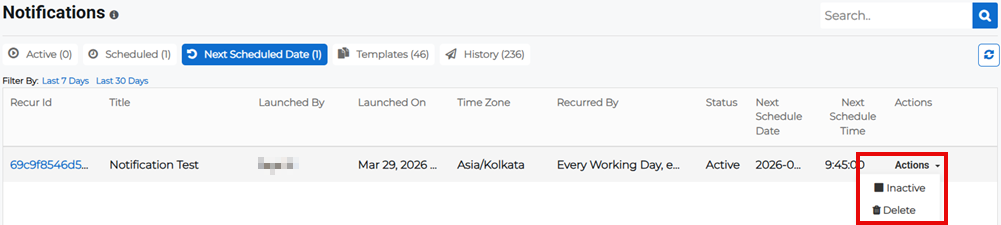
-
To reactivate it, click the Actions button again and select Active.
Alternatively, pause recurring notifications by clicking the notification's recur ID link. The notification details page opens. Click the Actions button and select Inactive from the menu.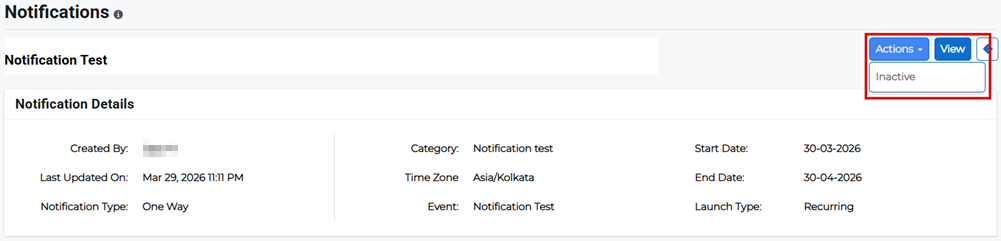
Delete recurring notifications
-
On the main menu, click
Notification Management. The Notifications page opens. -
Click the Next Scheduled Date tab, then click the Actions button for the appropriate notification, then select Delete.
-
Confirm the deletion.