Create a Shift
A shift is an organized time table, created to evenly distribute workloads across the team, and ensure there are enough members available during all shifts. A shift generally refers to any work schedule that is outside standard office timings. Shift work can include evening, night, and early morning shifts, as well as fixed or rotating schedules.
Example A customer support team who works six weeks of day shifts, followed by six weeks of night shifts.
This video demonstrates the steps below.
To create a shift
-
On the main menu, click
 Staff Scheduling. The Calendar page opens.
 -
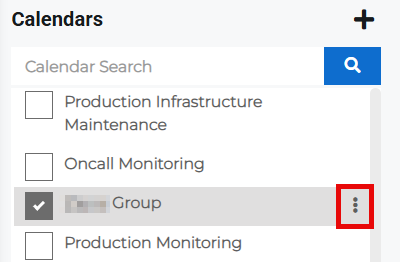
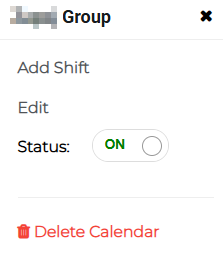
Select a calendar then click the more options button next to the calendar name. A calendar pop-up opens.
-
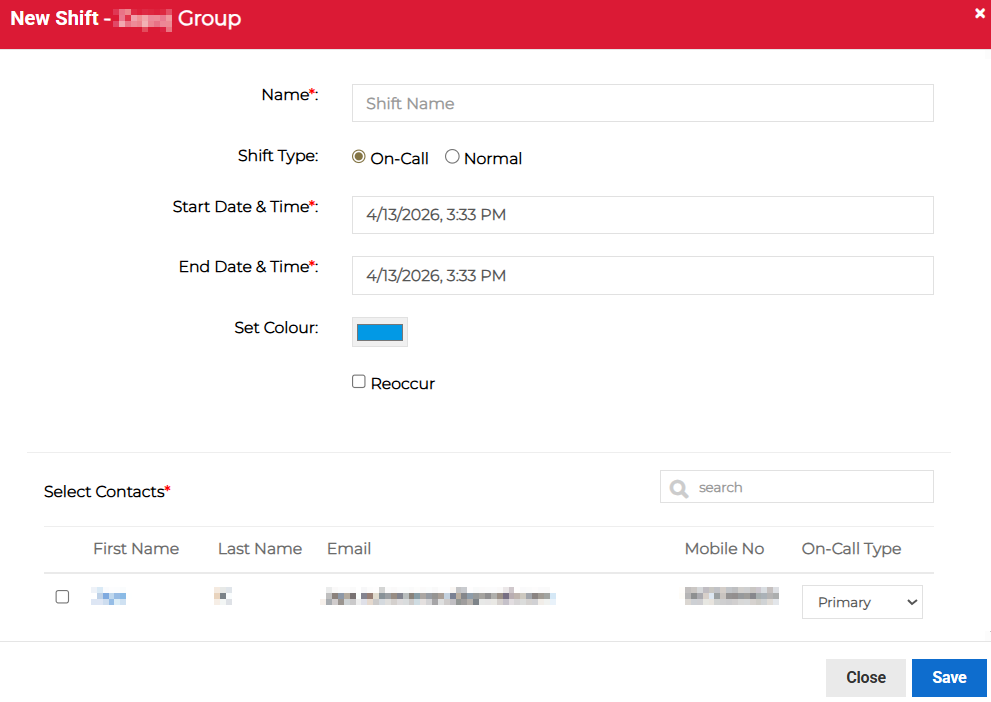
Click Add Shift from the menu. The New Shift dialog opens.
-
Enter the shift details:
-
Name: The shift name.
-
Shift Type: Whether the shift is an On-call or Normal shift type.
-
Start Date Time: The start date and time of the shift.
-
End Date Time: The end date and time of the shift.
-
Set Color: Specify the color that the shift appear as on the calendar.
-
Reoccur: Enable or disable depending on whether you want the shift to re-occur.
-
-
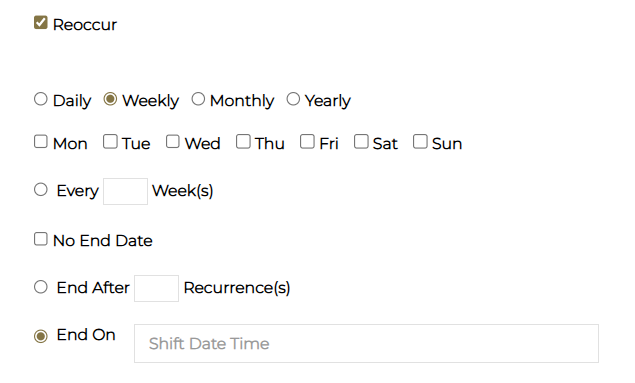
If re-occurance was enabled, specify the recurrence frequency: Daily, Weekly, Monthly, or Yearly. Additional options appear for weekly, monthly, and yearly selections.
-
Daily: Specify every number of days the shift recurs and after how many recurrences the shifts ends, if there is no end date, or give a specific end date for the shift to end.
-
Weekly: Specify the days of the week and every number of weeks the shift recurs, and after how many recurrences the shifts ends, if there is no end date, or give a specific end date for the shift to end.
-
Monthly: Specify the date and every number of months the shift recurs, and after how many recurrences the shifts ends, if there is no end date, or give a specific end date for the shift to end.
-
Yearly: Specify every number of years the shift recurs and after how many recurrences the shifts ends, if there is no end date, or give a specific end date for the shift to end.
-
-
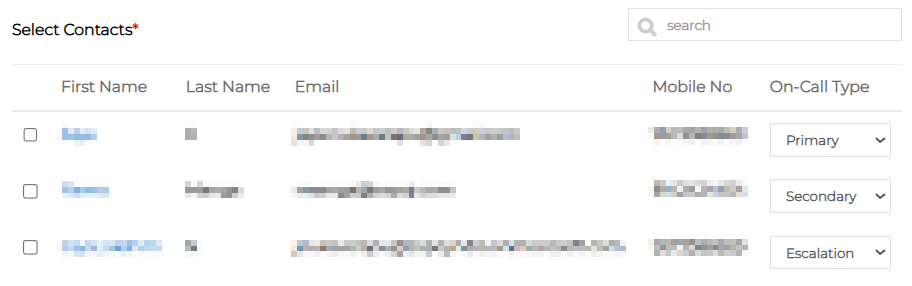
Select Contacts: Select the Primary, Secondary, and Escalation point of contacts for the shift.
The purpose of selecting multiple contacts is to provide alternatives if the primary contact is not available to respond to an incident. In this case, the alert is automatically sent to the secondary contact, and so on.
-
Click Save.