Create a Calendar
Staff scheduling allows admins to identify:
-
users who will be on-call
-
shift types (such as daily or weekly)
-
the start date/time for the schedule
Automated staff scheduling helps to deploy backups for primary critical employees, tracking and distributing the work schedule/hours, keeping track of time-off, and communicating with employees.
This video demonstrates the steps below.
To create a calendar
-
On the main menu, click
 Staff Scheduling. The Calendar page opens.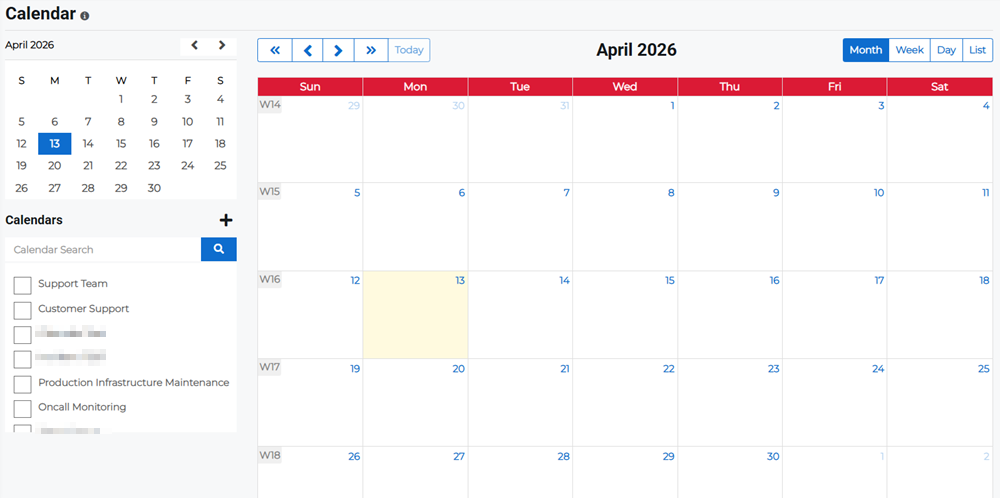
-
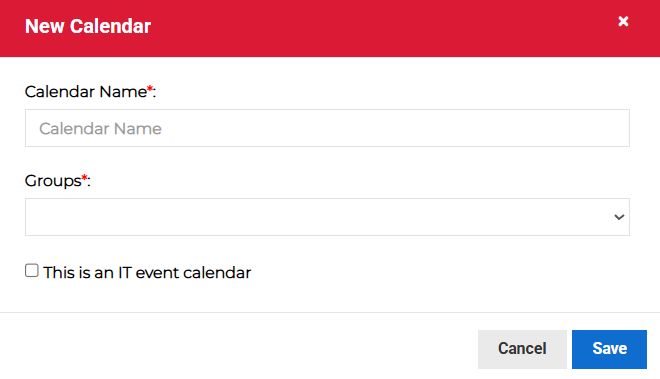
Click the + button next to the Calendars heading on the left side of the calendar. The New Calendar dialog opens.
-
Enter the calendar details and select the appropriate contact group.
-
Calendar Name: Give the calendar a name. This will be visible to anyone who has access to the calendar.
-
Groups: Select the contact group from the menu. For more information about groups, refer to Create a Contact Group.
-
This is an IT event calendar: Enable if this calendar is for IT Events. For more information about IT events, refer to IT Event Management.
-
Click Save.
Related Concepts
Related Tasks