Manage Calendars
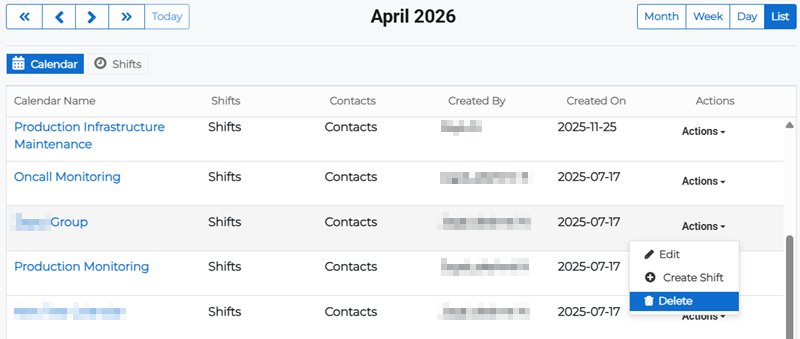
You can edit, disable, and delete calendars from within the Calendar page or the Calendar page List view.
This video demonstrates the steps below.
To manage calendars, follow the instructions by expanding the headings below.
 Edit calendars
-
On the main menu, click
 Staff Scheduling. The Calendar page opens.
 -
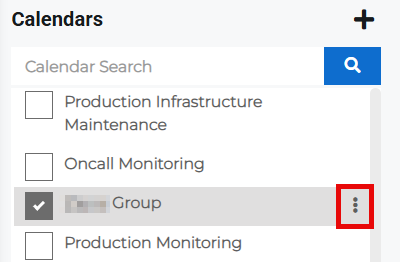
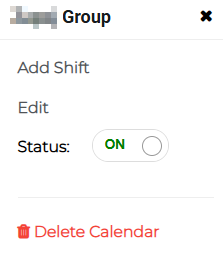
Select a calendar then click the more options button next to the calendar name. A calendar pop-up opens.
-
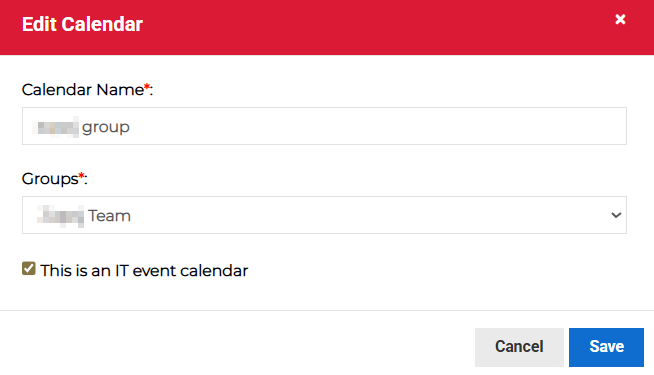
Click Edit from the menu. The Edit Calendar dialog opens.
-
Edit the necessary details then click Save.
Alternatively, you can edit the calendar from the calendar List view by clicking Actions for the appropriate calendar and selecting Edit from the menu.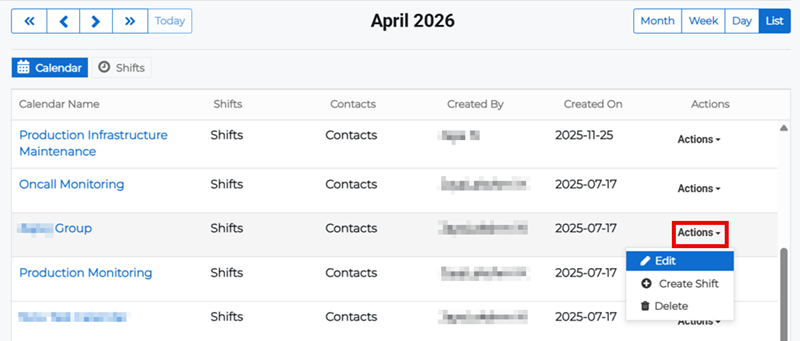
Disable calendars
-
On the main menu, click
Staff Scheduling. The Calendar page opens. -
Select a calendar then click the more options button next to the calendar name. A calendar pop-up opens.
-
Toggle the Status in the menu to either turn the calendar on or off.
Delete Calendar
-
On the main menu, click
Staff Scheduling. The Calendar page opens. -
Select a calendar then click Delete Calendar to delete it.
Ensure that you are careful about deleting calendars, as you are not prompted to confirm the deletion. Juvare ARC deletes the calendar as soon as you click the Delete Calendar option.
You can also delete calendars from the calendar List view by clicking Actions for the appropriate calendar and selecting Delete from the menu.
Related Concepts
Related Tasks