Manage Shifts
You can edit and delete shifts from within the Calendar page List view. To manage shifts, follow the instructions by expanding the headings below.
 Edit shift details
-
On the main menu, click
 Staff Scheduling. The Calendar page opens.
 -
Select the calendar that contains the shifts you want to edit.
-
Click List then select the Shifts button. The shift list displays the selected calendar shifts.
-
Click the Actions button next to the specific shift you want to edit, then select Edit from the menu. The Edit Shift dialog appears.
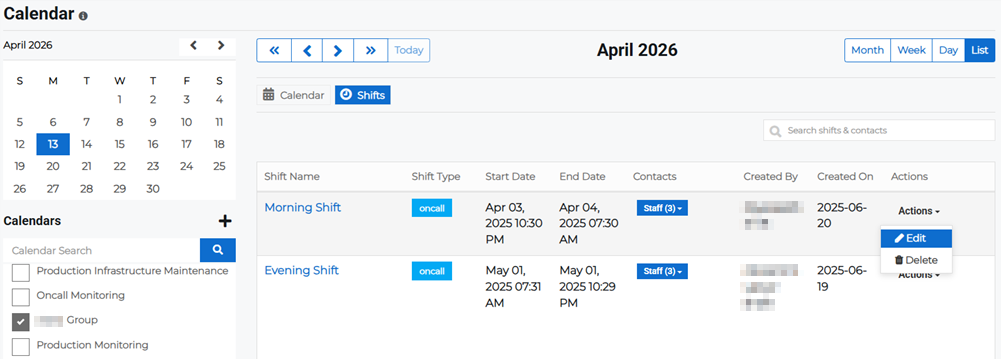
-
Edit the necessary shift details and click Save.
Delete Shifts
-
On the main menu, click
Staff Scheduling. The Calendar page opens. -
Select the calendar that contains the shifts you want to delete.
-
Click List then select the Shifts button. The shift list displays the selected calendar shifts.
-
Click the Actions button next to the specific shift you want to delete.
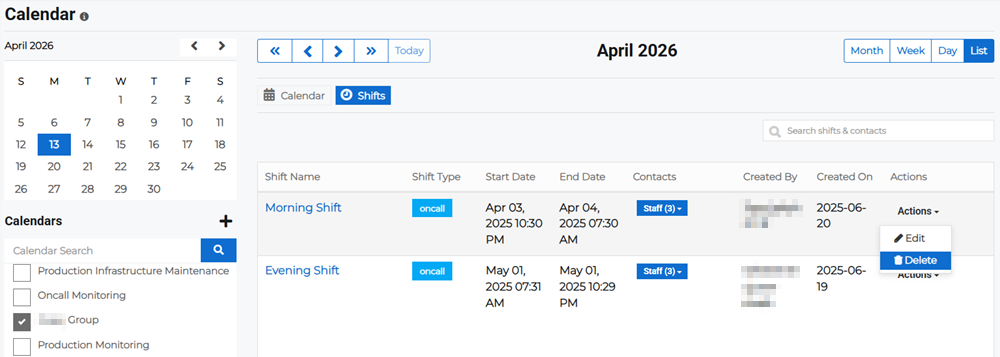
-
Click Delete then confirm the deletion.