View Calendars
The Calendar page allows you to access and view various calendars and shifts. The calendar can be viewed in different formats (daily, weekly, monthly) or in a list view to see all calendars or the shifts for a selected calendar.
To view calendars
-
On the main menu, click
 Staff Scheduling. The Calendar page opens.
 -
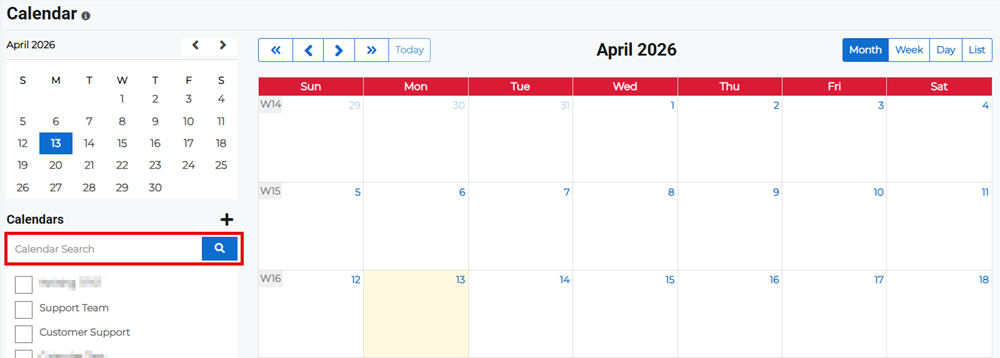
Search for the calendar you want to view.
-
Select the calendar in the list. The calendar details appear in the main view.
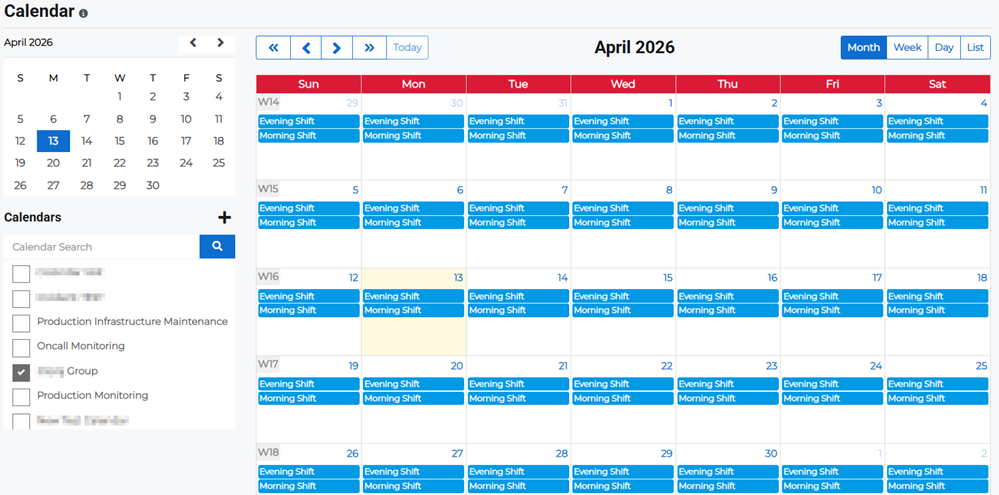
For more information about managing calendars or shifts, including how to edit them, refer to Manage Calendars or Manage Shifts.
To change calendar views or to view calendars and shifts in a list, follow the instructions in the headings below.
 Change calendar views
On the Calendar page, you can view calendars in a monthly, weekly, or daily view. Swap between views by clicking the view buttons in the upper right and selecting the specified time period using the calendar navigation controls in the upper left.
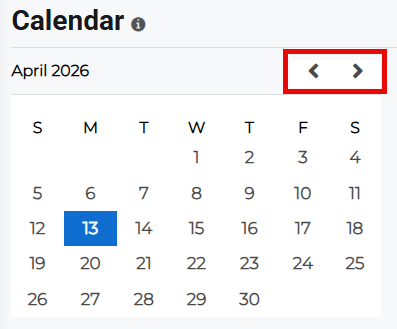
You can also scroll through the calendar by clicking the arrow buttons beside the mini calendar.
-
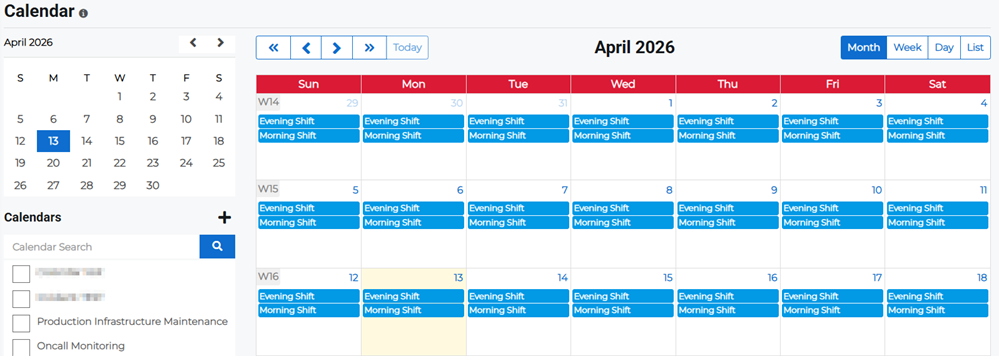
Month: Click Month to view the shifts for the selected month.
-
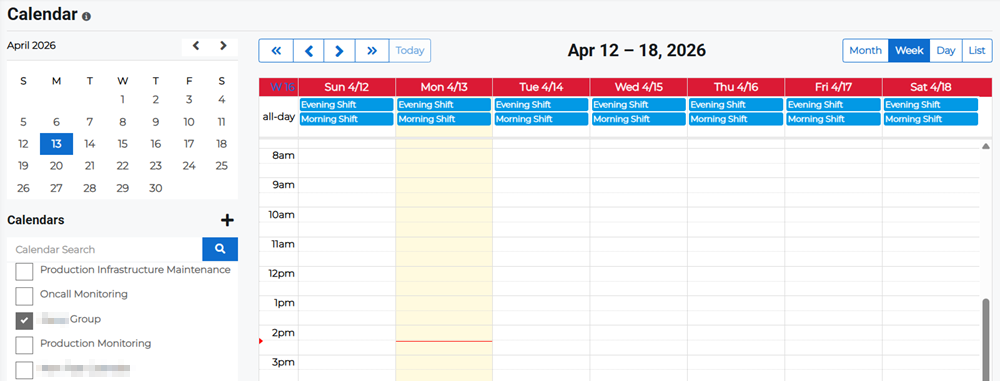
Week: Click Week to view the shifts for the selected week.
-
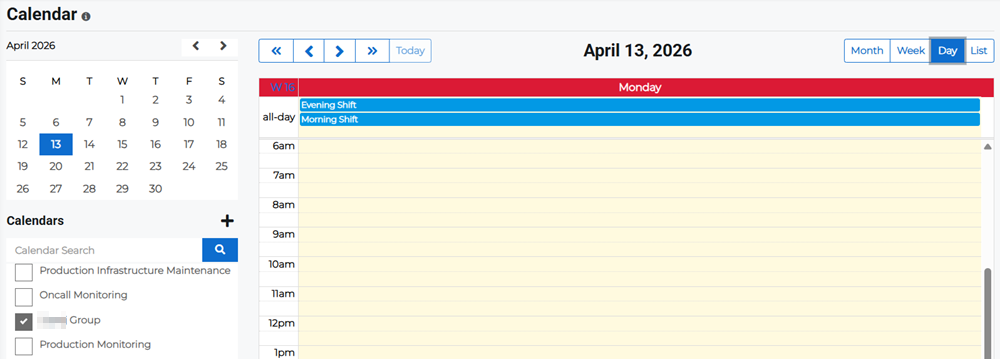
Day: Click Day to view the shifts for the selected day.
View calendar and shift lists
-
On the main menu, click
Staff Scheduling. The Calendar page opens. -
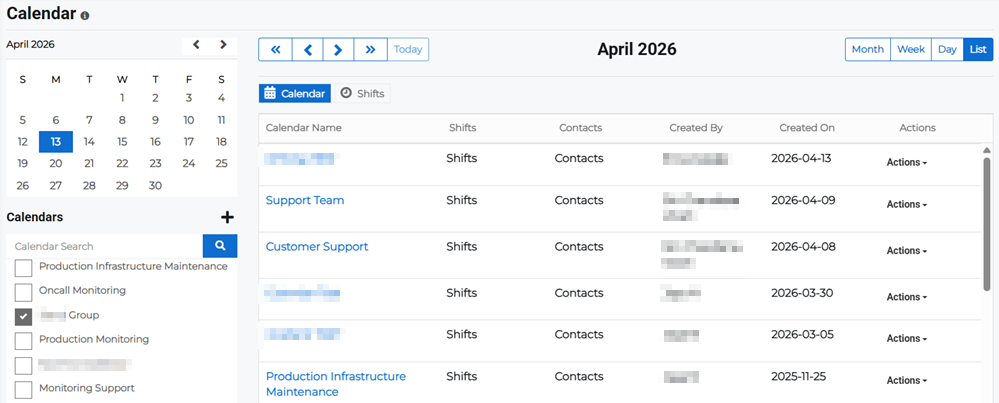
In the upper right, click List to switch to the list view. This shows the list of calendars, including who created the calendar and when.
-
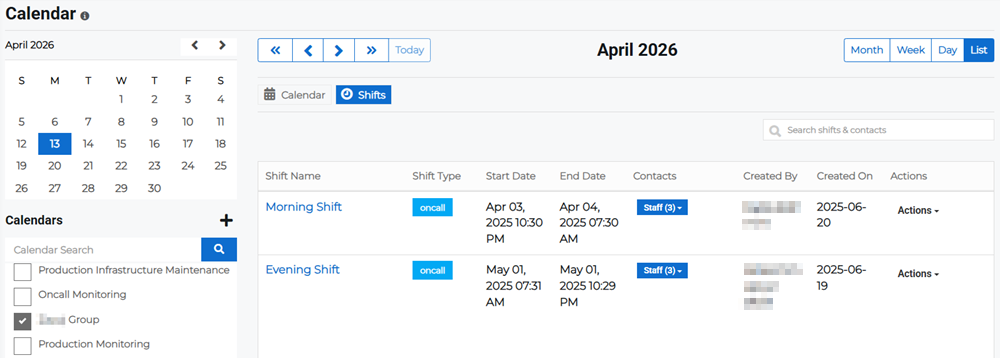
Click Shifts in the upper left to display the list of shifts for the selected calendar, including the shift type, start and end date/time of the shift, how many contacts have access to the shifts, who created the shift and when.
Related Concepts
Related Tasks