These notes describe updates in the WebEOC Nexus 10.21 release scheduled for August 21, 2026. More information is available in this help center or by contacting the Juvare Support Center at +1 (877) 771-0911 or support@juvare.com.
New Features
Accelerated Login Features
This version introduces new features to ensure your login to WebEOC Nexus is efficient while allowing administrators to customize the dialogs that display and the information that must be collected as users log in.
-
Always log in to the Default incident: If an administrator has configured an incident as the default incident (by selecting the Default checkbox on the Create Incident or Edit Incident page), mandatory, system-wide behavior is set:
-
Users always log in to the default incident
-
The Incident drop-down does not display on the Select Position and Incident dialog if it displays during the login process.
See Additional Login Pages for details.
If you use a default incident, all users are logged in to the default incident automatically. You may need to communicate this incident to your users, and let them know they can select a different incident after log in.
This feature was suggested through the Juvare Ideas Portal. We welcome your input to improve our products.
-
-
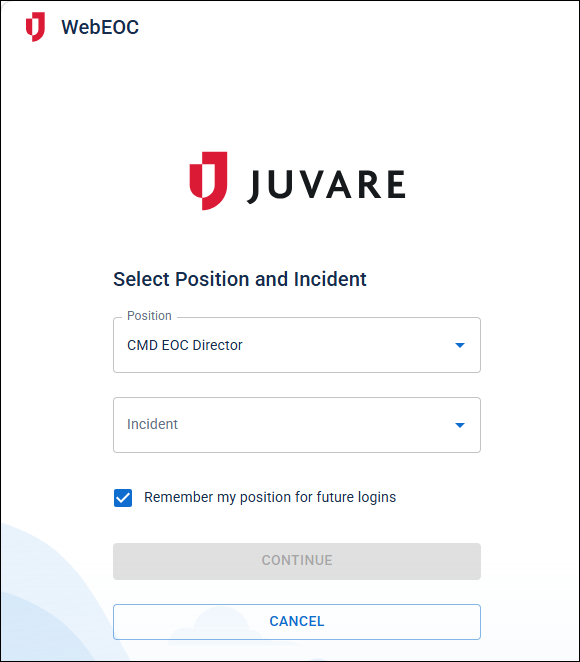
Last used position and incident populate the login page: If the Select Position and Incident dialog displays during the login process, and no default incident has been set, the position and incident that you last used will populate the Incident and Position drop-downs.
-
Position and Incident drop-downs are now searchable: If the Select Position and Incident dialog displays during the login process, the Position and Incident drop-downs now use type-ahead searching. Type in each field and matches display. These searches do not allow wildcards.
-
Remember my position for future logins checkbox: This checkbox has been added to the Select Position and Incident dialog. If checked, the Select Position and Incident dialog is skipped on future logins. If the checkbox is unchecked, the Select Position and Incident dialog displays again on the next login with fields pre-populated from the previously saved values. See Additional Login Pages for details.
-
Remember my information checkbox: A checkbox has been added to the Please confirm your information to proceed dialog.
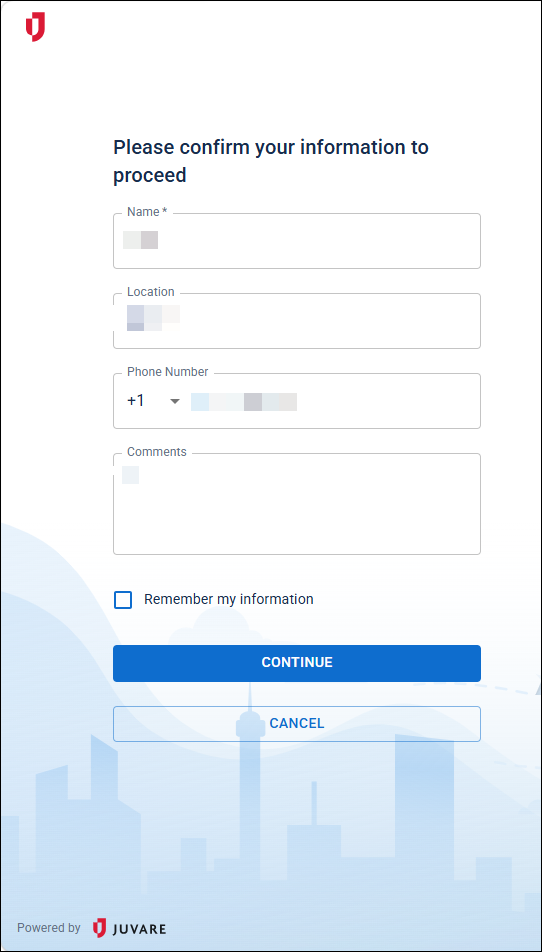
If this dialog displays at login, the user can enter the required data and select the checkbox to save it.
This page replaces the Additional Login Information page that displayed as part of the login process in previous versions of WebEOC Nexus.
See Additional Login Pages for details.
-
Current Instance Status Badge
 A configurable label that identifies the current system environment, such as Training or Test, across multiple instances. Sync: Administrators can now enable an option to automatically display each user's current session Active login period for a user in WebEOC Nexus, visible to administrators who can view and terminate sessions through Sessions Manager. incident on the instance status badge, so users can immediately view (and change) which incident they are logged into.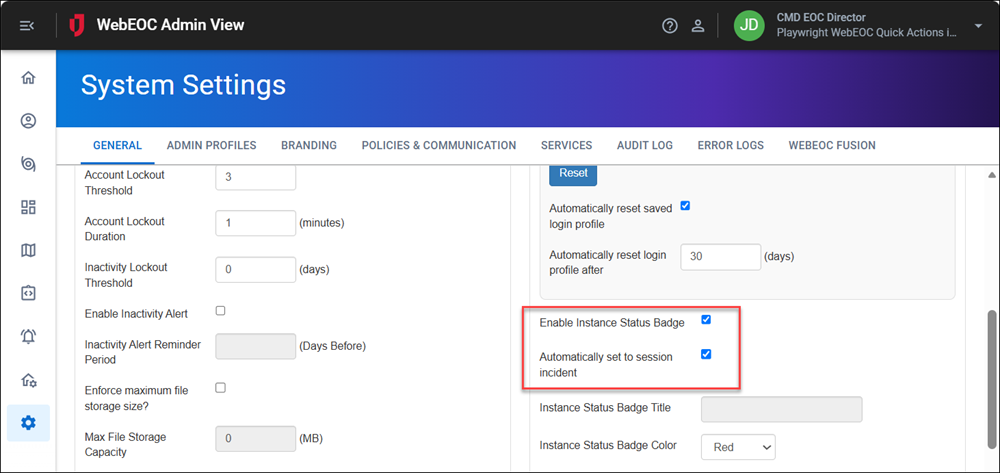
If the option is not enabled, the instance status badge behavior remains unchanged. See Configure an Instance Status Badge for details.
-
Reset Saved Login Info option: If your user account does not allow you to edit your profile, or you want to reset it for any reason, you can now reset the following saved data by clicking a button:
-
Position
-
Incident
-
Additional login information that has been set as required by the administrator, such as email or phone number
The next time you log in to WebEOC Nexus, you will be prompted to select and complete all required information. See Reset Saved Login Info for details.
-
-
Automatically Reset Login Profile Information: An Administrator can now set an option to automatically reset login information after a set number of days. Users must then enter their information again when they next log in to WebEOC Nexus.
This does not affect position or incident selections.
See Automatically Reset Saved Login Profile for details.
Archive, Restore, and Delete Positions and Groups
Administrators can archive positions, organizational groups A cluster of positions that, with process permissions, defines the structure for process flow., and feature groups they no longer need and restore them later. Archived positions and groups are removed from the platform and from board notifications, so they no longer clutter selection lists.
Archiving is a safe alternative to deleting positions and groups because archived positions and groups retain history and allow administrators to restore them later if needed. After archiving a group or position, administrators can also permanently delete them if compliance or policy requires full removal.
Your WebEOC Nexus configuration likely uses two types of groups, organizational groups and feature groups, to allow users to access features and workflows, and to control the access level to data along the way. Before archiving or deleting a group, ensure that any positions in that group are assigned to the correct group to maintain the required access. The same goes for positions: ensure that the position’s users are assigned to another position with the access they need before deleting the position. There is no need to remove the positions or users from the groups and positions, they will be automatically unassigned as part of the archive process.
When a position is archived, that position is:
-
Unassigned from all organizational groups and feature groups.
-
Unassigned from all users.
-
Removed as an option in all drop-down lists, including the Profile drop-down in the top right and the Position drop-down on the Positions and Incidents Selection dialog that may be visible during the login process.
-
Displayed on the new Archived Positions page.
-
No longer visible in the platform or on reports
When a group is archived, that group is:
-
Removed as an option in all drop-down lists.
-
Unassigned from all positions.
When a position is no longer assigned to a feature group A group that grants positions access to features such as boards, maps, links, menus, and plug-ins., users assigned to that position no longer have access to a feature, such as a board, at a certain permission level, for example, Admin. Only archive groups after users have been assigned to the necessary feature or organizational group.
-
No longer visible in the platform or on reports
-
Displayed on the new Archived Groups page.
On the Positions page and Groups page, the Delete icon that appeared on the right of each record in previous versions has been replaced with an Archive icon.
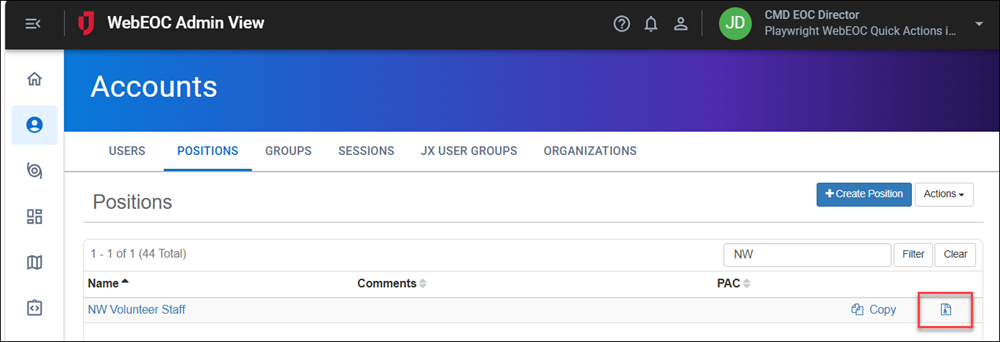
Click this icon to access the new Archived Positions or Archived Groups page, where you can view, restore, or permanently delete a position or group.
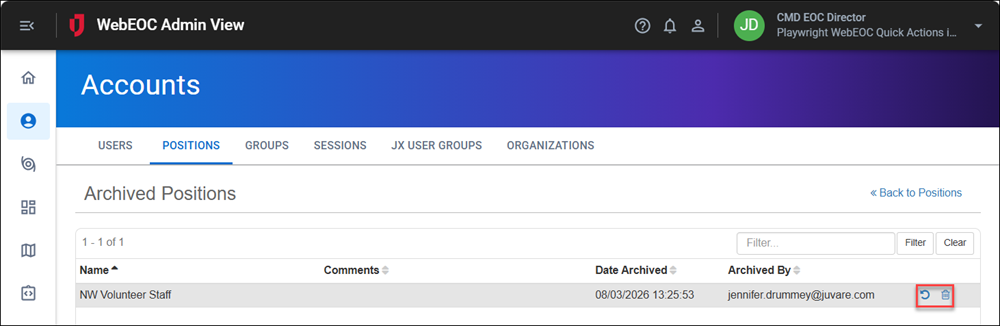
See Archive, Restore, and Delete Positions and Archive, Restore, and Delete Groups for details.
Enhancements
Boards Device Type Defaults to Desktop and Mobile
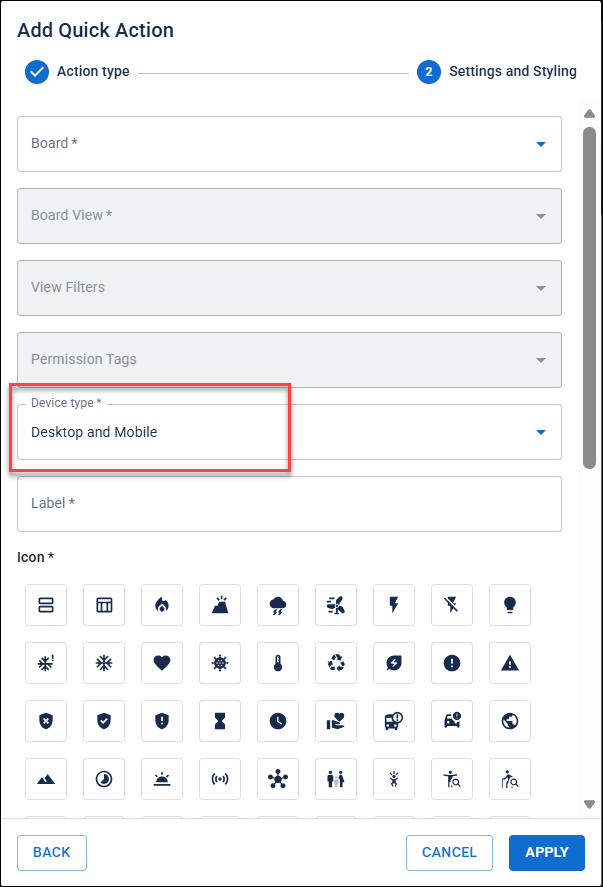
When assigning boards to groups, group items, subscription boards, and homepages The page displayed at login containing company messages, Quick Actions, and essential boards., the Device type now defaults to Desktop and Mobile. Previously, the default was Desktop only, so boards assigned with the default did not appear in the WebEOC mobile app — a common source of confusion.
Manage System-Wide Message from Homepage Builder
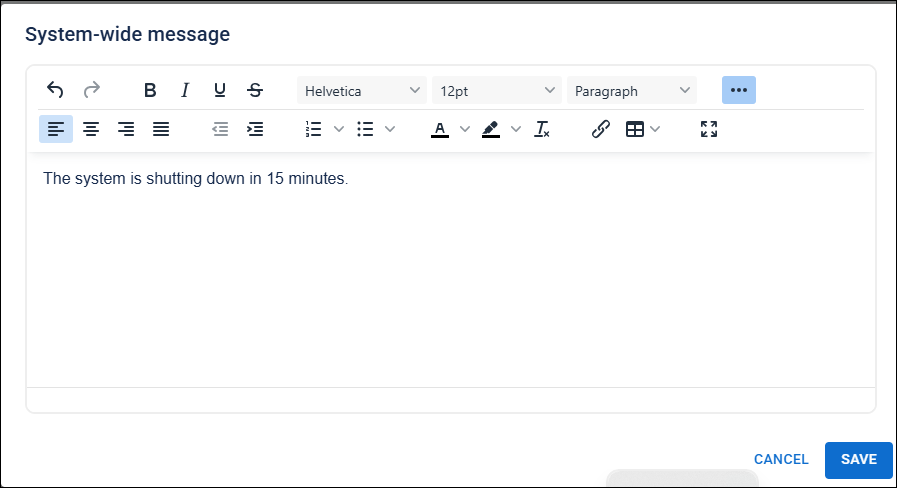
Administrators can now create, edit, and clear the agency-wide system-wide message Configurable message displayed below every homepage banner containing text and links, with expandable Show More/Less controls. directly from the Homepage Builder using a rich-text editor, without switching to the legacy admin screens. The message continues to appear above the Quick Actions A clickable card or button on the homepage that provides one-click access to a board, map, external URL, or alert. widget on the user homepage exactly as before. See Set a System-Wide Message for details.
Comments Export
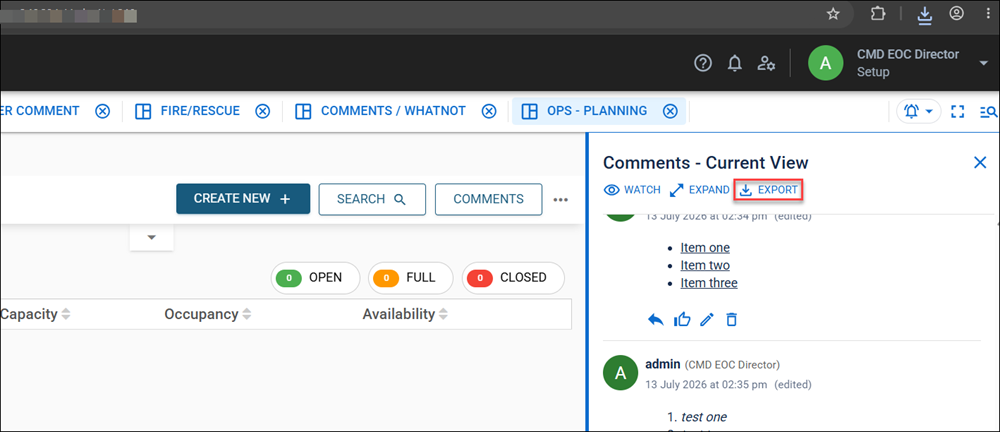
You can now export board comments to a CSV file for use as an audit trail. See View, Create, and Manage Board Comments for details.
Unused Security Options Fields Removed from General Tab
On the System Settings page, on the General tab, these fields have been removed as they are not used with Juvare Login Services (JLS Juvare Login Service. An Identity and Access Management (IAM) system powered by Okta.):
-
Allow Password Reset
-
Enforce Password History
-
Password History
-
Account Lockout Duration
These fields have been renamed to apply to the Account Type of Service only:
-
Enforce Strong Passwords for Service Accounts
-
Minimum Password Length for Service Accounts
Accessibility
Keyboard focus order updated to preserve meaning and operability (accessibility, WCAG 2.4.3).
REST API Enhancements
The following new archive group endpoints are available:
-
Get Archived Group Names, which returns a list of archived groups
Get Group Names does not return any archived group names.
-
Archive Group, which allows you to archive a group
-
Restore Group, which allows you to restore archived groups
Additionally, for use in reporting and audit trails, the Get Audit Logs endpoint allows you to pull audit log Tracks and records administrative events that occur in WebEOC Nexus; supports monitoring and assessment of administrator/user activities; aids in troubleshooting. records from your WebEOC Nexus instance for a date range.
Resolutions
-
Board error after upgrade: Fixed an issue that occurred after upgrade that caused a board error, "User has been logged out," to display. With the fix, there is no timeout for user sessions during board rebuilds.
-
Copy and paste error from generated PDFs: Fixed an issue when copying and pasting group and board names with hyphens in them from a generated PDF. If you copied this text into a search filter on the board, the search returned no results, as it did not include the hyphen in the pasted text. With the fix, copying from a generated PDF lets you paste and search for group and board names with hyphens on the board.
-
Incident deactivation type-ahead search: Fixed an issue that occurred after an admin deactivated an Incident. Any user who tried to log in with the deactivated incident saved in their logon information could not use the type-ahead search feature in the Select Position and Incident dialog. If you typed in the Position and Incident drop-downs, no matches displayed. With the fix, deactivating an incident does not prevent type-ahead search from working.
-
ArcGIS Enterprise bi-directional sync: Fixed an issue when the bi-directional ArcGIS Enterprise feature services failed to sync. With the fix, the ArcGIS Enterprise feature service now syncs bi-directionally with WebEOC Nexus.
-
Local ArcGIS geocoder authentication: Secured Local ArcGIS geocoders no longer break when the token parameter name is blank. Now, a local ArcGIS geocoder saved with a blank Token Parameter Name defaults to "token" and authenticates successfully against a secured ArcGIS server.
-
ArcGIS shapefile synchronization: Fixed an issue with ArcGIS shapefile synchronization. A WebEOC feature service created against a supplied AGOL shapefile-derived feature now synchronizes successfully — records flow between WebEOC Nexus and ArcGIS — without an error.
-
Webhook messages with double quotes: Fixed an issue that caused a message sent through the Webhooks channel to fail if it contained any board field values with a double quote ("). Now, board field values are properly escaped, and webhook notifications can be sent.
-
Rich Text Editor host-matching links: Rich Text Editor components no longer convert host-matching links to relative links.
-
Active Users plug-in name: On the System Settings page, on the Services tab, in the Paid Features section, the Active Users plug-in is now referred to with the correct name.
Juvare Exchange (JX)
If a published board is renamed, the name is updated in all of that published board’s subscription boards.
Updates to Contacts
Contacts Enhancements
-
Archive, Restore, and Delete Accounts, Notification Groups, and Organizations
-
Archived accounts, notification groups, and organizations are automatically removed from alert templates and board notifications and no longer appear as recipients across the platform.
-
Restored accounts, notification groups, and organizations are reassigned to the alert templates and board notifications they belonged to.
-
Filters and organization / notification-group views now handle archived entities correctly, and the default organization can no longer be archived or deleted.
For details, see:
-
-
Default Organization Memberships: Client Admins and System Admins can designate one organization as the default organization. All accounts created going forward will be assigned as members. See Set a Default Organization for details.
-
Organization logo available in public and anonymous data: Organization logos were not available on the public registration organization-selection screen because anonymous API responses always hid the hasLogo value, and organizations did not support anonymous attachment access. Now, logos are available only for visible organizations. Public users can now see an organization’s logo during selection, while logos for non-visible organizations remain protected and unavailable.
Contacts Resolutions
-
Archived tab failure to sync issue: In previous versions, the Archived tab for accounts did not update when you customized the List view on the Active tab. Now, the Archived tab updates to match the Active tab. If you customize the column titles or filter settings on the Active tab List view for accounts, the Archived tab automatically updates to match the Active tab.
-
Status-change subscription callbacks for organizations and groups: Previously, features that stored organization or group IDs were not notified when those records were permanently deleted, which could leave invalid references in downstream data. This fix adds subscription callbacks for organization and group deletions. Downstream features can now register during initialization and react appropriately when an organization or group is removed.
Updates to Alerts
Alerts Resolutions
-
Notification group archive option: Fixed an issue where, when picking notification groups as recipients for alerts, an Archive option displayed for each group. Now, this invalid option no longer displays.
-
Archived recipients receiving alerts: Fixed an issue where alerts were being sent to archived accounts, notification groups, and organizations.
-
Stale excluded alert recipients: Fixed an issue where excluded recipients could remain in drafts and templates after their account, notification group, or organization was no longer active. This caused inaccurate counts of excluded recipients and, in some cases, an empty list behind the “View List” button. With the fix, stale exclusions are automatically removed when their source is no longer valid, while active and restored recipients continue to behave correctly. Historical sent or archived alerts remain unchanged.
Previous Versions
Release notes for previous versions are available here.