Add a User
To add a new user
-
On the main menu, click
 Users. The list of users with their name, respective role, creation date, and creator name displays on the main page.
 -
To change how the information is presented (list or grid view), click the view buttons at the top of the users list.
-
List view

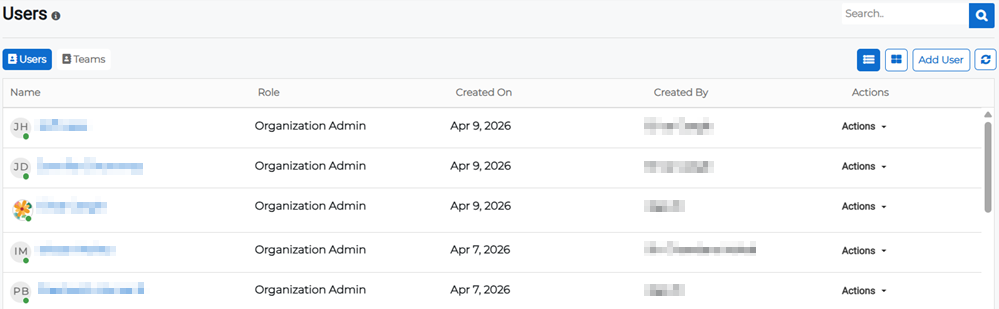
-
Grid view

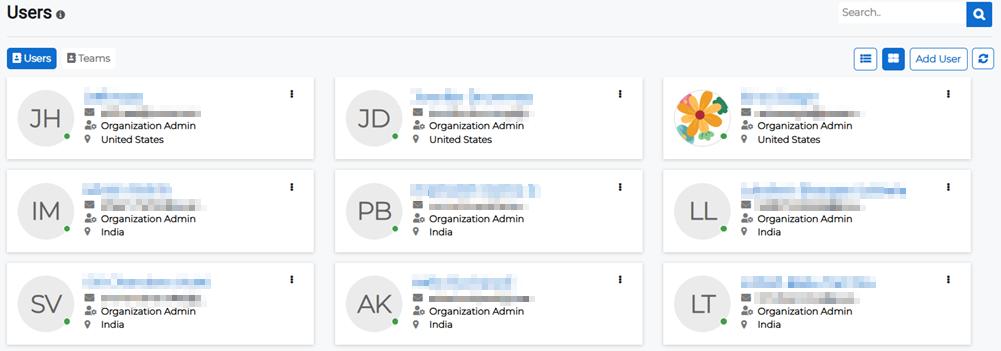
The default view is the list view.
-
-
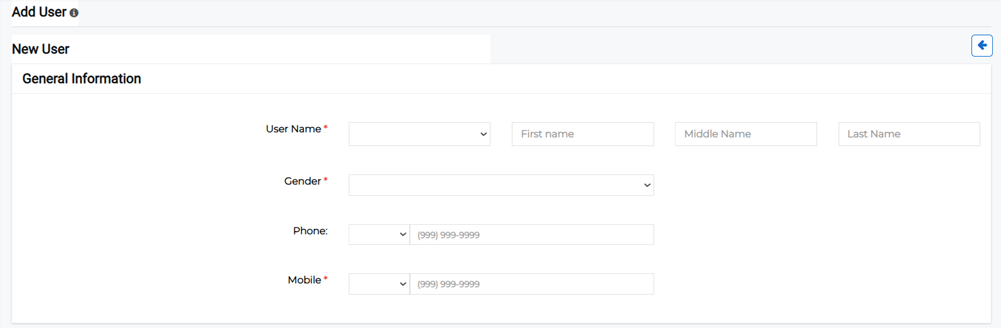
Click the Add User button in the upper right. The Add User page opens.
-
Under General Information, enter the account details of the user:
-
Username
-
First, middle, and last name
-
Gender
-
Contact numbers (at least one is required)
-
-
Under Account Details, enter the account security details:
-
Email: this is a required field.
-
Security Questions Count: the number (1-3) of security questions that must be answered.
-
-
Under Roles, assign one or more roles to the user. For more information about assigning roles, refer to Assign Roles to Users.
-
Under Contacts, select a contact to associate the user with. If the contact isn't listed, you can edit the user later after the contact has been created to select it.
-
Under Address, enter the following required fields:
-
Address Line 1
-
Apartment/Suite
-
Country
-
State/Province
-
City
-
Postal Code: also known as Zip Code in some regions
-
-
Click Locate to populate the map with the location and fill in the latitude and longitude.
-
Click Save.